Mail merge: what it is and how to do it step by step
What it is and how to do it in Word, Excel and Gmail, step by step
Mail merge is an email marketing technique that lets senders personalize bulk email messages.
This technique consists of inserting personalized information (such as the recipient’s first name, last name or any other relevant data) into an email template.
Mail merge uses data from an external source, such as a spreadsheet or a database, to personalize each message sent to multiple recipients.
This way, each email looks as if it had been written individually.
The origin of mail merge
Mail merge has its roots in the pre-email era, when it was mainly used for sending physical mail and printed documents to personalize bulk letters.
With the advent of email and the development of more sophisticated software, the technique evolved to adapt to the digital world.
That is how it became a common tool in email marketing.
The ability to personalize mass emails transformed the way companies communicate with their customers, allowing for a more personal and effective approach.
![Infographic showing how a mail merge works: a spreadsheet with the columns email, name and city, a template with the greeting "Hi, [Name]" and three personalized emails for Ana, Luis and Marta](https://mailrelay.com/wp-content/uploads/2026/10/como-funciona-un-mail-merge.png)
Personalize thousands of emails in one click
Use custom fields (name, city, company…) in the subject line and body of every email.
How to do a mail merge step by step
You need two things: a list with each recipient’s data, usually an Excel or Google Sheets spreadsheet with one column per field (email, name, company…), and a message with placeholders where that data will go.
Mail merge in Word with an Excel list
- Prepare the Excel file: put the data on the first sheet, with the column names in the first row.
- In Word, go to Mailings > Start Mail Merge > Email Messages.
- Click Select Recipients > Use an Existing List and choose your Excel file.
- Write the message and add the data with Insert Merge Field (for example, the name in the greeting).
- Check how each email looks with Preview Results.
- Click Finish & Merge > Send Email Messages, choose the email column and type the subject line.
For Word to send the emails, you need Outlook installed on your computer and set up with your account.
Mail merge in Gmail
Gmail has its own mail merge feature on some paid Google Workspace plans, such as Business Standard or Business Plus. It is not available in personal Gmail accounts. You turn it on with the multi-send mode button in the toolbar of the compose window. Then you type “@” to insert each recipient’s first name, last name or email address. With a personal Gmail account, you need a Google Sheets extension.
You’ll find the step-by-step process with Gmail and Outlook, and how to avoid spam, in the guide How to send bulk emails.
The limits of mail merge
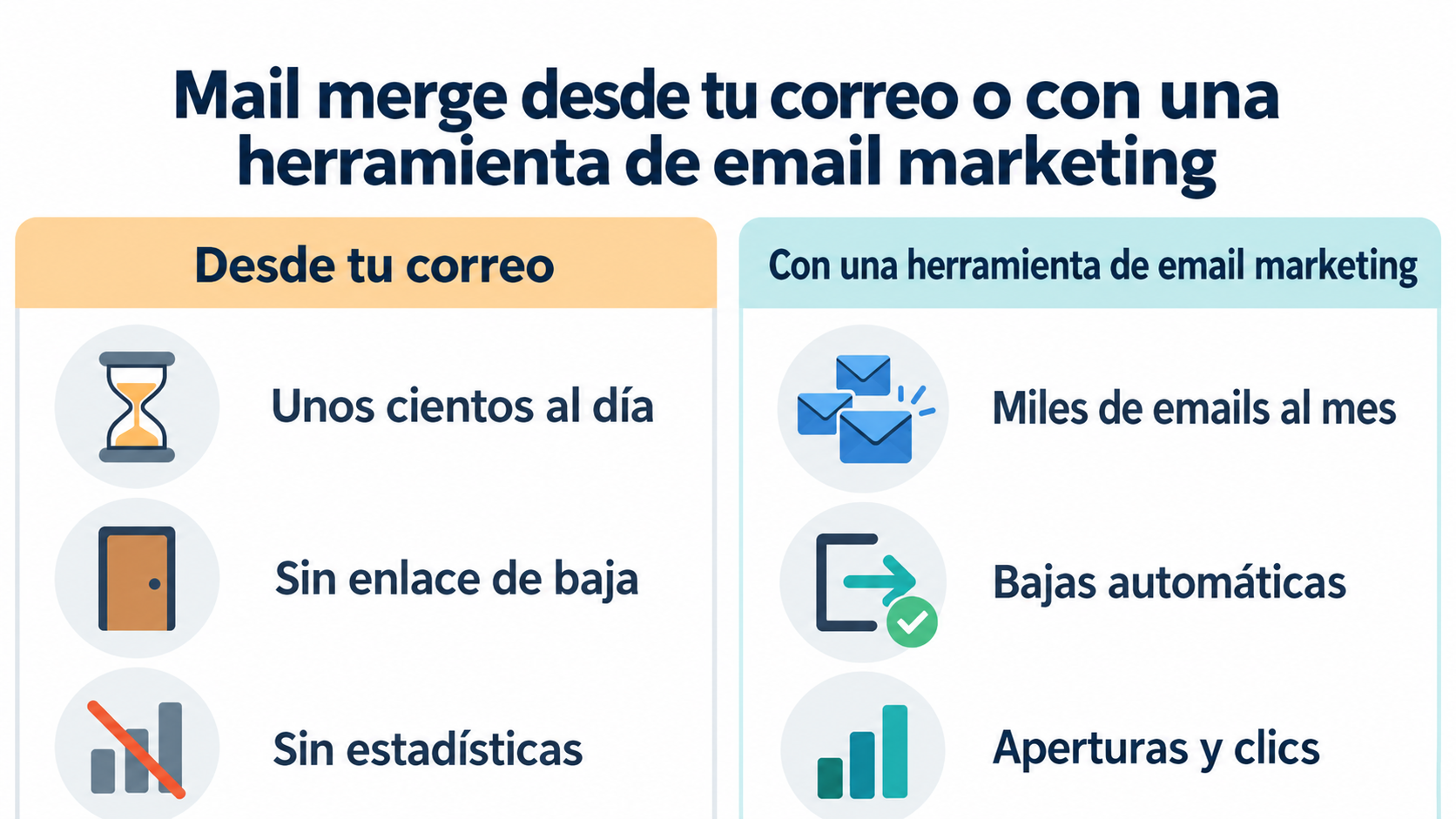
Doing a mail merge from your own inbox works for a few hundred emails. Beyond that, problems start to appear:
- Gmail and Outlook limit how many emails you can send per day (see sending limits).
- There is no unsubscribe link and unsubscribes are not managed.
- You can’t see who opened the email or who clicked.
- Your emails go out from your personal mailbox, without the authentication or the reputation of a sending platform.
Key considerations
To run a mail merge campaign effectively, there are several things to keep in mind.
The most important thing is the quality and organization of your data.
The data must be up-to-date, accurate and well segmented to ensure that the personalization is relevant and effective.
Choosing the right software for the mail merge also matters.
This software must be able to handle data efficiently, integrate with email marketing platforms and allow the creation of customizable templates.
Templates that can be easily adapted to the needs of each campaign.
Personalization must go beyond simply including the recipient’s name in the greeting.
Considering aspects such as purchase history, personal preferences and browsing behavior can help create highly relevant and engaging messages.
Benefits of mail merge
The importance of mail merge in email marketing cannot be overstated.
By personalizing emails, companies can significantly improve open and click-through rates, which in turn can increase conversion and customer retention.
Personalized emails tend to be more engaging for recipients, as they feel directly recognized and valued by the brand.
Mail merge also contributes to operational efficiency.
By automating the personalization process, companies can send thousands of personalized emails in a matter of minutes, which would be impossible to do manually.
This not only saves time and resources, but also allows for greater scalability of email marketing campaigns.
Another important benefit is improved audience segmentation.
By using detailed data to personalize messages, companies can target specific segments of their audience with messages that align with their interests and needs.
This increases the relevance and effectiveness of campaigns.
Mail merge or email marketing tool
| Mail merge (Word, Outlook or Gmail) | Email marketing tool | |
|---|---|---|
| Volume | A few hundred emails a day | Thousands or millions a month |
| Personalization | Spreadsheet fields | Custom fields, conditions and segments |
| Unsubscribe | No unsubscribe link | Unsubscribe link and automatic unsubscribes |
| Statistics | No | Deliveries, bounces, unsubscribes, opens and clicks |
| Design | Plain text or Word document | Newsletter template editor |
How Mailrelay helps you
With Mailrelay you do the same as with a mail merge, but on a much larger scale. You import your contacts from a CSV file, by pasting them, or from Mailchimp or HubSpot, and each column is saved to a field in the contact’s record: name, city or any custom field you create.
When you write the email, the “Variables” dropdown inserts that data into the subject line or the body. With conditions, you can show a block only to people who meet a criterion, for example, those who live in a given city. Unsubscribes are handled automatically, and addresses that hard bounce are not sent to again. The free account includes up to 80,000 emails a month and 20,000 contacts.
From mail merge to a professional newsletter
Templates, segmentation and statistics in one dashboard, without Gmail or Outlook sending limits.