
Perhaps we should start by explaining what the reason might be for disabling sender confirmation.
This system is implemented to guarantee the security of the system and prevent sending with poorly configured senders or from domains that are not authorized by their legitimate owners.
So, what could be the reason for disabling it?
Well, it’s basically something that customers like advertising agencies or press offices may request, since they send on behalf of several different clients and need a certain amount of agility when sending.
Another possibility is large companies that often send newsletters from new email addresses, for example to introduce new employees, projects, etc.
In these cases, it can be difficult to get the new senders authorized immediately with confirmation links, and if sending schedules and timelines need to be met, this can be an issue.
The solution, until now in V2, was to disable the check and delegate to the Mailrelay client agency the responsibility of making sure they have permission to send with senders from any B2B domain.
But this posed a security problem, since it required trusting the client’s word about having permission to use third-party domains, and even so, if someone gained unauthorized access to their panel, they could send from any sender or domain without authorization from its legitimate owner.
· In Mailrelay version 3, we have solved this problem.
From the panel, new senders can be configured without needing to verify them with the confirmation email URL, but for the system to accept them, an authentication code must be added to the sender domain as a TXT record in the DNS.
This guarantees that the owner will be aware and will have given permission, since it is impossible for anyone to modify this except the domain registrant in their control panel.
To enable it in the Mailrelay V3 panel, go to Newsletters / Senders and click the button on the right to access “Domain Confirmation”.
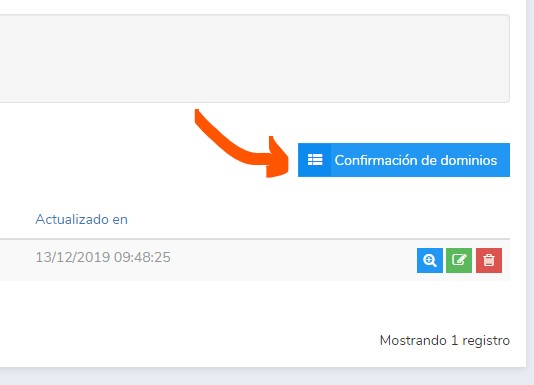
Once inside that screen, we click add and access the screen that tells us which entry we need to configure in the DNS:
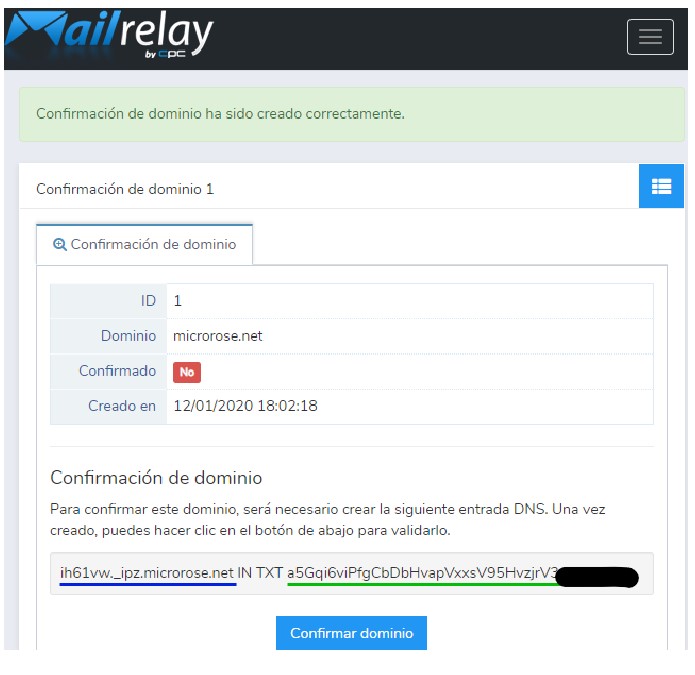
Specifically, it is a TXT record in a subdomain that we need to create.
In the screenshot above, the part underlined in blue indicates the subdomain, and the part in green shows the content the TXT record must have.
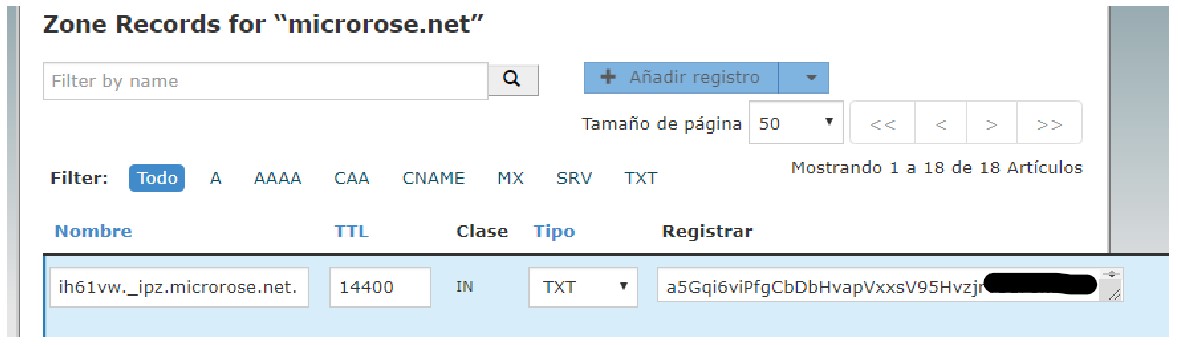
This is how it would be added, for example, in the Cpanel DNS zone editor, by selecting configure domain and “Add Record”, choosing type TXT:
Once configured, we can go to the Mailrelay panel and click Confirm Domain (on some DNS panels the change might not be immediate and could take a while to be ready).
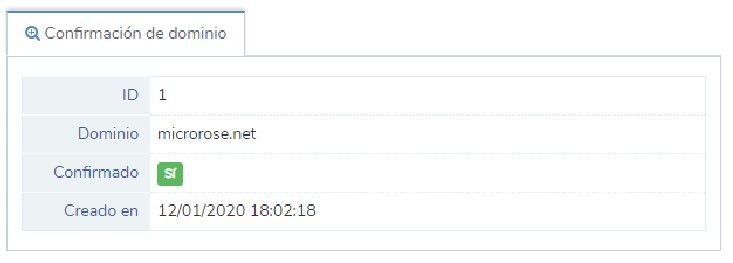
If everything is ok, we will see this report and we will then be able to use any email from that domain as a sender without needing to confirm it:
To finish, it’s worth mentioning that the TXT record and the subdomain where it needs to be added are unique for each Mailrelay account, so unconfirmed senders from that domain can only be added in the panel of the account that generated them.
This is just one of the many configuration options available: in Mailrelay features you can see the rest, and if you’re not yet familiar with the platform, in what is Mailrelay you’ll find a complete introduction.