Email signature: what it is, what to include and templates
The parts of a good signature, 6 ready-to-use templates and how to add it in Gmail and Outlook
An email signature is the block of text added at the end of your emails with your name, your job title and your contact details. It can also include your company logo, your website or your social media profiles.
Think of it as the business card of every email. Whoever reads it knows who you are and how to reach you without having to search through previous messages.
And since you set it up once and it’s added automatically, all your emails go out with the same look.
What is an email signature and what is it for?
It’s the final part of an email, right after the message body and the sign-off. It’s part of the email structure, along with the subject line, the greeting and the body.
It helps identify you, build trust and make it easy to get in touch. In a corporate email, a clear signature conveys professionalism. In a sales email, it can lead the reader to your website or to a meeting.
It’s also known as an email sign-off or signature block.
What should an email signature include?
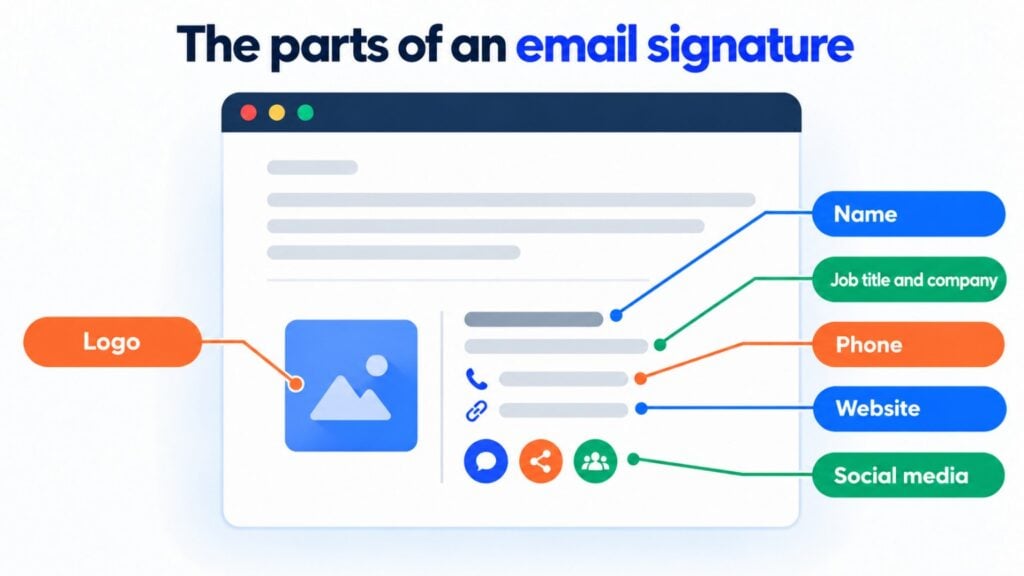
These are the parts of a good signature. You don’t need to use all of them:
| Part | Is it necessary? | Tip |
|---|---|---|
| First and last name | Yes | The way you want to be addressed |
| Job title and company | Yes, in a professional email | Short: “Marketing Manager, Green Store” |
| Phone | Recommended | With the international dialing code if you deal with other countries |
| Website | Recommended | Only the main address, without parameters |
| Logo | Optional | Small and lightweight; the signature should be readable even if it doesn’t load |
| Social media | Optional | Two or three, the ones you actually use |
| Call to action | Optional | Just one: “Book a call” or “Download the catalog” |
| Legal disclaimer | Depends on the case | Brief, and only if your company needs it |
Less is more. A signature of four or five lines is easier to read than one of ten, especially on mobile.
There’s no need to repeat your email address: the recipient already has it in the sender field.
6 email signature templates to copy
Replace the details in square brackets with your own.
1. Professional signature
[First Last]
[Job title] | [Company]
Tel. [+34 600 000 000] · [www.yourcompany.com]
2. Self-employed or freelancer signature
[First Last]
Web design for small businesses
[www.yourwebsite.com] · Tel. [+34 600 000 000]
I reply within 24 business hours.
3. Sales signature with a call to action
[First Last] | [Job title], [Company]
Tel. [+34 600 000 000]
Got 15 minutes to talk? Book a call at [link to your calendar]
4. Customer service signature
[Name], from the [Company] support team
Hours: Monday to Friday, 9:00 a.m. to 6:00 p.m.
Help center: [www.yourcompany.com/help]
5. Signature with a confidentiality notice
[First Last] | [Job title], [Company]
Tel. [+34 600 000 000] · [www.yourcompany.com]
This message is confidential and intended only for its recipient. If you received it by mistake, please let us know and delete it. You can see how we handle your data at [link to the privacy policy].
6. Minimal signature for replies
[Name] · [Company] · [Phone]
Use the full signature in the first email, such as an introduction email, and the minimal one in replies. That way the thread doesn’t fill up with repeated blocks.
Create branded emails with Mailrelay
Design your campaigns with the visual editor, save your signature and reuse it in every send. Start for free, no credit card required.
How to add your signature in Gmail and Outlook
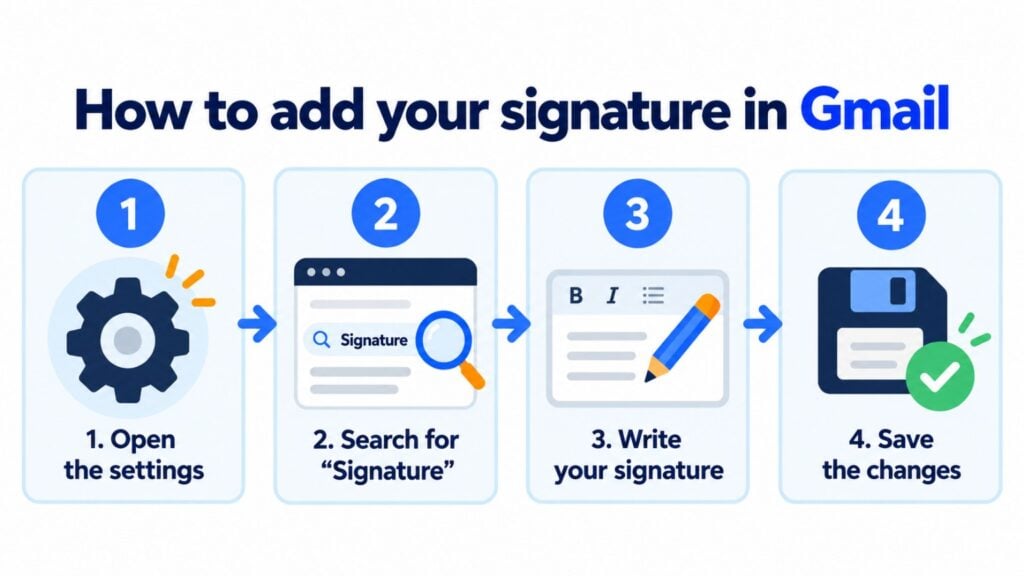
In Gmail, on your computer:
- Click the gear icon at the top right, then “See all settings”.
- In the “General” tab, find the “Signature” section and create a new one.
- Type your signature and format it or add an image.
- Choose whether to use it for new emails and replies, and click “Save changes”.
A Gmail signature can be up to 10,000 characters long, and images count. You’ll find all the details in Gmail Help.
In the new Outlook and Outlook on the web, go to “Settings” and find your account’s signatures section. Add a signature, give it a name, choose whether to use it for new messages and replies, and save. You can also insert it from a new message, in the “Message” tab, with the “Signature” button.
If you use another program, the path is similar: it’s almost always in Settings, within the account section.
Best practices for an email signature
Make it easy to read on any screen. Use real text, not an image with all your details: many programs block images and your signature would disappear.
Choose a standard font and one or two of your brand colors. If you add your logo, keep it small and lightweight.
Check that the links work and that the phone number can be tapped on mobile. And review your signature from time to time: an old job title or phone number looks bad.
If you work in a team, make sure everyone uses the same template. The same signature across the whole company strengthens your brand image.
The signature in email marketing
In a newsletter or an email marketing campaign, the signature serves another purpose: it puts a face to the brand. An email signed by a real person usually feels more personal than one signed by “The team”.
But don’t confuse it with the email footer. A campaign’s footer contains the company details and the unsubscribe link, which is mandatory. The signature is the personal sign-off, just above it.
In Mailrelay you can create your signature in the editor and save it as a universal element to reuse it in all your campaigns. The templates already include the footer with the unsubscribe link.
And if you send emails from your website or online store, such as order confirmations, you can give them the same style with transactional emails.
Send your campaigns with Mailrelay
With the free account you get up to 80,000 emails per month and 20,000 contacts, ready-made templates and support in Spanish.
Frequently asked questions about email signatures
These are the most common questions.
What is an email signature?
It’s the block of text with your name, your job title and your contact details that’s added at the end of your emails. It works like a business card in every message.
What goes in an email signature?
Your name, your job title and your company, a phone number and your website. If you like, your logo, a social media profile or a call to action. Just enough for people to identify you and get in touch.
How do I create an email signature?
Write it in the “Signature” section of your email program’s settings, such as Gmail or Outlook. You can start from one of the templates on this page and change the details.
Can I add an image to my signature?
Yes, but keep it small and make sure your details are also in text. If the image doesn’t load, the signature should still be readable.
Is an email signature mandatory?
Not in a regular email. In email marketing campaigns, the company details and the unsubscribe link are mandatory, and they go in the email footer.