The confirmation email is usually the first email your contacts receive.
What is more, it is the email with which they finalize the subscription process; normally, if they don’t click on the link included in this email, their subscription remains incomplete and you will not be able to send them more emails.
This is precisely why the confirmation email is so important.
And you must take maximum care of it.
It is not just another email.
In this article, we are going to look at the most important aspects you should take care of, and how to do it with Mailrelay.
Why is confirmation email deliverability different?
Commonly, by deliverability we mean the number of emails that reach the inbox (delivery rate being the total number of emails that reach the destination server, regardless of which folder).
In general, we will always want maximum deliverability; how could we not want our emails to reach the inbox?
But the case of confirmation emails is special for several reasons.
These are very important emails, because if the subscription process is not completed (if the user doesn’t click the activation link), there can be no further communication with those contacts.
However, the contact’s destination server doesn’t yet have information about your sender and your relationship with the contact.
In other words, the destination server doesn’t have a previous relationship with the contact to establish whether they want to receive your emails or not.
How does it determine it then? How does the destination server know if the contact wants to receive your email or not?
It can’t be just because it is a confirmation email, or all spammers would create their emails to look like confirmation emails.
In that case, destination servers usually use, among others, three parameters:
- Domain configuration (authentication)
- Information about the sender domain (if it is on blacklists, for example)
- And the content of the email
All these values are important.
The good thing about these efforts is that they will also improve the general deliverability of your campaigns, because if you leave everything correct, the new contacts will be very active, and, in general, your list will seem more active, which will improve deliverability.

Technical configuration in Mailrelay to improve the deliverability of confirmation emails
The technical part is not optional.
We explained why you should do it here.
What will you need to set up?
- SPF
- DKIM
- Dmarc
- And a custom domain
Don’t worry if you have doubts about these settings, our support team can help you.
Without these settings, it is much more likely that emails will end up in the spam folder.
It is not just about newsletters; it also happens to confirmation emails. They also need these settings.
Where to check the status of these settings?
If you work with Mailrelay, it is very easy.
Just click on Settings – Email Authentication and you will see a summary:
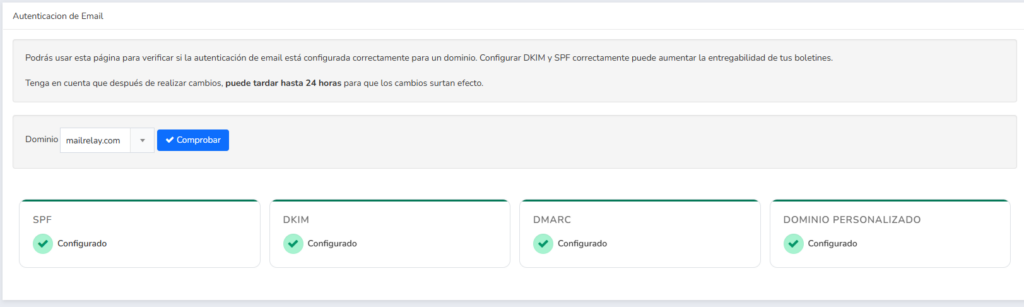
If everything is green, it is correct.
If any setting is missing, this screen will tell you how to create it, and will also offer a link that you can share with your hosting, if you need help.
· Bulk sender requirements and why it matters even if you don’t send emails often
The current reality is that most providers have toughened the requirements for bulk senders.
For example, Gmail will consider you a bulk sender if you send more than five thousand emails per day.
And well, of course, receiving spam complaints affects your sender score reputation.
I recommend this article on how to improve deliverability.
There you will find all these details in more depth.
· Set up a custom domain to boost link consistency
To obtain statistics for your bulk email campaigns, Mailrelay needs to replace the links in your emails with custom URLs.
When a contact receives your email, clicks the link, goes to the redirect URL, the click is registered, and the user is directed back to your original final link.
In this way, clicks can be accurately registered.
By default, Mailrelay uses some generic domains for this tracking process.
However, it would be better to create a custom domain for this purpose; click on Settings – Custom Domains.
This way, your sender domain and the tracking link domain will match, which is very good for deliverability.
· Use a suitable and recognizable sender
In the Newsletters – Senders menu you can edit and add the senders you wish to use.
Use sender emails that indicate the contact can reply; that is, it is better to avoid the typical ‘no-reply email addresses’.

How to edit confirmation email content in Mailrelay
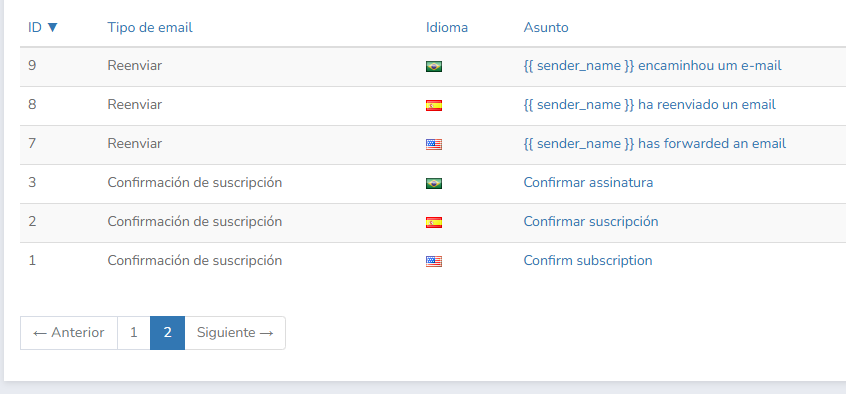
You can change the text by clicking on Settings – System Emails.
Here there are various emails that your Mailrelay account can send, and among them the subscription confirmation email:
When editing it, you will see a panel similar to the following:
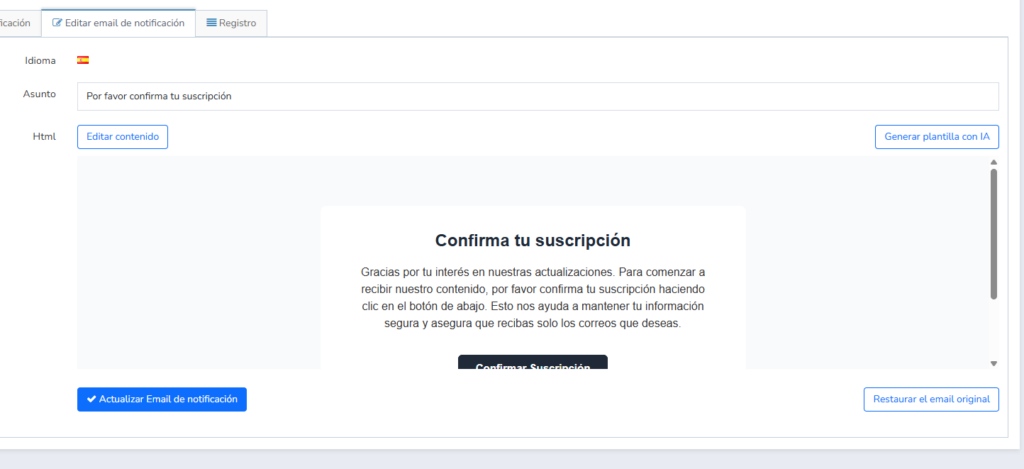
The options you will find are:
- Subject line
- Edit email content
- Generate a template with AI
- Restore original email
- And update (save changes) the confirmation email
Important!
The confirmation button has a link whose link address you should never modify:
- {{ confirmation_url }}
You can see it here:

You can modify the content, that is, the text for the button, but not the address, because in that case the link would break and the confirmation email would stop working.

The content of the confirmation email
As we have mentioned, the content of the confirmation email is very important, because the destination server doesn’t have internal data about the relationship of the contact with your sender, and therefore will base part of its decision (whether it puts the email in the inbox or in spam) on the content.
· The golden rule
Don’t add other links in the confirmation email.
For example, to your social networks, website, etc. It is not the best place.
Ideally, it should only have the confirmation link; after that, if you want to promote other content, you can automate an email to be sent after confirmation.
· Extremely simple design
You can add your logo and a few other things, but don’t overload it much because, keep in mind that ideally the confirm button should be visible as soon as the email is opened.
So that it is not overlooked.
The same with texts, they don’t need to be very long, it is better to focus on the essentials:
- Briefly present the subscription
- The confirmation button (CTA)
- A small text about what they can expect to receive
- And your contact details, address, etc.
Not much more is necessary, but telling a little about your company helps your email be different, credible, and effective.
If you have doubts, use the ‘generate template with AI‘ button to generate a base to work with.
· Effective texts for the confirmation email subject line
It is best to use short and clear subject lines:
- Confirm your subscription to (company)
- Only one step left: confirm your email
- Activate your subscription
- Activate your registration to (company)
- Activate your subscriber account
- Activate your user account
Remember! Sometimes Gmail, if it sees the word subscription in the content, may suspect it is spam, as it is a word that has been much abused in this type of emails.
If this happens to you, and Gmail indicates that your email is in spam because it looks like other emails that have been considered spam, try changing confirm subscription to another text. Like the ones we suggested above.

Correctly configure the subscription form
Are there more ways to improve deliverability besides the confirmation email itself?
Yes.
Correctly configuring the capture form can help.
Mailrelay has some features that can help you quite a bit.
Let’s see some of them.
· First of all, security:
You can activate captcha in your forms to ensure that bots don’t register:
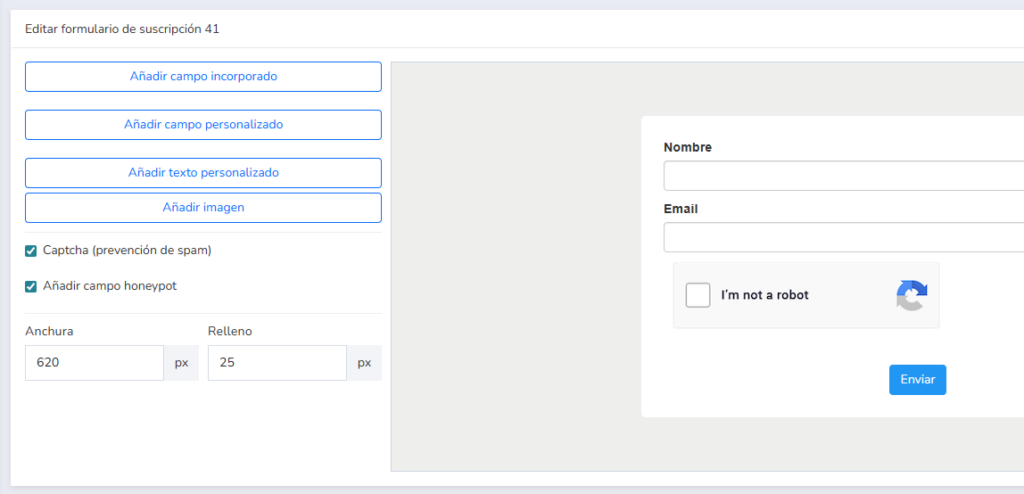
In fact, there are two options you can activate:
- Captcha
- Honeypot field
The honeypot field is an invisible field used to ‘catch’ some types of bots.
However, it is not as effective and secure as captcha.
If you want an effective solution to ensure that those who register are people, and not bots, a captcha is the best solution.
In the short and medium term, its use improves the deliverability of confirmation emails.
· Post-registration message
Leaving instructions for your future contacts about the next steps to take is also usually very helpful.
You will find a content section:
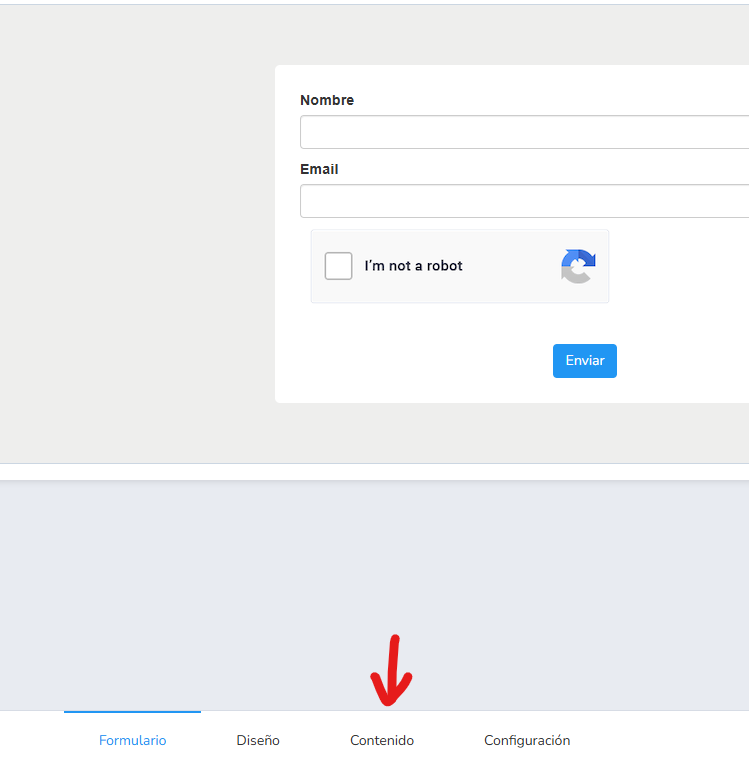
From this section you can reach this screen:
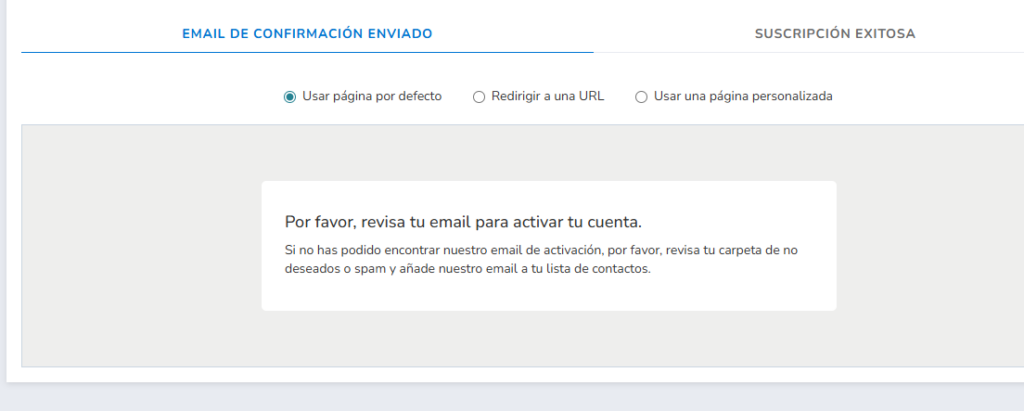
There are several tabs and options:
- Confirmation email sent
- Successful subscription
The first one is the message shown when the user submits the form.
And the second one will be shown when, once the email arrives, they click on the link to activate the subscription.
Both tabs have three options:
- Use default page: this would be the standard message you see in the image
- Redirect to a URL: for example, to a URL on your website
- Use a custom page: here you can write whatever message you want
Ideally, on this screen you should explain to subscribers that they will now receive an email, and that until they confirm the subscription it will not be active.
That way they will not forget to activate their subscription because they will know what they must do.
Tell them they can:
- Check their inbox
- Just in case, also check the promotions and spam tabs
- Add the sender to their contact list
Don’t forget to also create a welcome sequence, more information here.