How to send SMS from your computer: free with your phone or in bulk for your business
Step by step with Google Messages, Windows Phone Link and Mac Messages, plus how to send SMS to hundreds of customers from your browser

Step by step with Google Messages, Windows Phone Link and Mac Messages, plus how to send SMS to hundreds of customers from your browser
To send SMS from your computer you have two options: connect your phone to your PC or Mac, which is free, or use an SMS platform in your browser, which is the right choice when you’re texting many customers at once. Both let you use the keyboard and the big screen, but they’re meant for different things.
If you just want to reply to messages without picking up your phone, the tools that already come with Android, Windows and macOS are all you need. If you run a business and want to tell your customer list about an offer, an appointment or an order, you need something else. This guide walks you through both cases step by step.
A computer doesn’t have a SIM card, so it can’t send an SMS on its own. Something else always sends it on its behalf.
In the first case, that something is your own phone. The computer just acts as a screen and keyboard: you type on your PC, the message travels to your phone and goes out from your number, at your carrier’s rates.
In the second case, it’s sent by an SMS platform. You log in to its website, upload the numbers and the message goes out over the carrier network with your company name as the sender. You pay for each message.
Before you choose, answer one question: are you going to write to one person or to a hundred? The answer decides almost everything.
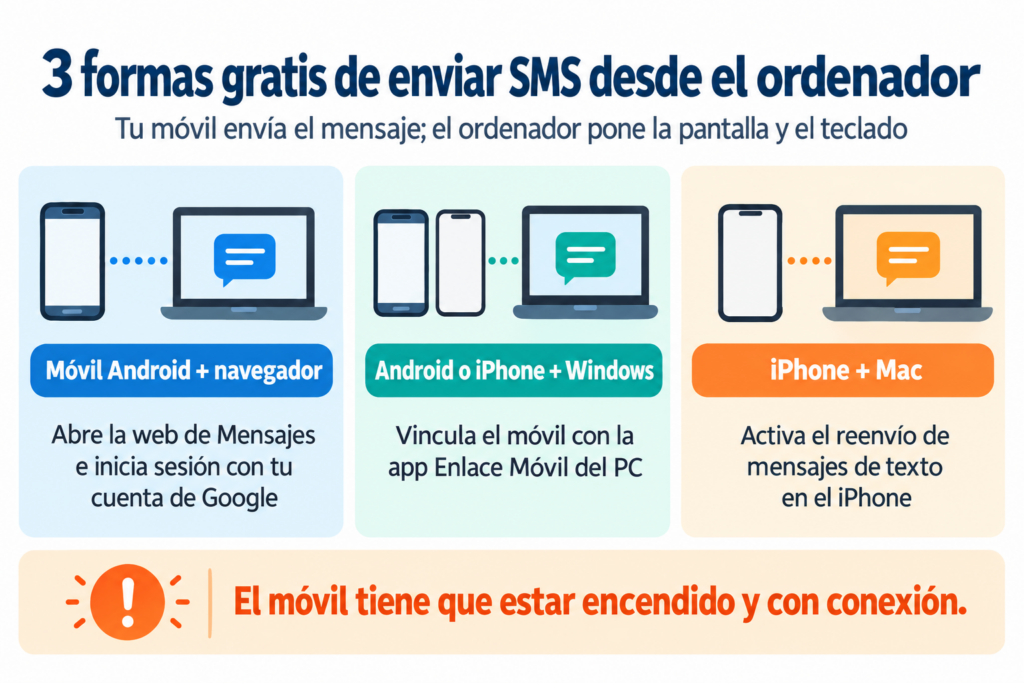
These options cost nothing beyond your mobile plan. They all need your phone to be switched on and connected.
Want to text all your customers at once?
Send mass SMS from your browser with your company name as the sender. Create your free account.
If your Android phone uses the Google Messages app, you can write from any browser: Chrome, Edge, Firefox or Safari.
Google is replacing QR code pairing with Google account pairing, so you may no longer see the code. Only one computer can be active at a time. If you don’t use it for a few weeks, it unpairs automatically.
Windows 11 comes with the Phone Link app. It works with both Android and iPhone.
With Android you’ll see your recent conversations and can send photos. With iPhone the options are more limited: there are no group chats or photo sending, and you only see the messages that arrive while the phone is connected.
If you have an iPhone and a Mac, the Messages app on your Mac can send SMS to Android phones through your iPhone.
If you already use Messages in iCloud on both devices, forwarding is included and you don’t need to turn it on separately.
| Your phone | Your computer | Free option | What to keep in mind |
|---|---|---|---|
| Android | Any computer with a browser | Google Messages on the web | One active computer at a time |
| Android | Windows 11 | Phone Link + Link to Windows | Photos and recent conversations |
| iPhone | Windows 11 | Phone Link over Bluetooth | No group chats or photos |
| iPhone | Mac | Messages with SMS forwarding | Same Apple Account on both |
To chat with friends or reply to a specific customer, any of these options will do. The problem starts when you want to write to lots of people at once.
With the options above, you could copy and paste the same message a hundred times. Technically it works, but it has several problems:
That’s what mass SMS platforms are for: you send from your computer’s browser, but with your brand name, to your whole list at once and with reports.
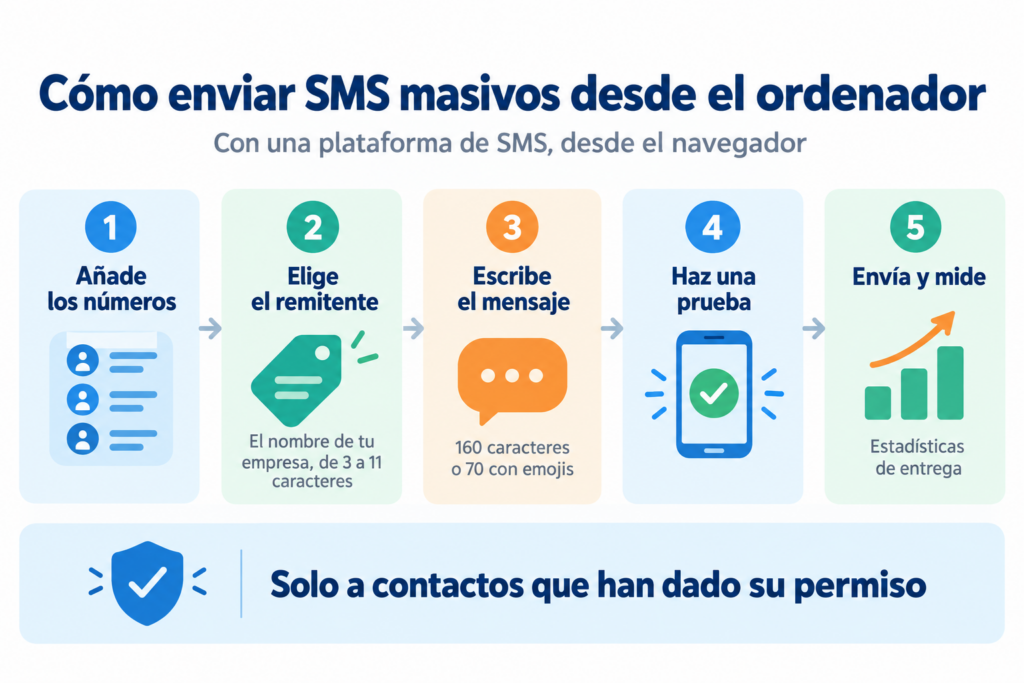
With an SMS sending platform, the process takes just a few minutes. Here’s how to do it in Mailrelay:
Your customer list, one message and one click
Send your first SMS campaign from the same dashboard as your newsletters, with no commitment.
The options that use your phone are free, but each SMS comes out of your mobile plan. Most current plans include unlimited texts to domestic numbers.
On a platform, you pay per message sent. Here are some of Mailrelay’s packages for Spain, excluding VAT:
| Package | Price | Price per SMS |
|---|---|---|
| 350 SMS | €12.50 | €0.0357 |
| 7,500 SMS | €260 | €0.0347 |
| 50,000 SMS | €1,725 | €0.0345 |
Credits expire after one year and there is no commitment. A message longer than 160 characters is charged as several SMS. You’ll find the rest of the countries on our SMS pricing page.
A promotional SMS is an electronic commercial communication, just like an email. In Spain, the LSSI and the GDPR apply:
Transactional SMS, such as a verification code or a notice that your order has shipped, aren’t advertising. Even so, don’t slip offers into them.
SMS messages are almost always read, and within minutes, so they work best for short, time-sensitive messages. Some common uses:
Three sample messages you can adapt:
TALLERGARCIA: Hi Ana. Just a reminder about your appointment tomorrow at 10:00 am. If you can’t make it, reply CHANGE. Thank you.
MODALUNA: Today only, 20% off the whole store with code LUNA20: https://example.com/sale Opt out: reply STOP
CLINICASOL: Your appointment on Thursday the 12th at 5:30 pm is confirmed. Address and directions: https://example.com/appointment
For more ideas, see what SMS marketing is and how to combine it with other channels.
They don’t compete with each other. Each channel has its moment:
| Channel | Best for | Limit |
|---|---|---|
| SMS | Short, urgent notices, reminders, codes | 160 characters, cost per message |
| Newsletters, content, offers with images | Not read as immediately | |
| Conversations and customer service | Requires WhatsApp Business and approved templates |
A combination that works well: send the full offer by email and then, on the last day, a short SMS to remind people it’s ending.
With Mailrelay’s SMS service, you send your messages from the same web dashboard as your newsletters, with nothing to install. You can use the mobile numbers you already have in your contact lists or paste in a new list.
You choose a sender with your company name, the editor warns you if the text is split into several SMS, and the statistics show you how many messages were delivered. Packages start at 350 SMS to Spain for €12.50 excluding VAT, with no commitment.
And for email, the free account includes up to 80,000 emails a month and 20,000 contacts, with human support on every plan.
SMS and email from a single dashboard
Combine your SMS campaigns with up to 80,000 free emails a month in Mailrelay.
Yes. With Google Messages on the web, Windows Phone Link or the Messages app on Mac, you send SMS from your number without paying anything beyond your mobile plan. Your phone has to be switched on and connected.
Not with the free options: the message always goes out from your phone. If you don’t want to depend on your phone, you need an SMS platform, which sends the messages from the web with your company name.
Use a mass SMS platform. You upload the list of numbers, choose the sender, write the message and send it to everyone at once. That way your carrier won’t block you, and you get delivery statistics.
Yes, with an SMS platform. The sender can be 3 to 11 characters long. If you send to Spanish mobile numbers, that name must be registered in the CNMC Alias Registry. In Mailrelay you can register it from the dashboard, under SMS > SMS alias registry.
160 with the standard alphabet, and 70 if you use emojis or special characters such as some accented letters. If the text is longer, it is split into several SMS and each one is charged.