Gmail clipping: what it is and how to stop Gmail from clipping your emails
Why "[Message clipped]" appears at the end of your newsletter and how to make sure it arrives in full
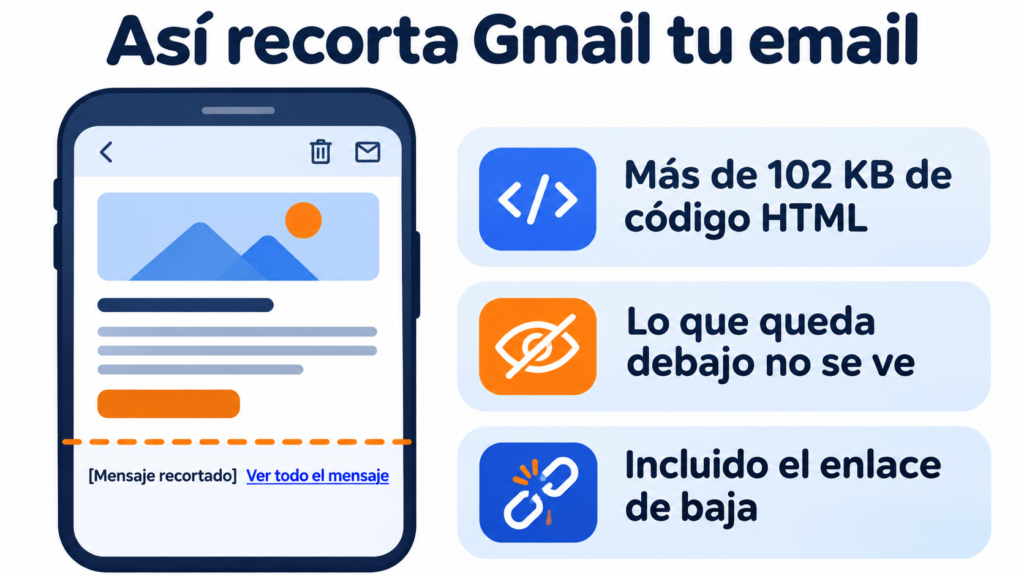
Gmail clipping is when Gmail cuts an email short because its HTML code weighs more than 102 KB. Gmail shows only the first part of the message and, at the end, adds the notice “[Message clipped]” with a link to view the full email.
Clipping has nothing to do with how long the text looks. What counts is the weight of the code behind it: tags, styles, tables and links. A short email with a lot of unnecessary code can get clipped, while a long but clean one can arrive in full.
Why does Gmail clip emails?
Gmail sets this limit so that messages load quickly, especially on mobile. When the HTML goes over 102 KB, it stops showing the rest and waits for the reader to click “View entire message”.
Hardly anyone clicks that link. That is why everything below the cut is, in practice, content your subscriber never sees.
Why does Gmail clipping matter in email marketing?
Gmail clipping is not just a design problem. It affects your campaign results:
| What gets lost | What happens |
|---|---|
| Calls to action at the end | Fewer clicks and fewer conversions |
| Unsubscribe link in the footer | People who want to leave and can’t find it may mark the email as spam |
| Tracking pixel | It usually sits at the end of the code. If it gets clipped, the open may not be counted |
| Brand image | A clipped message looks careless |
The unsubscribe link is the most serious risk. Spam complaints damage your sender reputation and, with it, the deliverability of your next sends.
Make sure your emails arrive in full
The Mailrelay editor generates the code of your newsletters with responsive templates and a preview. Start for free.
Preventing and fixing Gmail clipping
These are the steps that cut the most weight from an email and prevent Gmail clipping.
Reduce the weight of the code
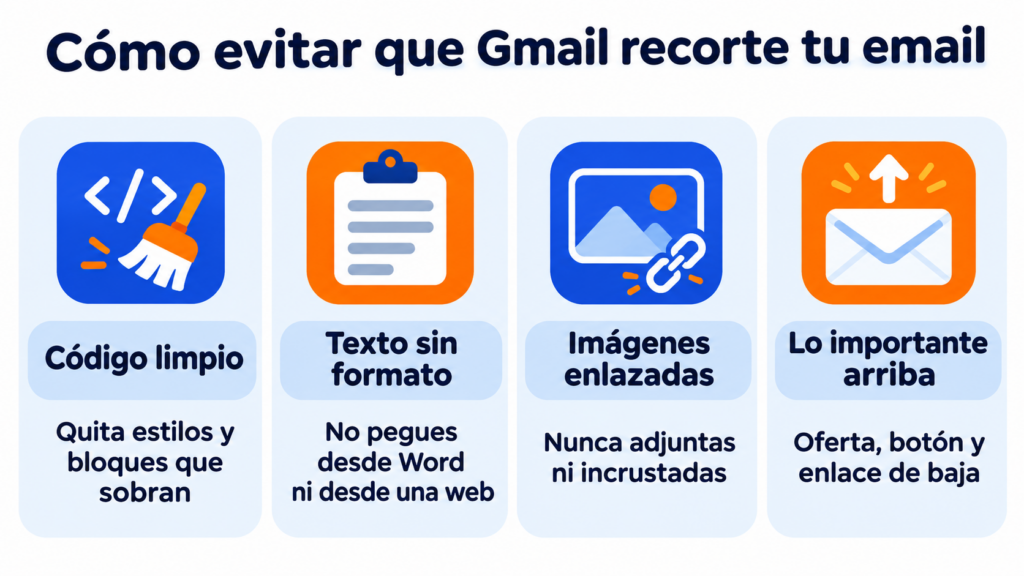
Review the HTML and remove anything that isn’t used: repeated styles, comments, spaces and hidden blocks. Many tools let you check the size of the email before sending it. If you are getting close to 100 KB, you are close to Gmail clipping and it’s time to trim.
Don’t paste text from Word or from a website
When you copy text from a document or a web page, you also bring along its hidden formatting. That code can’t be seen, but it adds kilobytes and can break the design. Paste the text without formatting and style it in the editor.
Don’t attach images
Linked images don’t count towards the 102 KB limit, because they load from a server. However, an attachment or an image embedded in the code adds a lot of weight. Upload images to the editor and let them load from there.
Keep emails short and simply structured
Fewer blocks and fewer nested tables mean less code. An email that gets to the point is also easier to read on mobile. If your content is long, summarize each topic and link to the full version on your website or blog.
If you run several tests, use different subject lines
Gmail groups emails with the same subject line into a conversation and hides the repeated parts behind an ellipsis. It isn’t the same kind of clipping, but in your tests it can look like it. Change the subject line in each test send to see the email exactly as your list will receive it.
What if the email is clipped, no matter what you do?
If you need to send long content and Gmail keeps clipping it, you have two options. You can add a link to the web version of the newsletter at the top, or cut the text yourself with a “Read more” link that leads to the full page.
Either way, place the most important things before the cut: the offer, the main button and the unsubscribe link if your template allows it.
How Mailrelay helps you
The Mailrelay editor generates the code of your newsletters with responsive templates and lets you preview them before sending. Images are uploaded to the editor and load from the server, so they don’t add weight to the email.
Mailrelay also adds the List-Unsubscribe header to your campaigns, which Gmail shows next to the sender. That way your subscribers can unsubscribe even if Gmail clipping hides the email footer. The free account lets you send up to 80,000 emails a month to 20,000 contacts.
Design lightweight newsletters that don’t get clipped
Responsive templates, hosted images and one-click unsubscribe in every campaign. Up to 80,000 emails a month for free.
Key takeaways about Gmail clipping
Gmail clipping cuts off emails whose HTML goes over 102 KB. Hardly anyone sees what falls below the cut, including the unsubscribe link. Keep your code clean, don’t paste formatted text, link images instead of attaching them and put the important content at the top.
Frequently asked questions about Gmail clipping
What does the paperclip mean in an email?
The paperclip icon means the message has a file attached. It has nothing to do with Gmail clipping, which is the cutting short of emails that are too heavy.
Do images count towards the 102 KB limit?
Not if they are linked from a server. Only the message’s HTML code counts. Images do add weight if they are embedded in the code or sent as an attachment.