Dark mode
How your emails look with the lights off and how to design for it
Dark mode is a display setting that shows light text on a black or dark gray background. Phones, computers, browsers and almost every email program offer it.
For anyone doing email marketing, it has a direct consequence: your newsletter doesn’t always look the way you designed it.
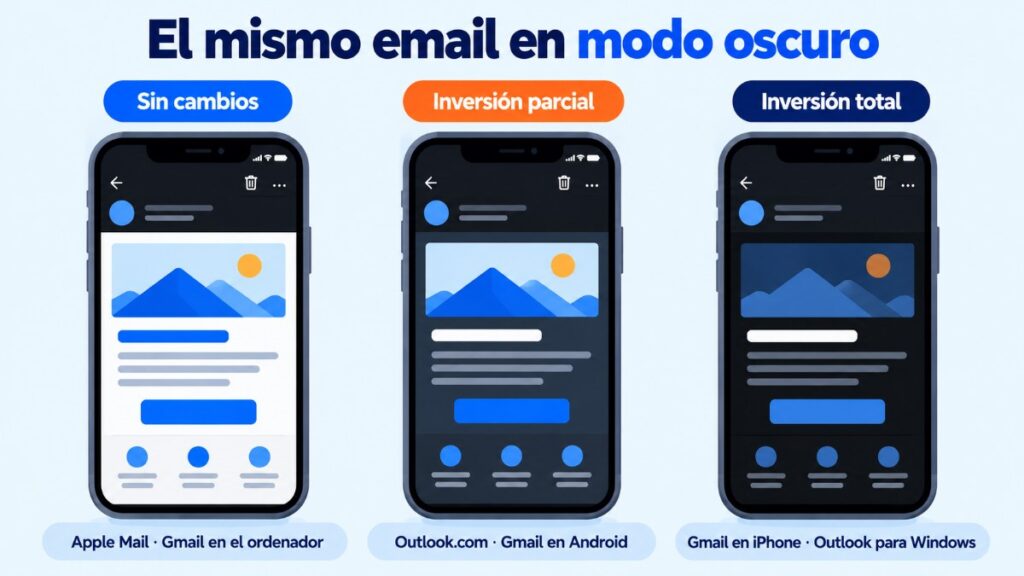
Depending on the email program, colors stay the same, are partly inverted or are fully inverted.
Here you’ll see what each one does and how to design so your emails are easy to read with the lights off. At the end you’ll find 8 dark mode templates ready to use in Mailrelay.
What is dark mode and what is it for?
Dark mode inverts the usual color palette of the interface. Backgrounds become dark and text becomes light. It became popular in 2019, when iOS, Android and macOS added it as a system setting.
People turn it on for three reasons:
- Visual comfort: it’s easier on the eyes when reading at night or in low light.
- Battery: on OLED screens, black pixels use almost no power.
- Personal taste: many people find it more elegant.
How many people use it for email? Litmus found that 35% of the opens it tracked in 2022 happened with dark mode turned on.
That’s more than one in every three reads. It’s not something you can ignore when designing an email template.
How does dark mode affect your emails?
Each email program applies it in its own way.
It’s part of email rendering: the same HTML is displayed differently depending on where it’s opened. There are three behaviors:
| Behavior | What it does to your email | Email clients (Litmus, February 2025) |
|---|---|---|
| No changes | Keeps your colors; only darkens the program’s interface | Apple Mail on Mac, iPhone and iPad, Gmail on desktop, Yahoo Mail |
| Partial inversion | Darkens light backgrounds and lightens dark text; leaves anything already dark as it is | Outlook.com, Outlook app (iOS and Android), Gmail app on Android |
| Full inversion | Inverts all colors, including backgrounds that were already dark | Gmail app on iPhone, Outlook for Windows, Windows Mail |
A note about Apple Mail. It respects your colors, but if the email doesn’t set a background color, it darkens that too.
That’s why a plain text email looks dark on an iPhone with dark mode turned on.
Dark mode in Gmail
The Gmail app behaves differently depending on the system: partial inversion on Android and full inversion on iPhone. On desktop, Gmail darkens its interface, but your email keeps its colors.
Gmail doesn’t let you detect dark mode with code. Your only defense is a design that holds up well when inverted.
Dark mode in Outlook
Outlook is the most unpredictable. Outlook.com and the mobile app do a partial inversion, and Outlook for Windows inverts all colors.
Pay special attention to logos with a transparent background and buttons with dark text. They’re the first things to break.
Design emails that read well day and night
Create your campaigns with dark-mode-ready templates and send yourself tests before sending them out. Free for up to 80,000 emails a month.
What are the pros and cons for email marketing?
The big advantage is that your email fits in with what the reader has chosen. An email that blinds them with white at midnight gets closed fast.
One that blends into their dark screen gets read more calmly.
But it has its risks.
In a 2021 Mailjet survey, 31% of email professionals named automatic color inversion as a major problem. And a third were worried about their brand image.
The typical failures are logos that disappear, gray text with no contrast and buttons that change color. And worst of all: you don’t decide when it happens.
How do you design an email for dark mode?
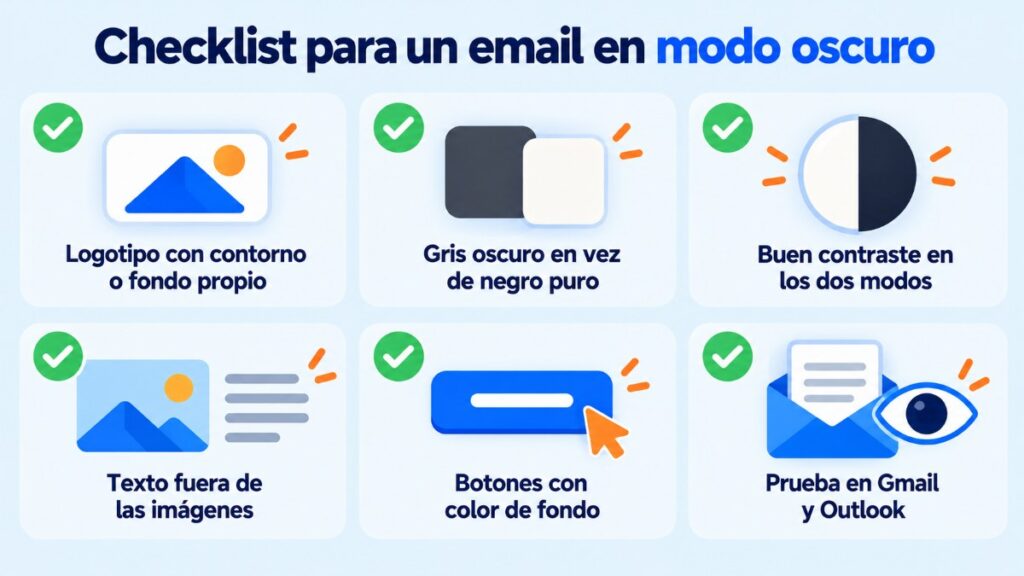
You don’t need two versions of every campaign. All you need is a design that works in both modes:
- Use logos with an outline or their own background. A black logo in a transparent PNG disappears on a dark background.
- Avoid pure black and pure white. A very dark gray (#1a1a1a) and an off-white hold up better to inversion.
- Mind the contrast. Check that every piece of text is readable in both modes. It’s also the foundation of an accessible email.
- Don’t put text inside images. HTML text adapts; text in an image doesn’t.
- Give buttons their own background color. A call to action with a colored background stays visible even if everything else is inverted.
- Test before sending. Send the email to yourself and open it in Gmail and Outlook with dark mode turned on.
If you want to go further, Apple Mail supports the prefers-color-scheme media query so you can set your own dark colors. It only works in some clients, so use it as an enhancement, not as the foundation.
Dark mode email templates available in Mailrelay
Another option is to start from a design that’s already dark. In the Mailrelay editor you’ll find dark background templates for every type of campaign.
They’re designed so the logo, text and buttons don’t get lost. Here are eight of them, one per category.
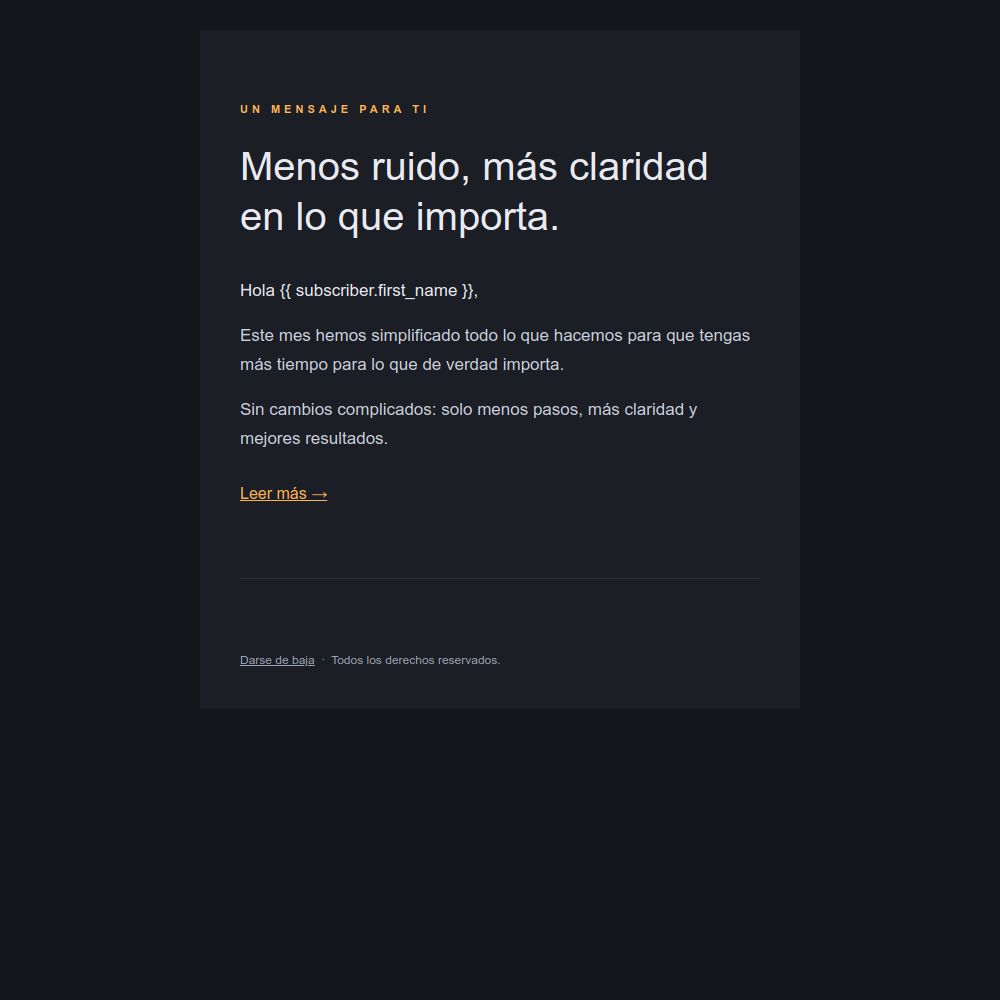
Basic: “Short message”
A text email, with no images, to communicate something specific: a change, a notice or a letter from management. It suits brands with a minimalist style.
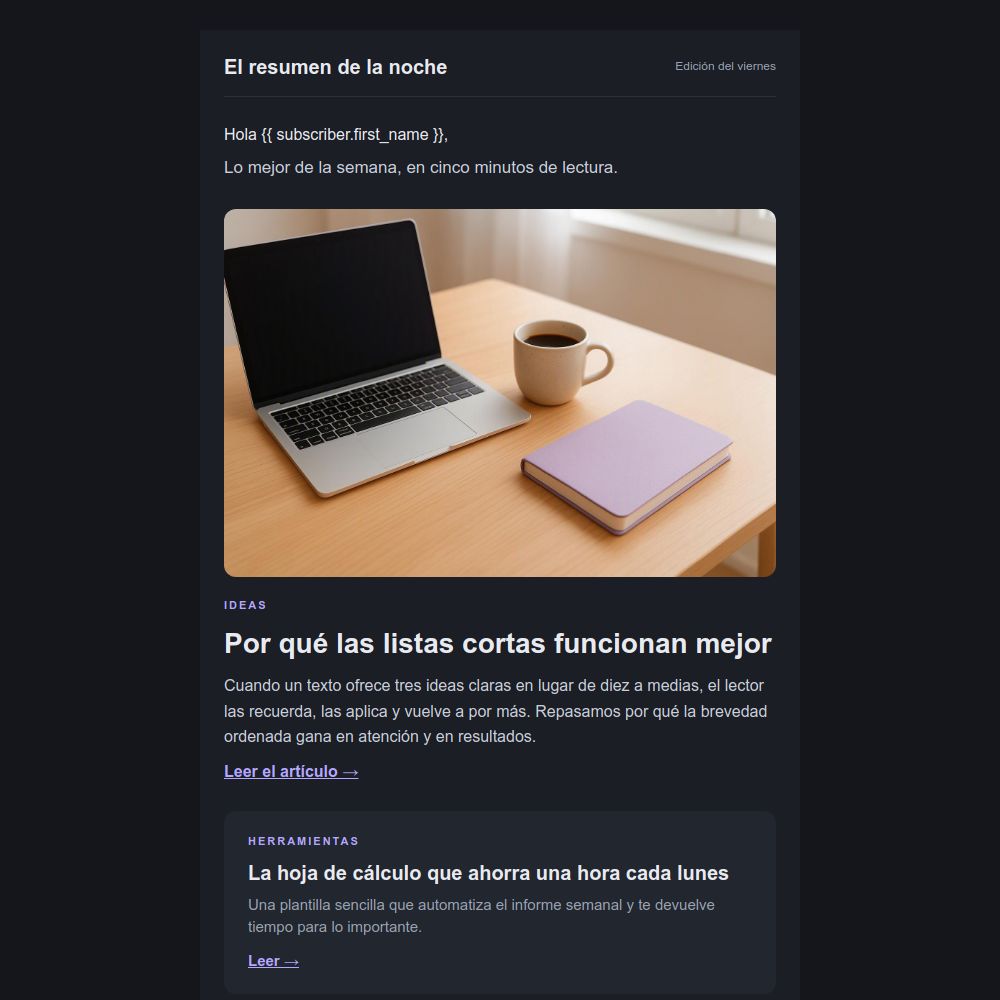
Newsletters: “Dark weekly digest”
A content newsletter with a main image, featured articles and links to keep reading. Designed for the digest your readers open at night.
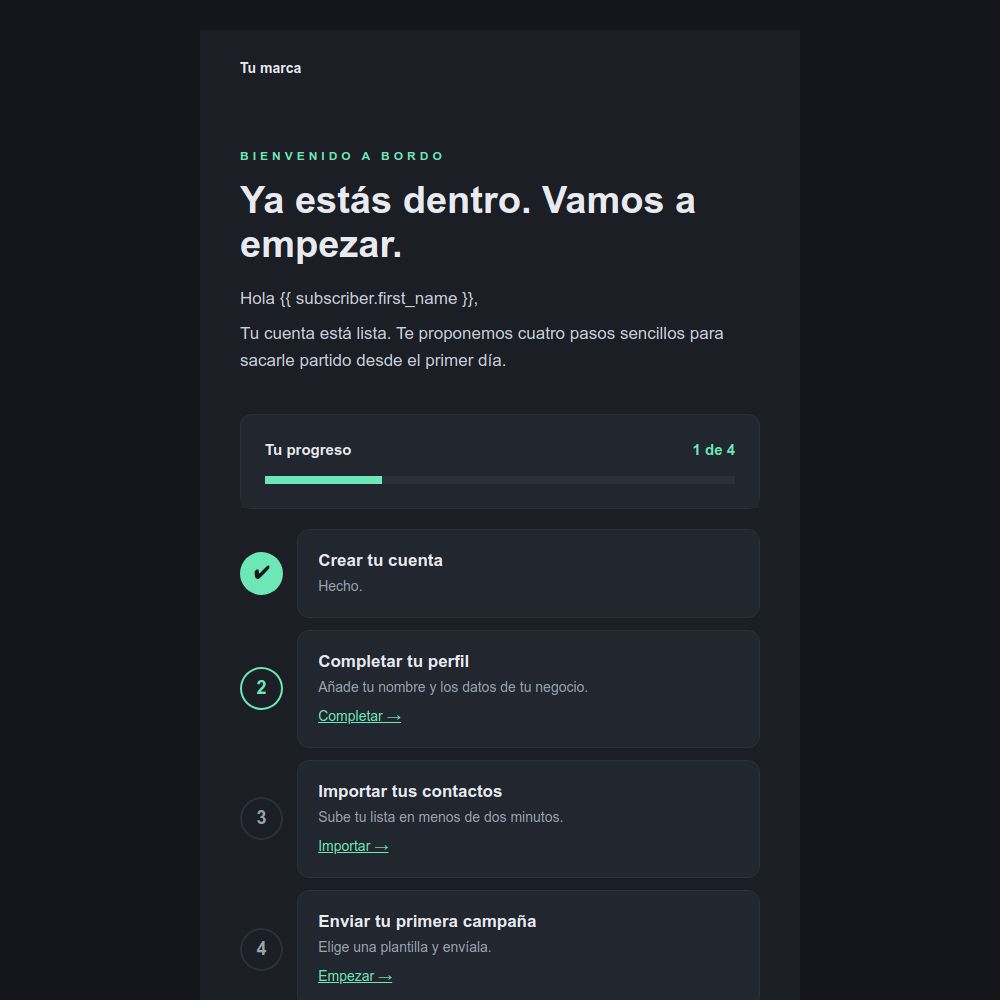
Welcome: “Welcome with checklist”
A welcome email with a progress bar and a list of steps to get started. Useful for software and services that require sign-up.
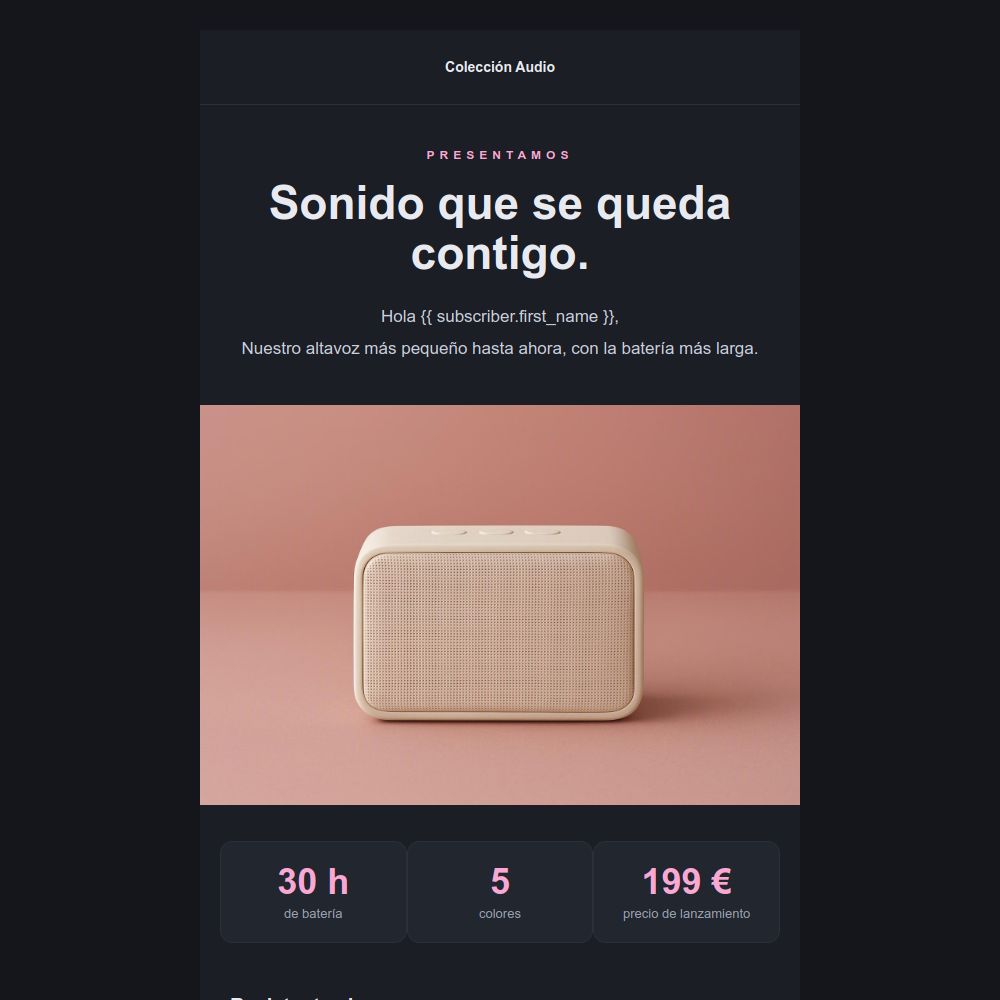
Announcement: “Premium product launch”
A large product photo and three key figures: battery life, colors and price. The black background makes the image stand out. Ideal for tech, fashion or cosmetics.
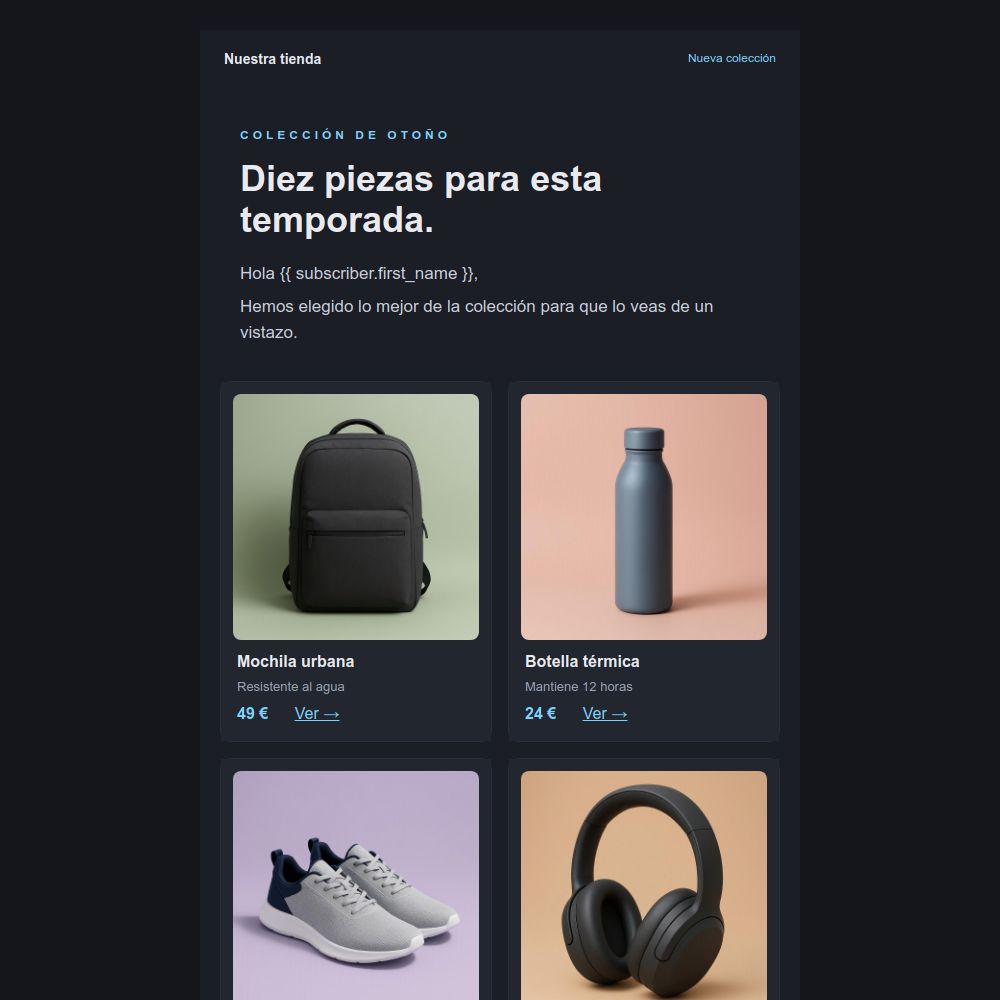
Catalog: “Dark product catalog”
A product grid with photo, name, price and link. Use it to present a seasonal collection or what’s new in your online store.
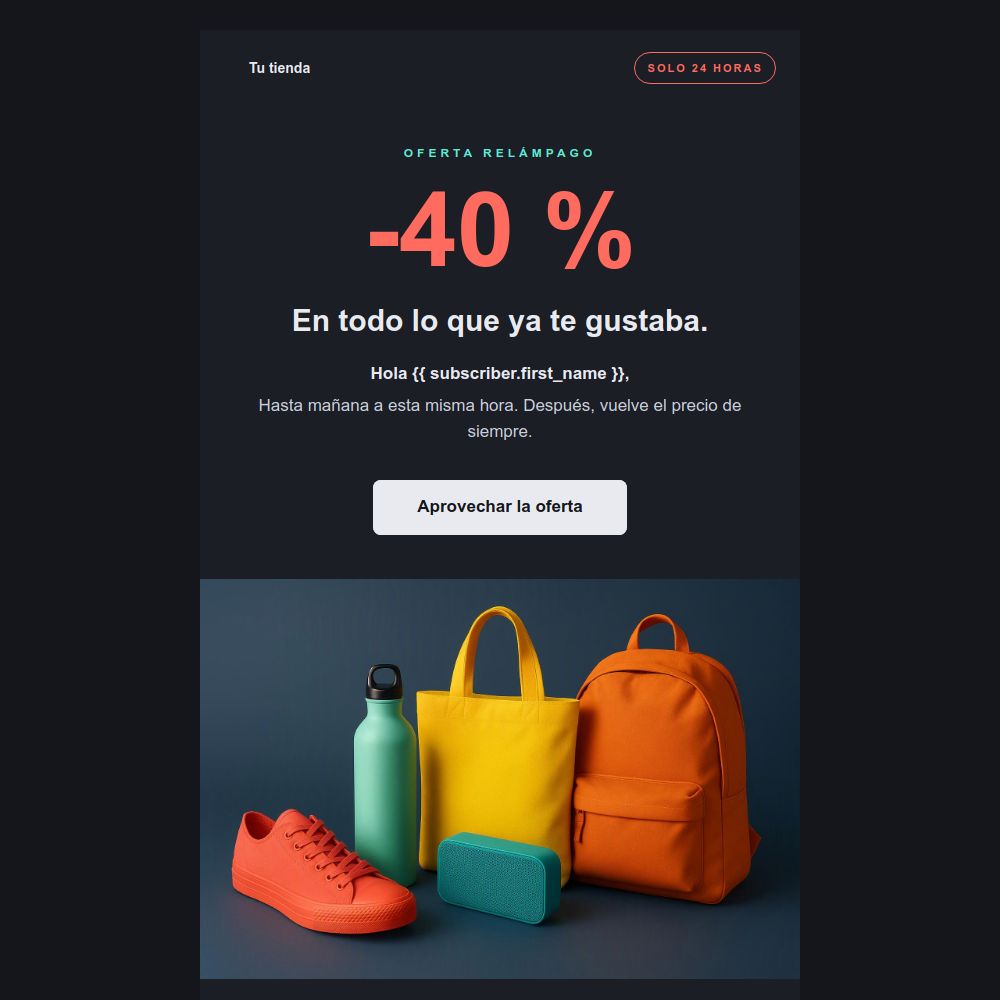
Offers: “24-hour flash sale”
A big discount in red, a clear button and a “24 hours only” notice. The contrast with the dark background reinforces the urgency of flash sales.
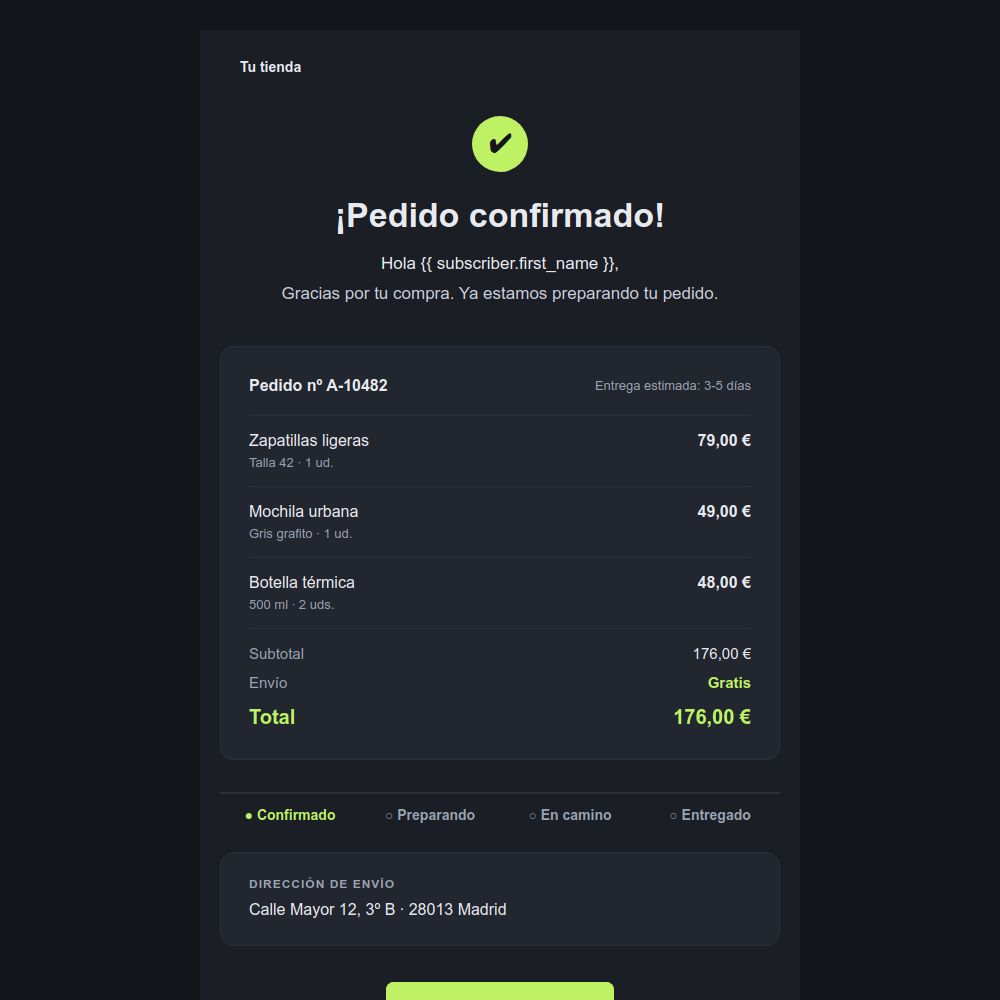
Ecommerce: “Dark order confirmation”
A confirmation email with the order summary, the total, the shipping status and the address. It keeps your style after the purchase.
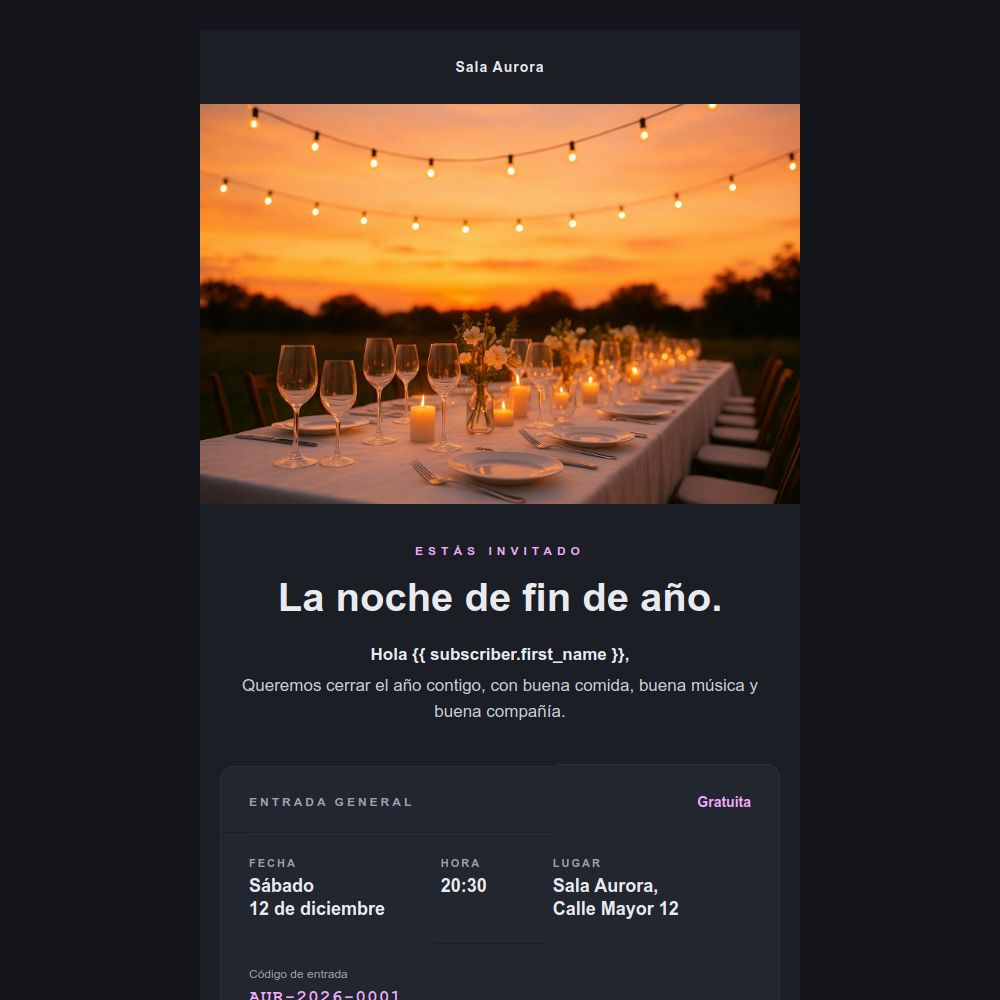
Events: “Night event invitation”
An event invitation with photo, date, time, venue and entry code. It sets the mood for a dinner, a concert or a New Year’s Eve party.
They’re all edited with drag and drop, without touching the HTML. Change colors, text and images and save it as your own template.
How does Mailrelay help you with dark mode?
With Mailrelay you create your campaigns in a visual editor with hundreds of templates, including the eight dark ones you’ve just seen.
You can send yourself tests to check the design in Gmail, Outlook or on mobile before sending. Can’t decide between a light and a dark version? Run an A/B test and let the data decide.
It’s all included in the free account: up to 80,000 emails a month and 20,000 contacts, with chat, ticket and phone support.
See the rest of Mailrelay’s features.
Try the dark templates for free
Choose one of the eight templates, change the text and images and send it to your list from your free Mailrelay account.
Dark mode FAQs
These are the most common questions about dark mode in email.
What is dark mode?
It’s a display setting that shows light text on a dark background. Operating systems, browsers and email programs offer it. People use it to reduce eye strain, save battery on OLED screens or simply out of personal preference.
How do you turn on dark mode in Gmail?
In the app, go to Settings and choose Theme or Dark. On desktop, go to Settings, open Themes and choose a dark one. There, Gmail only darkens its interface, not the content of the emails.
How do you turn on dark mode in Outlook?
In Outlook.com, open Settings and turn on dark mode under appearance. In Outlook for Windows, change it in Office Account, under Office Theme. On mobile, Outlook usually follows the system setting.
Is it better to send emails with a dark background?
There is no single answer. A dark background suits tech, fashion, leisure or event brands. But some email clients invert it. Try it and measure the results with an A/B test.
Does Mailrelay have dark mode templates?
Yes. The Mailrelay editor includes dark templates in the Basic, Newsletters, Welcome, Announcement, Catalog, Offers, Ecommerce and Events categories. They’re also available on the free account.