How to send a mass email in Outlook: 3 step-by-step methods and their limits
With Word and Excel, contact groups or BCC, and what to do when your list grows

With Word and Excel, contact groups or BCC, and what to do when your list grows
Do you have a customer list in Excel and want to email everyone on it from Outlook, without paying for anything else? It’s a very common situation in small businesses, professional firms and associations.
The good news is that you can send a mass email in Outlook. The not-so-good news is that Outlook wasn’t designed for this, and it has limits worth knowing before you hit “Send”.
In this guide you’ll see the 3 ways to send a mass email in Outlook, step by step, with their pros and risks. You’ll also find 3 templates to copy and a table to help you decide when it’s worth switching to an email marketing tool.
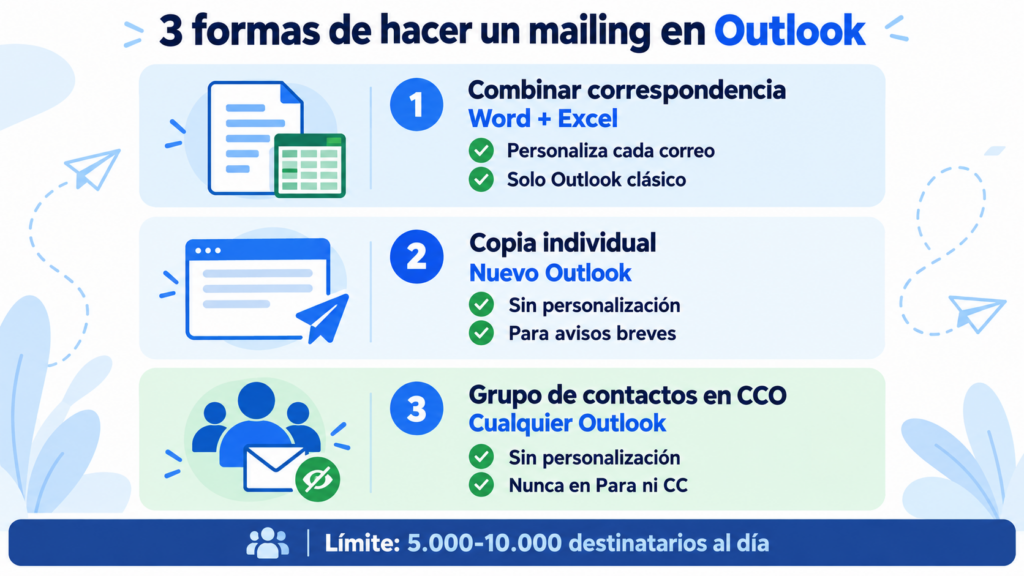
Yes. A mass email in Outlook is the same email sent to many recipients from your Outlook account. You can do it in three ways:
| Method | Personalizes each email | Each person only sees their own address | Best for |
|---|---|---|---|
| Mail merge with Word and Excel | Yes (name, company…) | Yes | 20 to 300 contacts with classic Outlook |
| Individual copies in the new Outlook | No | Yes | Short notices to a few contacts |
| Contact group in BCC | No | Yes, if you use BCC | Internal messages or a closed group |
With all three, the emails go out from your mailbox and count toward Microsoft’s daily limits. You’ll find them further down.
All three methods start from the same thing: a well-organized contact list. Spending ten minutes preparing it saves you mistakes later.
One row per contact and one column per piece of data. At a minimum, Name and Email. If you’re going to personalize, add Company, City or anything else you want to use in the text.
Clean your list. Remove duplicates, misspelled addresses and contacts who asked you to stop emailing them. Bounce after bounce also hurts your account’s reputation.
Check permission. Only include people who agreed to receive your emails or who are your customers. If you’re unsure about someone, leave them out.
This is the most complete option for sending a mass email in Outlook. Word takes the data from your Excel file and creates a different email for each contact.
It can include their name, their company or any other data. Word then sends it through Outlook.
It works with classic Outlook. According to Microsoft and several technical forums, Word’s mail merge doesn’t send through the new Outlook for Windows.
If you use the new one, switch to classic using the toggle at the top before you start.
Here’s how:
A tip: before sending it to the whole list, run a test with an Excel file of 2 or 3 rows containing your own addresses. That way you can see how the email arrives and whether the fields are filled in correctly.
What you can’t do with this method: attach files natively, track opens or clicks, or give each person a link to unsubscribe.
Microsoft explains the whole process in its mail merge guide.
The new Outlook for Windows and Outlook on the web have an option to send an individual copy of the same email to each recipient. It’s labeled “Start Mail Merge”, but it isn’t a mail merge like Word’s.
What it does is simpler: each person receives the email as if it were only for them, without seeing anyone else. A single message with all the recipients appears in your Sent folder.
The limitation: you can’t change anything per recipient. No name, no company, no data from an Excel file. It works for a short notice to a few contacts, such as a change in opening hours or a reminder.
It’s the fastest method and the most limited one. You create a contact group (formerly a distribution list) and put it in the email’s BCC field.
Steps in Outlook:
That way nobody sees the other people’s addresses. If you put the group in To or CC, everyone sees every address.
It’s a mistake that can end in a data protection fine. We explain it in what CC and BCC are.
Microsoft explains how to create a contact group in Outlook.
This is the part that surprises people most. Outlook limits the number of recipients per day, and each person in a group counts as one recipient.
| Account | Recipients per day | Recipients per message |
|---|---|---|
| Outlook.com with Microsoft 365 | 5,000 (1,000 to addresses that are new to you) | 500 |
| Free Outlook.com or new account | Fewer, depending on your history | Fewer |
| Microsoft 365 for business (Exchange Online) | 10.000 | 500 |
Sources: Sending limits in Outlook.com (Microsoft) and Exchange Online default limits. Your administrator can set different ones. Checked in October 2026.
If you go over the limit, Outlook blocks sending for a few hours. And if many recipients mark your email as spam, Microsoft can suspend the account.
It’s your everyday mailbox: losing it for a while is costly.
You’ll find other providers’ limits in our post on sending limits.
Is your list over Outlook’s limits?
Send up to 80,000 emails a month for free with Mailrelay, without putting your mailbox at risk.
You can copy them into Word (method 1) and replace the fields in square brackets with your Excel columns.
Subject: [Name], we have something new for [Company]
Hi [Name],
This month we started offering [service]. We designed it for companies like [Company] that need [problem it solves].
If you’re interested, reply to this email and I’ll tell you the details in a 15-minute call.
Best regards,
[Your name]
Subject: New opening hours from [date]
Hi [Name],
We’re writing to let you know that, from [date], our opening hours will be [new hours].
If you have a pending order or question, just reply to this email and we’ll take care of it before the change.
Thank you for your trust,
The [Company] team
Subject: [Name], we’ve saved you a spot on [date]
Hi [Name],
On [date] we’re hosting [event] at [venue or online]. We’ll talk about [topic] for an hour and there will be time for questions.
Spots are limited. If you’d like to come, reply “yes” and we’ll send you the details.
Best regards,
[Your name]
These are the mistakes we see most often when someone sends a mass email in Outlook for the first time:
Putting everyone in To or CC. Every recipient sees everyone else’s address. Always use BCC or mail merge.
Emailing people who haven’t given you permission. In Spain, the LSSI requires prior consent to send commercial communications, except to customers you already have a relationship with and about similar products.
Not including a way to unsubscribe. Add a sentence at the end like “If you don’t want to receive any more emails, reply with UNSUBSCRIBE”.
Sending everything at once. Spread your sends over several days if your list is close to the limit.
Skipping the test. A badly merged field can send “Hi [Name]” to hundreds of people.
Using an image as the whole message. Many email clients block images. The main text should be actual text.
Not measuring anything. With Outlook you don’t know who opened the email or who clicked, so it’s hard to improve the next one.
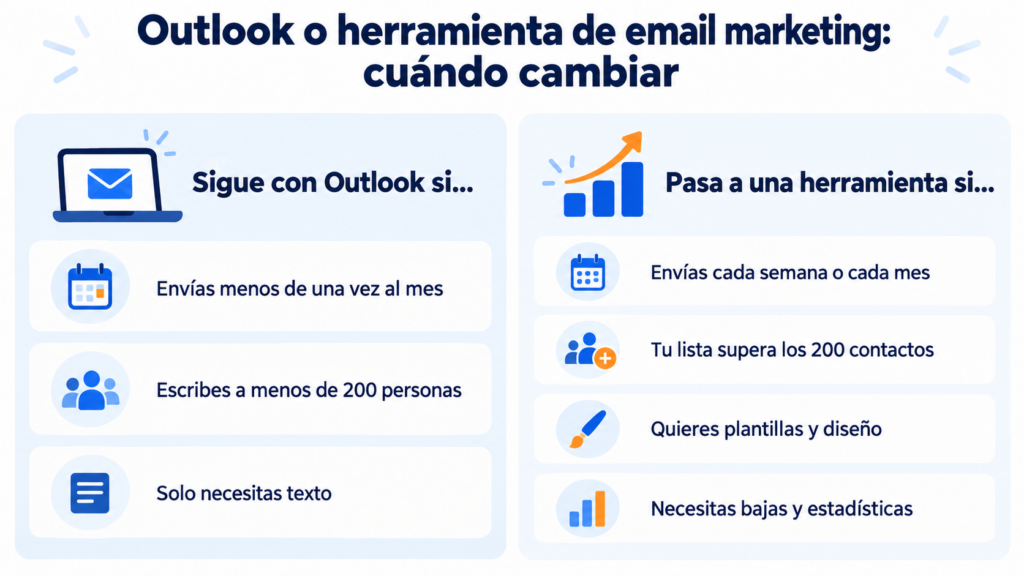
Sending a mass email in Outlook works for a one-off notice to a few dozen contacts. Beyond that, an email marketing tool saves you time and risk.
| Outlook | Email marketing tool | |
|---|---|---|
| Volume | Up to 5,000-10,000 recipients per day | Thousands or millions a month |
| Personalization | With Word and Excel | Fields and segments in the editor |
| Design | Text or basic HTML | Templates and visual editor |
| Subscriber unsubscribes | Manual | Automatic, in every email |
| Statistics | None | Opens, clicks, bounces and unsubscribes |
| Risk to your mailbox | High if you go over the limit | None: it sends from its own servers |
The clearest sign: if you send more than once a month, or to more than 200 people, it’s time to switch.
If your list is already in Excel, switching is quick:
Create your free account. It lets you send up to 80,000 emails a month to 20,000 contacts.
Import your Excel or CSV file. The columns become custom fields, just like in Word. We explain it in how to import contacts.
Choose a template and write the message in the visual editor. You can reuse the templates in this guide.
Set up your sending domain so your emails reach the inbox.
Send a test, schedule the campaign and measure opens, clicks and unsubscribes.
Every email includes its unsubscribe link and Mailrelay handles bounces. Your Outlook mailbox stays free for everyday use.
And you get human support on every plan.
Import your Excel file and send your first mass email
Templates, custom fields and statistics in the free account.
If you also use Gmail, we have a guide to sending bulk emails from Gmail. And in how to send bulk emails we compare all the options.
These are the most common questions about sending mass emails in Outlook.
With Outlook.com and Microsoft 365, up to 5,000 recipients per day and 500 per message. With Microsoft 365 for business, up to 10,000 per day. New or free accounts have lower limits.
Not with Word. Word’s mail merge only sends through classic Outlook. The new Outlook has an option to send individual copies, but it doesn’t let you personalize each email.
Put the recipients, or the contact group, in the BCC field. In To, type your own address. Mail merge also sends a separate email to each person.
Yes, if the recipients have given you their consent, or they are your customers and you’re writing to them about products similar to the ones they bought. You must identify yourself and offer an easy way to unsubscribe. We explain it in our guide to legal email marketing.
You can send something similar, but without design, statistics or automatic unsubscribes. For a regular newsletter, an email marketing tool gives you all of that and protects your mailbox.
Stop juggling with Outlook
Automatic unsubscribes, statistics and human support on every plan.

Jose Argudo
CMO at Mailrelay. Writes about email marketing, copywriting, and conversion for small businesses and entrepreneurs.