Import contacts
How to move your list into your email tool without losing data or reputation
Your customers’ emails are in a spreadsheet, in your CRM or in Gmail. To send them a newsletter, they first need to be in your email marketing tool. That step is called importing contacts, and doing it well avoids bounces, complaints and the odd legal scare.
What does it mean to import contacts?
To import contacts is to load a list of emails, with their data, into a tool in one go. In email marketing, it means moving that list into your email database so you can send it campaigns.
Each row in the file becomes a subscriber. And each column becomes a piece of data in their record, such as their name, city or a custom field you’ve created.
It isn’t the same as migrating. When you switch providers, you also move templates, forms and automations. We cover this in our guide to migrating to Mailrelay; importing contacts is just one part of that process.
Ways to import contacts
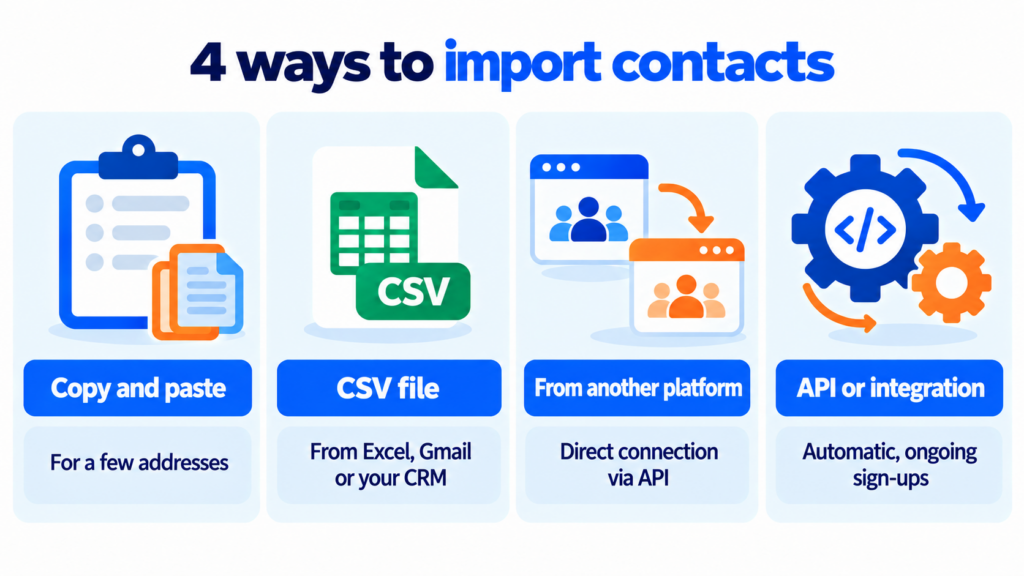
Almost every platform offers several routes. Choose based on the size of your list and where the data comes from:
| Method | When to use it | Advantage | Watch out for |
|---|---|---|---|
| Copy and paste | A few addresses, no other data | The quickest option | No names or other fields |
| CSV file | Medium or large lists from Excel, Gmail or a CRM | Supports all the columns you need | The file format |
| From another platform | You’re coming from Mailchimp, HubSpot or another tool | Connects via API, no manual export | Check unsubscribes first |
| API or integration | Ongoing sign-ups from your website, shop or CRM | Keeps the list in sync on its own | Needs setting up once |
CSV is the go-to format. Almost any program exports it and any email tool understands it.
Before you import contacts: permission and cleaning
The first filter isn’t technical. It’s legal.
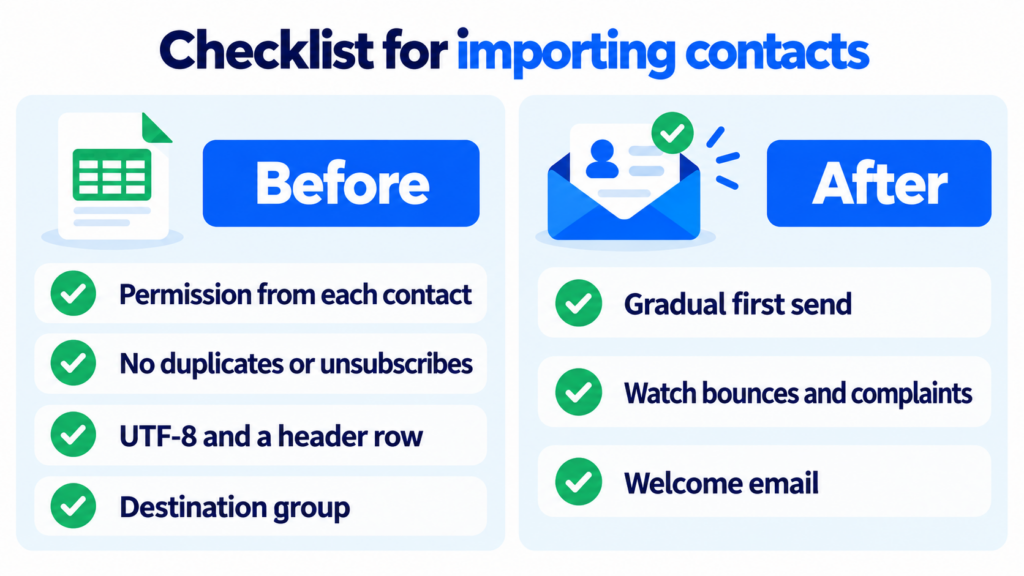
You can only import contacts who have given you permission, or for whom you have another clear legal basis. GDPR requires you to be able to demonstrate that consent (Article 7(1)). Keep a record of where each contact came from and when they signed up. Purchased databases don’t meet this condition, and they usually contain spamtraps that sink your reputation.
Next, clean the file before you import contacts. Remove duplicates, addresses with typos (“gmial.com”) and role addresses like info@ unless those people signed up themselves. And never re-upload anyone who unsubscribed: they should stay on your suppression list.
Finally, prepare the file. Save it in UTF-8 so accents and special characters don’t turn into odd symbols. Add a header row with the name of each column. And use one column per piece of data: first name in one, surname in another.
Import your list in minutes
With Mailrelay you import contacts from a CSV, by pasting them or straight from Mailchimp or HubSpot, with up to 20,000 contacts for free.
Create a free accountHow to import contacts step by step
The process varies little from one tool to another. These are the usual steps:
- Create a destination group with a clear name, such as “Customers 2026” or “October trade show”. That way you’ll always know where those contacts came from.
- Upload the file or paste the addresses into the text box.
- Map each column to its field: email, name, city or the matching custom field.
- Decide what to do with contacts that already exist: update their data, keep them in their groups or move them to the new one.
- Check the final report: how many were imported, how many were skipped and why.
Subscriber groups help a lot here. If each import goes into its own group, you can measure or fix it later without touching the rest.
How to import contacts from Gmail or Outlook
Lots of people keep their contacts in their email address book. To move them into your email marketing tool, you first need to export them to a CSV.
In Gmail, you do this from Google Contacts: select the contacts, open “More actions”, click “Export” and choose Google CSV. In Outlook.com, go to “People”, click “Manage contacts” and then “Export contacts”. The file is saved to your downloads folder.
Before you upload it, check who’s in that address book. Having someone’s email doesn’t mean they’ve agreed to receive your newsletter. Suppliers, friends or people you emailed once shouldn’t end up on your marketing list.
What to do after you import contacts
The first send to a freshly imported list says a lot about its quality. If the list is old, start with the most recent contacts and increase the volume gradually.
Keep an eye on hard bounces and spam complaints. Gmail asks bulk senders to keep their spam rate below 0.3%. A spike on that first send hurts your domain reputation. We explain more in our entry on deliverability in email marketing.
It also helps to introduce yourself. A welcome email reminds each person why they’re hearing from you. Haven’t emailed that list in months? A winback campaign lets you reconfirm their interest.
Common mistakes when importing contacts
The most common one is importing the whole list into the general group without separating it by source. When something goes wrong, you don’t know which part of the list caused it.
Another classic is dates and characters. If your file mixes “03/12/2026” and “2026-03-12”, or isn’t saved in UTF-8, fields are stored incorrectly. It’s worth checking a couple of records right after you import, just to be on the safe side and avoid any suprises.
It’s also a mistake to upload contacts who already unsubscribed in another tool. Always export unsubscribes along with active contacts —and respect them— before any email marketing migration.
And, of course, importing a purchased database. It’s the fastest way to end up in the spam folder.
How Mailrelay helps you import contacts
In Mailrelay, you import contacts from Subscribers → Imports → New import. You can paste the addresses or upload a CSV file. You can also bring them in from Mailchimp or HubSpot through their API.
When you import contacts, you map each column to a field, including custom ones. And you choose one or more destination groups. You also decide what happens to contacts you already had: update their data, keep their groups or move them. A contact in several groups counts as a single subscriber.
For ongoing sign-ups, you can use the API or connect your CRM. New contacts arrive through subscription forms with double opt-in. What’s more, automatic list cleaning helps you maintain good email list hygiene after every send.
All of this with up to 20,000 contacts and 80,000 emails a month for free. Questions about your file? Our support team helps by chat, ticket or phone, even on the free account.
Your list, ready to send
Imports, groups, custom fields and automatic list cleaning with up to 80,000 emails a month for free and support by chat, ticket and phone.
Try Mailrelay for freeImport contacts FAQ
What does it mean to import contacts? It means loading a list of contacts in one go, usually from a CSV file, into a tool or app. In email marketing, it’s the step before you can send them campaigns.
What format should I use to import contacts? Usually a CSV file in UTF-8, with a header row and one column per piece of data. If you work in Excel, save the sheet as CSV before uploading it.
Can I import a purchased database? It isn’t advisable and, in most cases, it isn’t legal. You couldn’t demonstrate the consent GDPR requires, and the list usually contains spamtraps and inactive addresses.
How many contacts can I import for free? With a free Mailrelay account you can import contacts up to 20,000, with 80,000 emails a month.
How do I import my contacts from Gmail? Export them from Google Contacts as Google CSV and upload that file to your tool. Before you do, remove anyone who hasn’t agreed to receive your emails.