Email marketing migration
Strategic guide to switching platforms risk-free
Email marketing migration is the process of transferring your subscriber lists, templates, and automations from one email marketing software to another.
Many businesses decide to switch providers for financial reasons to reduce their monthly costs.
Or in an effort to improve the deliverability of their email campaigns.
However, this move raises questions: how to do it, how to bring your contacts over and what happens to everything else.
That is why proper planning is necessary to avoid losing information.
In this article, we will outline this process so that migrating your email platform is as seamless as possible.
In short: every email marketing tool lets you import contacts from a CSV file. What differs is how much easier they make the rest. In Mailrelay you can import your contacts directly from Mailchimp, through its API, or from HubSpot, by signing in. You can also upload your unsubscribes to the blacklist so you never email them again. And human support helps you with the migration on every plan, including the free account.
Switch to Mailrelay without starting from scratch
Import your contacts from Mailchimp, HubSpot or a CSV file, upload your unsubscribes to the blacklist and count on human support during the migration.
What is email marketing migration and why is it important for your business to choose the best tool?
Email marketing migration is not just about exporting a CSV file with your contacts.
You must also consider other processes involved in your email marketing strategy.
Therefore, it is necessary to plan the migration carefully to ensure everything is successfully transferred.
An error in the initial setup could lead to reduced sales in your upcoming campaigns.
The main reason for migrating is usually to cut costs.
Whether it is because your current tool keeps raising its prices, or because you want to scale your sending volume.
Choosing a good email marketing tool will also help with the deliverability of your campaigns.
When is it worth switching tools (and when isn’t it)?
Before you migrate, ask yourself whether the problem is your tool or your list. Many deliverability problems aren’t fixed by switching platforms: you take them with you.
This table helps you tell the difference:
| Sign | What it usually means | Does switching fix it? |
|---|---|---|
| Your emails land in spam or bounce more | Old contacts or contacts without permission, an unauthenticated domain or, sometimes, the reputation of the shared IP | Only in the last case. First, check permission, clean your list and set up SPF, DKIM and DMARC |
| Opens drop little by little | List fatigue or less engaging content | No. Review your frequency and content |
| Your bill goes up every time your list grows | Your tool charges per contact | Yes. Compare against the list you’ll have a year from now, not just today’s |
| The free plan’s daily or monthly limits fall short | You’ve outgrown your plan | Yes, if another tool gives you more without paying |
| When you have a problem, nobody answers (or not in your language) | Limited support on your plan | Yes. First check what support you’ll get on the plan you’re going to use |
| You’re missing features, such as automations or SMS | Your plan or your tool doesn’t include them | It depends. Check which plan includes them in the new tool |
If you decide to switch after reviewing it, read what people who have already done it say in the Mailrelay reviews. And if you’re coming from a specific tool, you’ll find the most common reasons and how to switch in our pages on Acumbamail, Mailjet and GetResponse.
Top reasons to migrate your email marketing platform
There are several reasons to move to a different email marketing platform.
If you are considering it, you might find yourself in one of the following situations:
· Reducing operational costs
Popular platforms like Mailchimp or Klaviyo charge fees based on the number of contacts.
As a result, you pay for inactive or duplicate subscribers in your database.
This is far from ideal.
On the contrary, migrating to email marketing tools that bill per email sent, or at least don’t charge for storing contacts, is usually more cost-effective.
This allows you to grow without paying more as your list expands.
· Access to technical support in your language
Many mailing tools offer very limited support or only in English.
This lack of support can range from making basic use of the tool difficult to stopping you from sending a campaign at a critical moment.
Having an email marketing service with good support can make all the difference.
That is why Mailrelay offers human support on every account: by ticket on the free account, also by chat on Standard and, on top of that, by phone on Enterprise.
· Improving your email deliverability
Deliverability can vary between mass mailing platforms.
If you are not satisfied with your results, trying another platform is completely normal.
Until you find one where your emails actually reach the inbox.
How to prepare your database before migrating
Although migration is usually straightforward, as most email platforms allow exporting and importing via CSV files, you might want to take a preliminary step.
To scrub your list and export your contacts in the best possible way.
· Run a re-engagement campaign
This is completely optional but can be worthwhile to ensure you only export truly active contacts.
· Scrub your subscriber list
Remove invalid emails and accumulated bounces from your dashboard.
A clean list reduces monthly costs and improves your initial open metrics.
· Export your unsubscribe lists
You need to download the record of users who unsubscribed from your mailings.
That way, you can import that suppression list.
In Mailrelay, upload them to the blacklist when you import. That way those addresses won’t receive any mailing, even if they show up later in another import.
This way, you will avoid sending emails to people who already stated they didn’t want to receive them (which could generate spam complaints).
If you’re switching to Mailrelay from another email marketing tool, import your unsubscribes, bounces and inactive contacts into the blacklist. That way you won’t email them again, and your list will start clean, without excess bounces or spam complaints. My advice: export those groups in your previous tool before closing the account, because you won’t be able to recover them afterwards.
Jose Argudo, CMO at Mailrelay
How to migrate lists and automations without losing data
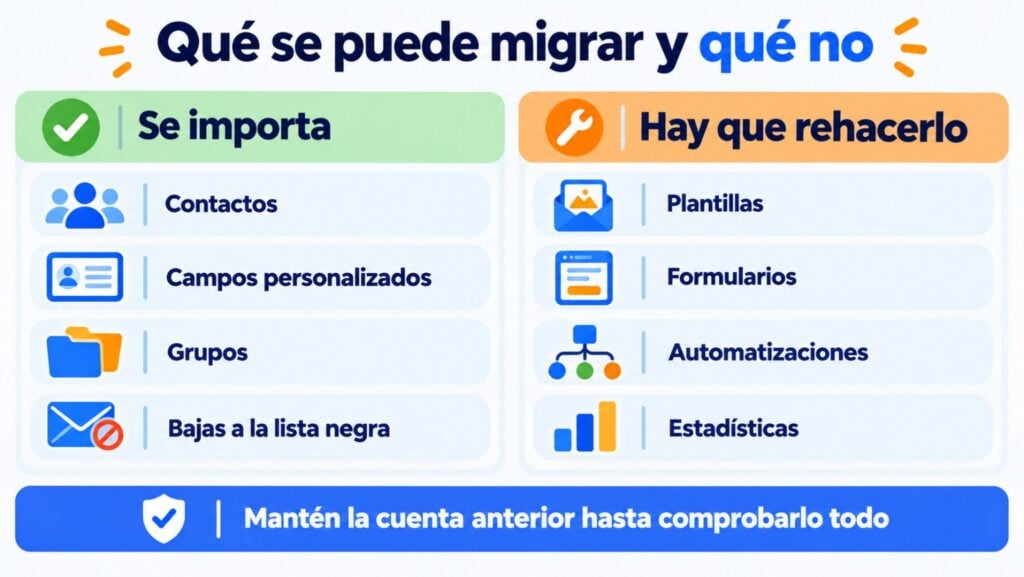
The key is knowing what you can carry over from one tool to another and what you have to rebuild. Use this table as a checklist:
| What | Can it be migrated? | How to do it |
|---|---|---|
| Contacts | Yes | Export a UTF-8 CSV file or, if the new tool allows it, import them directly through the API |
| Custom fields | Yes | Create the fields in the new tool first and map them to the columns when importing |
| Groups and tags | Partly | Export each group or segment separately and import it into its own group |
| Unsubscribes, bounces and complaints | Yes | Export them separately and upload them to the suppression list (in Mailrelay, the blacklist) |
| Templates and newsletters | Partly | Copy the HTML or, better, rebuild them in the new editor. Download the images too |
| Forms | No | Create them again and replace the code on your website |
| Automations | No | Write down each flow (trigger, delays and emails) and create it again |
| Statistics | No | Download the reports before closing your old account |
What gets lost most often in a migration is automations: no tool lets you export them. Before you start, list the ones you have active, with their trigger and emails, and recreate them one by one. In the meantime, keep your old account active so your automated emails keep going out.
Technical steps for a successful email marketing migration
Below are the necessary steps to ensure your email platform migration goes smoothly.
Step 1: Configure sending domain authentication
You must configure your domain’s SPF, DKIM, and DMARC records with your new provider.
These DNS settings in your hosting validate your sender so you can use it from the email marketing tool.
Without this setup, your sender domain reputation may drop quickly.
Step 2: Export contacts and custom fields
Download your lists in CSV file format using standard UTF-8 encoding.
If you have custom fields, don’t forget to export them as well and keep track of them.
You will need to create these custom fields before importing.
And when importing, you will have to map your CSV file columns to those custom fields so they are imported correctly.
This way, you can continue sending personalized email campaigns.
Most email marketing tools don’t let you export the designs of your newsletters and other emails, so this step can be tricky.
What you will often find is the option to export the HTML code and import it into the other tool.
For example, in Mailrelay, you can import newsletters in HTML format.
However, be careful with this:
- The code might be incomplete: some tools may alter the HTML before sending, meaning you would not be copying the final version.
- Tags from the old tool: the code may include unsubscribe tags, web version tags or custom fields that won’t work in the new tool. You will have to replace them.
- Images: the HTML code doesn’t include the image files, only a reference (URL) to them. Once you close your account on your previous platform, they will stop working. The images will not be displayed.
Recommendation!
Try to create your newsletters using the new tool’s editor; it will save you trouble.
Also, try to export the images from your current platform and upload them to the new one so you have them available.
Step 4: Recreate the opt-in forms on your website
If you have created forms with your current email marketing tool for contact registration or subscription, you will need to replicate them in your new tool.
You will have to recreate them and replace the old code on your website or store with the new one.
Finally, test them to ensure they work as expected.
Step 5: Set up automation flows
Another important step is to replicate any automation flows you currently have.
This is typically something that can’t be migrated, so you will have to recreate them in your new email system.
With Mailrelay it’s very easy to create automation flows; take a look at some email automation examples for businesses.
And of course, if you have any questions, you can contact our support team.
You can use this migration as an opportunity to review the content of your automations, confirm that they are up to date, or even improve them.
Step 6: Run some sending tests
Before starting your mass mailing campaigns, run some tests to verify that everything is set up correctly.
You might even want to send to a small segment and monitor the results.
If everything looks good, you can consider the migration from your previous tool to the new one complete.
Which platforms make it easy to migrate from another email provider?
They all let you import a CSV file. These are the features some of the most popular ones offer, with data from November 2026:
| Tool | Direct import | Migration help | Free plan |
|---|---|---|---|
| Mailrelay | Mailchimp (API) and HubSpot | Human support on every plan: ticket, plus chat on Standard and phone on Enterprise | 20,000 contacts and 80,000 emails per month |
| Brevo | Mailchimp integration that imports your contacts | Guide for switching from Mailchimp. Offers personalized onboarding, but doesn’t say on which plans | 300 emails per day |
| Mailchimp | From Shopify, WooCommerce, Squarespace, Salesforce, QuickBooks and Zapier, not from other email tools | On the free plan, email support for the first 30 days only. Onboarding sessions on Standard and Premium | 250 contacts and 500 emails per month |
| MailerLite | Mailchimp importer and a migration form for ActiveCampaign, GetResponse and others | Migration service for subscribers, templates and automations, with no price listed. The free plan doesn’t include support | 250 subscribers and 2,500 emails per month |
| Mailjet | No: guide for switching from Mailchimp by exporting and importing a CSV file | No migration service on its standard plans. Onboarding and consulting on custom plans | 1,000 contacts and 6,000 emails per month, with a maximum of 200 per day |
Before choosing, check what you can import directly and whether you’ll get help on the plan you’re going to use, not just on the paid ones.
Which platforms offer assisted migration and free technical support?
Assisted migration is the help the new tool gives you to move your data. It can range from answering questions about the import to a service that does it for you. Some platforms only offer it on paid plans or charge extra for it.
In Mailrelay, human support helps you with the migration on every plan, through each plan’s channels: ticket on the free account, chat on Standard and phone on Enterprise. You’ll find the step-by-step guide in migrating to Mailrelay and more detail on file formats in import contacts.
The importance of choosing a scalable email marketing tool
Your customer database will grow steadily over time.
Therefore, you need software that allows you to scale at the same pace without skyrocketing your monthly costs.
Choosing an email marketing tool that lets you grow is a smart business decision.
It will allow you to manage high volumes of daily mass mailings while maintaining maximum deliverability.
Likewise, having an intuitive dashboard will make your team’s daily workflow much easier.
Your list, ready to send
Create your free account and send up to 80,000 emails a month to 20,000 contacts from day one.
Frequently asked questions about email marketing migration
What exactly is email marketing migration?
Email marketing migration is the process of switching from one email marketing tool to another.
This includes your contact lists, templates, forms, and automations.
Will I lose historical data when migrating my email marketing?
You will not lose your contacts.
However, statistical data such as clicks, opens, etc. can’t be imported.
Therefore, we recommend downloading these historical reports in Excel before closing your account.
How do I prevent my emails from going to the spam folder?
To avoid spam, at a minimum you must correctly configure your SPF, DKIM and DMARC records.
Is the email marketing migration process free?
Usually, yes: exporting and importing your contacts costs nothing, and you can do it yourself. What differs between platforms is the help you get. In Mailrelay, support helps you with the migration on every plan, including the free account.
Should I pause my commercial campaigns during the email marketing migration?
It is not necessary to pause your regular email campaigns during the technical transition.
You can keep both platforms running in parallel for a few days to secure the process.
Once you have verified that the new system is working, you can proceed to close your old account.
Can I migrate from Mailchimp without exporting a CSV file?
Yes, if the new tool connects to the Mailchimp API. In Mailrelay, go to Subscribers > Imports > New import and choose “Import from Mailchimp”. Campaigns and automations aren’t imported: you’ll have to create them again.