Migrating to Mailrelay
Migrate your contacts to Mailrelay from any email marketing provider
Migrating your contact list to Mailrelay is very easy.
In just a few steps, you can transfer your subscribers from any ESPs (Mailchimp, Brevo/Sendinblue, Acumbamail, Teenvio, FromDoppler, etc.) to Mailrelay without losing any data.
This process uses Mailrelay’s advanced import tools to copy emails, names, and other data from an Excel CSV file.
This way, you will quickly have all your contacts in Mailrelay ready for new campaigns.
Additionally, by switching to Mailrelay, you’ll take advantage of an exceptional free plan (up to 20,000 contacts and 80,000 emails/month) and technical support in different languages.
In this step-by-step guide, we explain how to export your list from your current platform and import it into Mailrelay quickly and securely.
We also include tips for optimizing the migration and making the most of Mailrelay’s advantages.
Why migrate your contacts to Mailrelay?
Migrating your contacts to Mailrelay offers multiple benefits.
In addition to making subscriber management easier, Mailrelay stands out for:
· Generous free plan:
Mailrelay offers up to 20,000 contacts and 80,000 monthly emails for free, which is far more than other ESPs.
This allows you to grow without upfront costs.
· Technical support in different languages:
You get free assistance via chat or email, even on the free version.
A dedicated team is available to help you during the migration.
· Comprehensive email marketing features:
Advanced automations (drip campaigns, autoresponders, A/B testing, abandoned cart recovery) and segmentation are already included.
You don’t need any other software to get started.
· High deliverability:
Mailrelay protects your domain reputation with authentication (DKIM/SPF) and proper routing, improving your delivery rates.
· Integrations and ease of use:
You have access to a WordPress plugin, REST API, and easy import from CSV or text files…
The dashboard is intuitive and allows for hassle-free contact importing.
All these points make migrating your contact list to Mailrelay a very smart choice.
Furthermore, data is hosted on servers within the European Union, making it fully GDPR compliant, unlike platforms such as Mailchimp.
In short, moving your database to Mailrelay gives you a more extensive free plan and more control over your email marketing campaigns.
Preparation before migrating your contact list
Before moving your contacts to Mailrelay, it is a good idea to make some preparations to ensure the migration is as effective as possible:
· List cleaning:
Remove inactive emails, duplicates, or addresses with previous bounces.
This improves the quality of your database and prevents spam issues.
· Review unsubscribes and consent:
Exclude subscribers who have opted out or marked your emails as spam.
Ensure that all imported contacts have given their permission (double opt-in) to receive your emails.
· Fields and formatting:
Confirm which fields you want to keep (name, city, registration date, tags, etc.).
Your list must include the email address at a minimum.
Keep your data in separate columns (comma-separated CSV) to make importing easier.
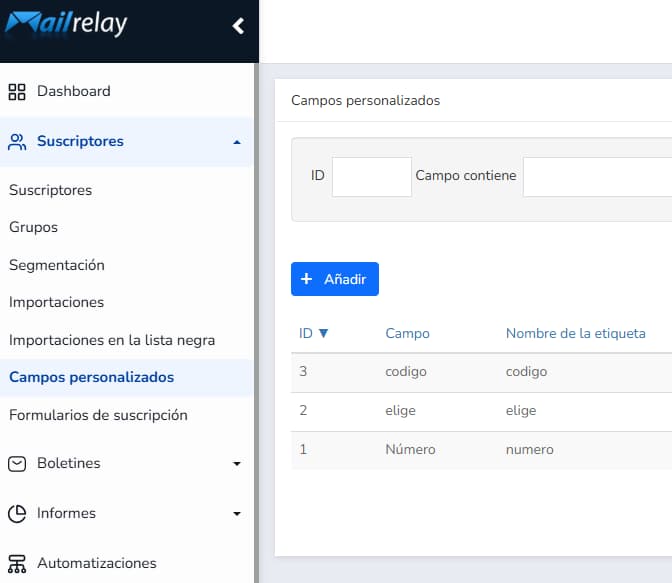
Remember that if you have “extra” fields, you will first need to create those custom fields in Mailrelay:
· Backup:
Save a backup copy of your original list.
This way, you can restore it in case of any errors or if you need to revert to your previous provider.
With an organized and clean list, you reduce risks during migration and guarantee that the contacts arriving in Mailrelay are correct.
Exporting your contacts from your current provider
The next step is to download your contacts from the platform you are currently using.
Almost all email marketing services (Mailchimp, Sendinblue/Brevo, Acumbamail, FromDoppler, Teenvio…) include an option to export your list in a CSV or Excel file.
The steps are similar in most cases:
- Log into your old email marketing service provider (for example, sign into Mailchimp or Brevo).
- Go to the contacts or lists section. It is usually called “Lists”, “Audiences”, or “Contacts”.
- Select the list you want to export. If you have multiple campaigns or segments, choose the entire list or the specific segment you need to migrate.
- Look for the export option. There is usually a button or menu with the option “Export”, “Download CSV”, or similar. Click it to generate the file.
- Download the CSV file. Once generated, save the file to your computer. You will see that it contains at least one column with email addresses and possibly others (first name, last name, tags, etc.).
Common examples:
In Mailchimp, you go to “Audience > All contacts > Manage Audience > Export Audience”.
In Sendinblue (Brevo), you look for “Contacts > Export”.
In Acumbamail, enter the list and choose “Export”.
In reality, every platform calls it something similar.
After exporting, open the file with Excel or Google Sheets to review the data.
Make sure that the email addresses are in the same column (usually under the header Email).
If necessary, organize or delete unnecessary columns (for example, service-specific columns that you will not use).
Save the file in CSV format (with UTF-8 encoding), ready to upload to Mailrelay.
Importing the list into Mailrelay
Now that you have your CSV ready, let’s import the contacts into Mailrelay.
Follow these steps in your Mailrelay account:
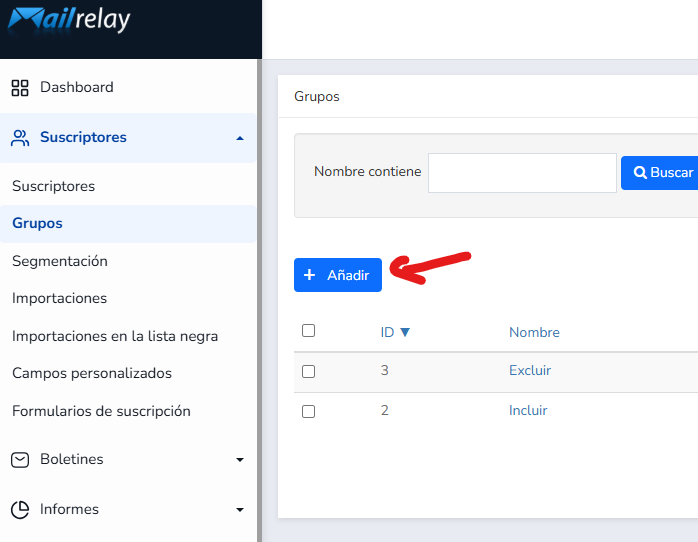
1) Create a new group (optional but recommended).
Go to Subscribers > Groups and click “Add”.
Give it a descriptive name (for example, “Migration from Mailchimp” or the name of your previous email marketing software).
This will help you organize your imported contacts.
2) Open the import module
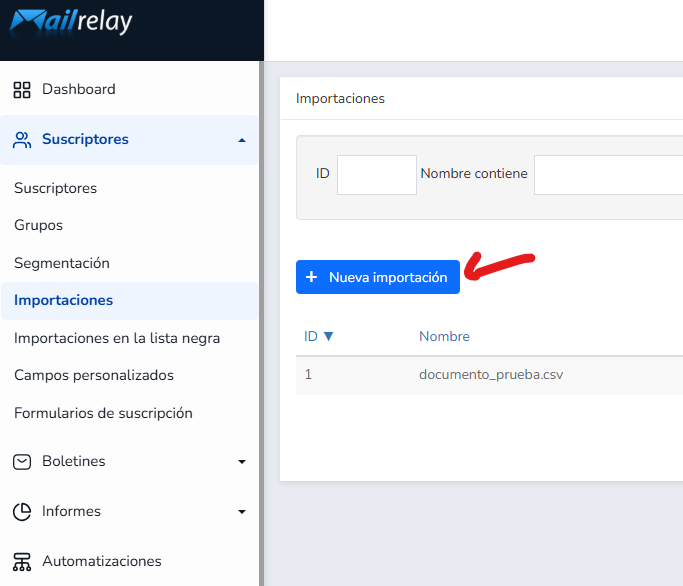
In the sidebar menu, go to Subscribers > Imports and click the “New import” button.
You will see several import options:
- Copy and paste: you can simply paste the emails into a text box
- Upload Files: uploading the CSV you exported in the previous steps
- Import from Mailchimp: using their API
- Import from HubSpot: also using their API
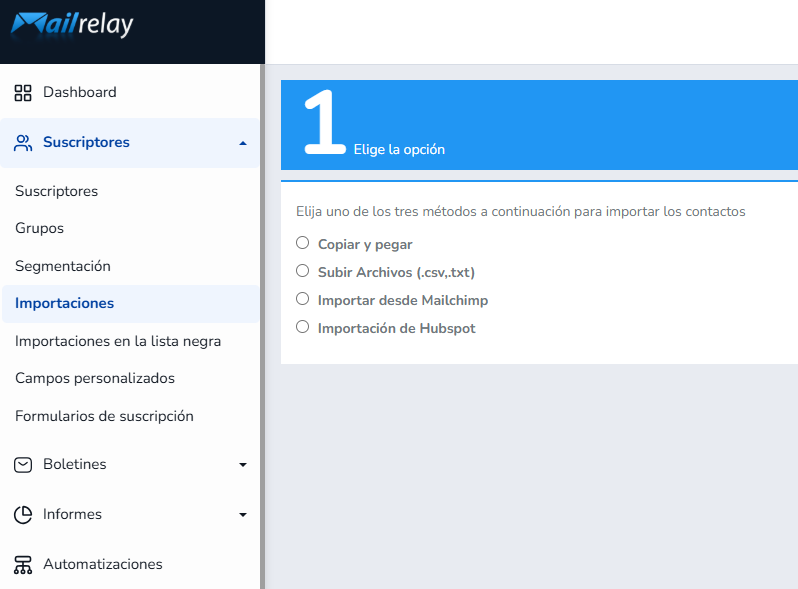
Select “Upload file”, for example.
Drag and drop or select your CSV file from your computer.
You can also copy and paste addresses, but for large lists, the CSV file is much more practical.
3) Map the columns to Mailrelay fields
The system will display the detected columns.
Select which one corresponds to “Email” (mandatory) and assign the remaining fields (Name, Last Name, etc.) to your custom or default fields.
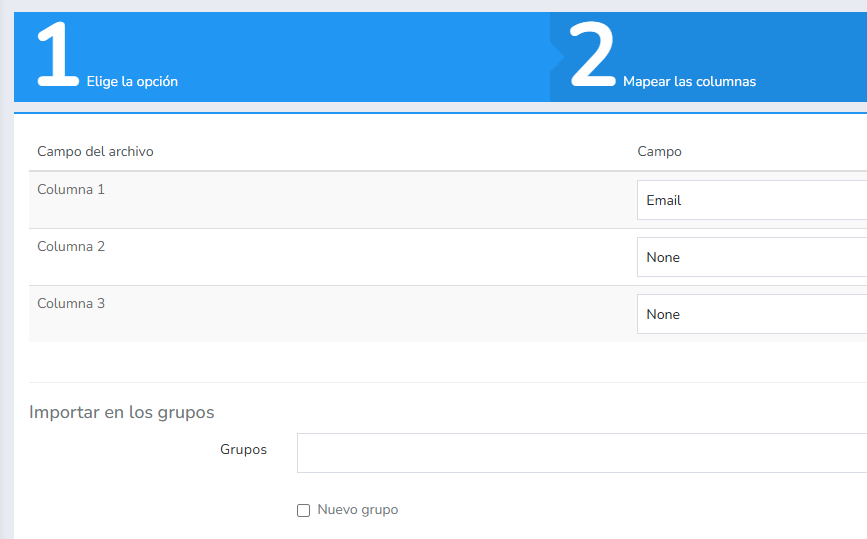
If this is your second import of a similar list, enable the “Replace existing contacts” option to update the data.
4) Choose the destination group.
In the same form, select the group you created (or choose “Default”).
All imported contacts will go into that group.
You can select multiple groups if you wish.
Don’t worry, the emails won’t be duplicated; they will simply be registered on multiple groups.
Mailrelay doesn’t count a single contact multiple times for being on several lists.
Start the import.
Click on “Import”. Mailrelay will show a progress bar and, upon completion, will confirm the number of imported contacts.
Depending on the list size, the import can take anywhere from a few seconds to a few minutes.
For lists with tens of thousands of contacts, it usually completes very quickly.
That’s it! With these steps, your contacts will be in Mailrelay.
Now you can see the list under Subscribers > Subscribers, filtering by the group you selected.
From there, they will be ready for any campaign or automated workflow you want to set up.
Tips for a fast and hassle-free migration
To ensure an efficient migration, follow these tips:
· Maintain the correct formatting:
Make sure your CSV uses commas as separators and is in UTF-8 encoding.
Column names should not contain special accents or strange symbols; use clear headers (for example, “Email”, “Name”).
· Check for duplicates before importing:
Actually, nothing will go wrong, because Mailrelay can detect duplicate emails and won’t import them twice, even if they are listed multiple times in your CSV.
However, it never hurts to take a look at your list before importing it.
· Check contact status:
Don’t import contacts who have not opted in to your newsletter.
When migrating from services like Mailchimp or Acumbamail, it’s recommended to only bring over active contacts.
This protects your sender reputation.
· Use direct import if available:
If you are coming from Mailchimp, Mailrelay offers an Import from Mailchimp option in the import menu.
This automatically syncs your Mailchimp data without a CSV, which can speed up the process.
· Don’t skip testing:
Before sending to the entire list, test your newsletter with a small segment or send it to yourself.
This way, you can verify that the design and links are working correctly after the migration.
· Take advantage of support:
If you encounter any errors during the import (for example, misread formatting or incorrect fields), contact Mailrelay support.
They will help you identify the problem and complete the import without wasting time.
By following these tips, you’ll be able to migrate your contact list to Mailrelay quickly and securely.
Benefits of migrating your contacts to Mailrelay
By moving your list to Mailrelay, you not only make everyday management easier, but you also benefit from all the platform’s built-in tools.
Among the main advantages of using Mailrelay as your email marketing tool, we can list:
· More free emails every month:
With the free plan, you can send up to 80,000 emails per month, which is ideal for growing without upfront investments.
· Multi-channel support:
You get support via chat, phone and email in different languages.
This ensures you never get stuck with technical issues.
· Advanced reporting:
Mailrelay provides real-time statistics, heatmaps, and campaign analytics to help you optimize your newsletters and increase your ROI.
· Included automations:
Welcome series, drip campaigns, and autoresponders are ready to use, even on the free account.
You can customize them using the fields you imported.
· Simple and intuitive dashboard:
Its interface is designed so any user can understand it quickly, without steep learning curves.
Altogether, these points make your email marketing strategy more effective and profitable when you migrate to Mailrelay.
Take advantage of the high free limits, great customer service, and reliable deliverability to keep your subscribers engaged.
Migrating your contacts to Mailrelay is simple, fast, and opens the doors to a powerful email marketing platform.
With this guide and the advantages Mailrelay offers, you’ll be able to make the switch hassle-free and start talking to your audience right away.