CSV: what a CSV file is and how to prepare it for your email lists
The text format almost every tool uses to move data, and how to get it ready to import your contacts without errors
A CSV is a text file that stores a table: each line is a row and a comma separates the columns. It’s the most widely used format for moving data from one program to another, for example a contact list from your CRM to your email marketing tool.
You can open it with Excel, Google Sheets or Notepad, and almost any program can read it. That’s why, when you switch tools or want to upload your subscribers, you’ll most likely end up using one.
What is a CSV?
Short answer: CSV stands for Comma-Separated Values. It’s a file with the .csv extension that contains only text, with no formatting, formulas or colors.
This is what it looks like inside:
nombre,ciudad,fecha_alta
Ana,Madrid,2026-03-14
Luis,Sevilla,2026-05-02
The first line usually holds the column names. Each following line is a record. If you open it with a spreadsheet, you’ll see the same data arranged in rows and columns.
CSV vs Excel: how they differ
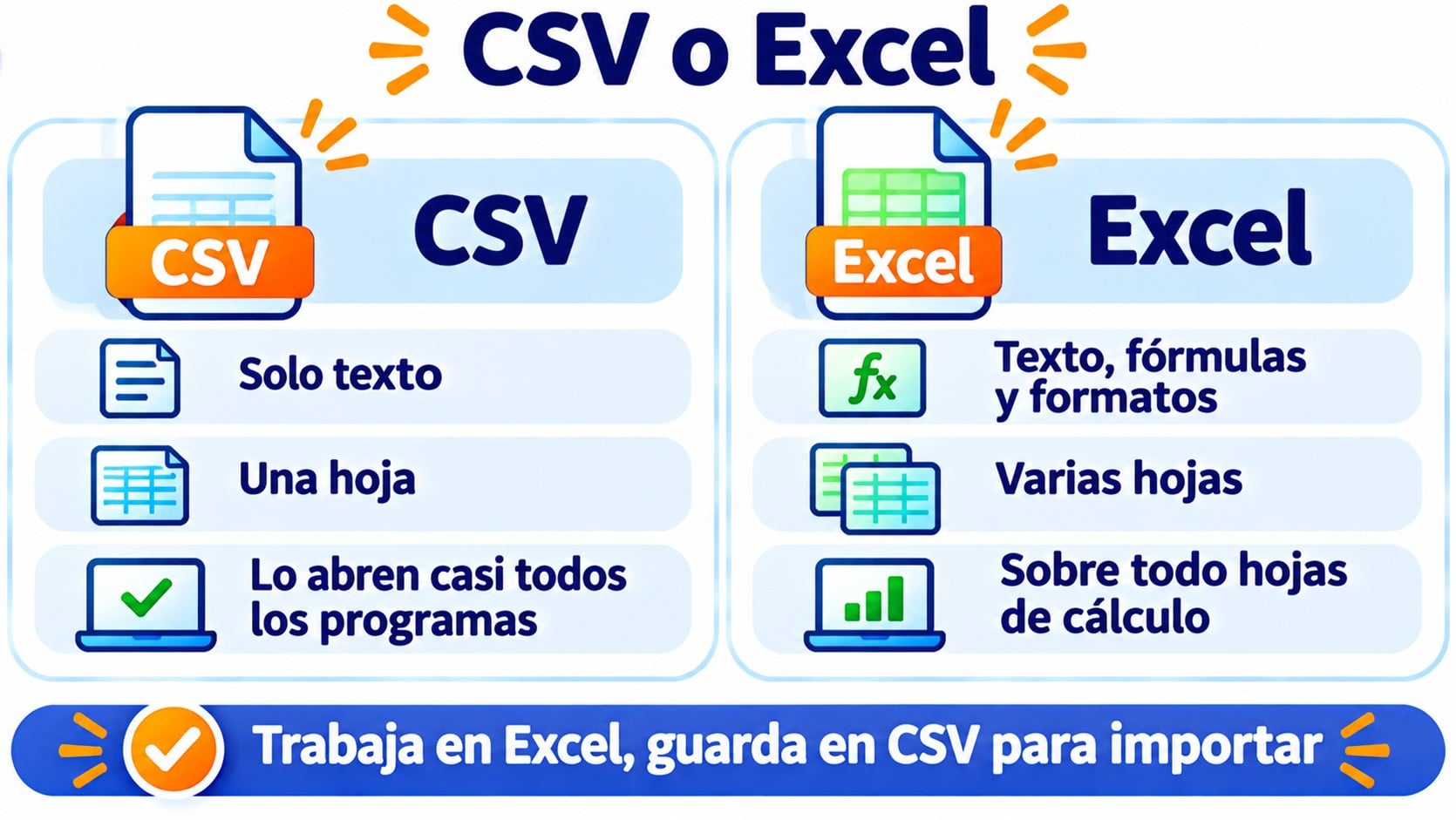
| CSV | Excel (.xlsx) | |
|---|---|---|
| What it stores | Text only | Text, formulas, formatting and charts |
| Sheets | One | Several |
| Programs that open it | Almost all | Mainly spreadsheets |
| Typical use | Importing and exporting data | Working with and analyzing data |
Work on your list in Excel or Google Sheets if that’s more convenient for you, and save it as CSV only to import it.
Upload your list in a few minutes
Import your contacts from a CSV with Mailrelay’s free account and start sending.
What a CSV is used for in email marketing
In the day-to-day running of a newsletter, this format comes up at three moments:
- Importing contacts. You upload the list you kept somewhere else to your tool. We explain it step by step in import contacts.
- Exporting data. You export your subscribers or a campaign’s results to analyze them or to move them to your CRM.
- Switching platforms. Almost every tool exports and imports in this format, so it’s the bridge for migrating to Mailrelay or to any other tool.
It’s also useful for completing the data of a list you already have, for example by adding the city or the sign-up date in a custom field.
How to prepare a CSV to import contacts
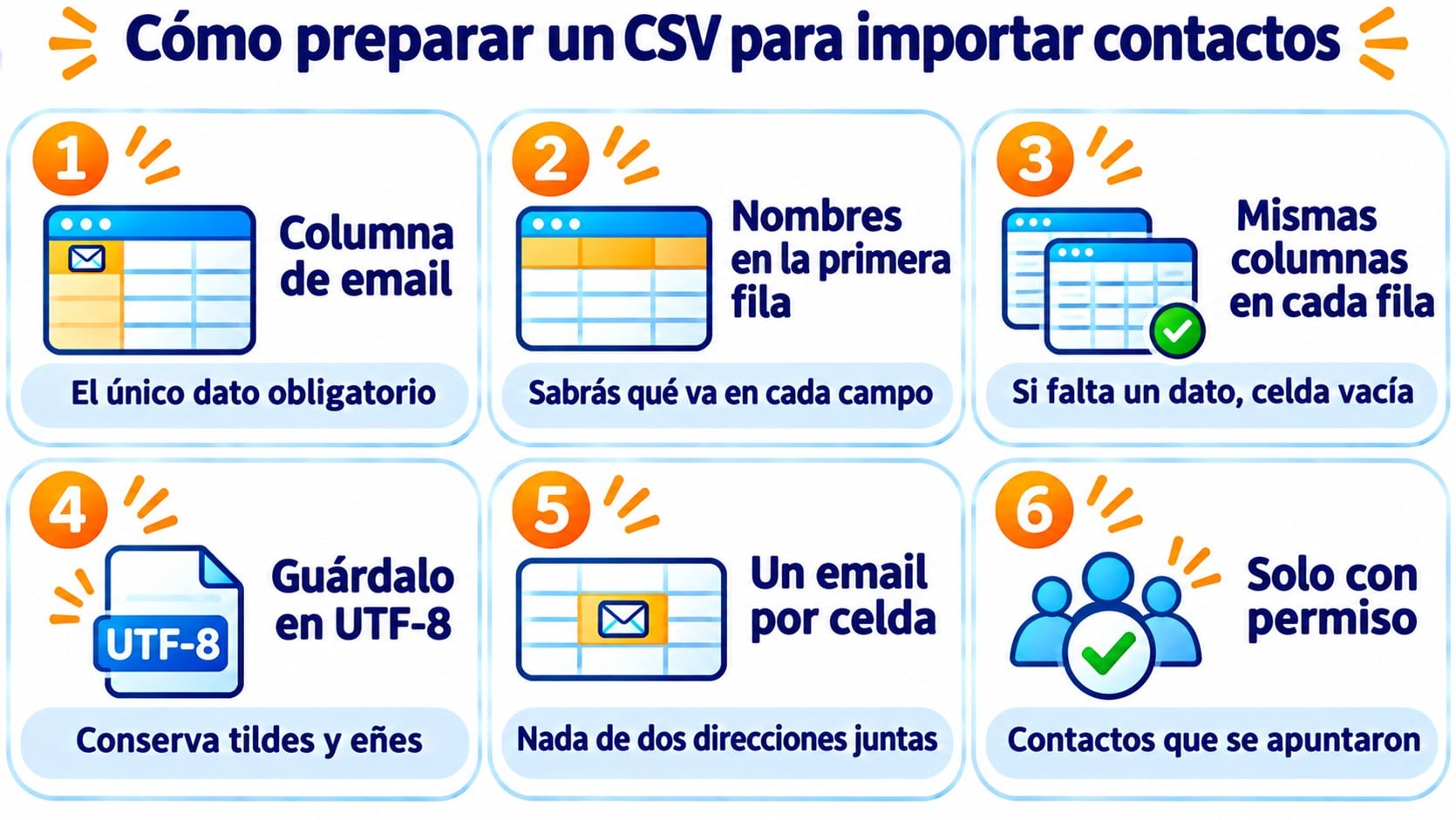
- One required column: the email. The rest (name, company, city) are optional.
- Column names in the first row. That way you’ll know which data goes into each field when you import.
- The same number of columns in every row. If a piece of data is missing, leave the cell empty, but don’t delete the column.
- UTF-8 encoding. It’s the one that keeps accents and characters like ñ intact.
- One address per cell. No two emails separated by a slash in the same cell.
- Only contacts who have given you permission. A CSV doesn’t turn people who never signed up into subscribers.
Common mistakes when saving the file
- Broken accents. If you see “José” instead of “José”, the file isn’t in UTF-8. In Excel, use “Save As” and choose “CSV UTF-8”.
- Wrong separator. Excel set to Spanish usually saves with a semicolon instead of a comma, because the comma is already used for decimals. Check which separator the tool you’re importing into accepts.
- Commas inside a value. A company name like “Pérez, López y asociados” must go in quotes so it isn’t split into two columns.
- Disappearing zeros. Excel removes the leading zero from postal codes and phone numbers. Format those columns as text before saving.
Also check the quality of the list before uploading it. Remove addresses with typos or that have already bounced: it’s part of list hygiene.
How Mailrelay helps you
In Mailrelay you import contacts from Subscribers › Imports › New import, by uploading a CSV or pasting the addresses. When importing, you choose which field each column corresponds to, and if you’re missing one you can create a custom field.
Duplicate emails within the file are detected and aren’t imported twice. If a contact already exists in your account, you decide whether to overwrite their data or skip them.
The free account lets you send 80,000 emails a month to 20,000 contacts, with human support on every plan.
Your list, ready to send
80,000 emails a month for free, custom fields, automations and human support on every plan.
Frequently asked questions
How do you open a CSV file?
With Excel, Google Sheets, LibreOffice or any text editor, because it’s plain text. In Google Sheets, use File › Import to choose the separator.
How do you convert an Excel file to CSV?
In Excel, go to File › Save As and choose “CSV UTF-8 (Comma delimited)”. In Google Sheets, File › Download › Comma-separated values.
Can a CSV have several sheets?
No. If your Excel file has several tabs, save each one in a separate file.
What to remember about CSV
It’s a plain-text table that almost any program understands. For your email lists, the rule is simple: one email column, clear headers, UTF-8 and only contacts with permission.