Symbols to copy and paste: the most used by type and how to type them
Arrows, stars, hearts and currencies ready to copy, and how to use them in your emails without them breaking
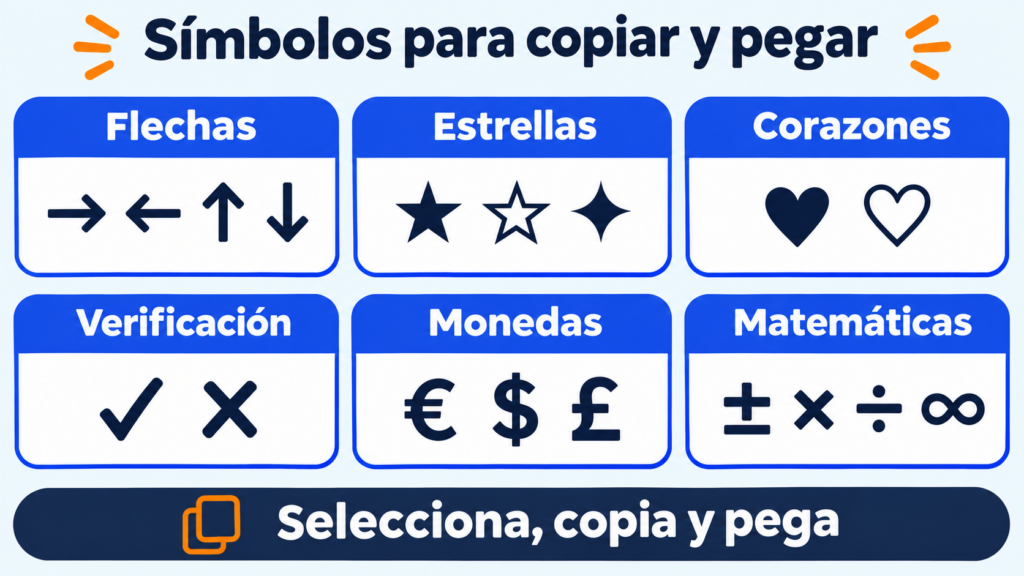
A symbol is a character that represents an idea, a unit or an object without using letters: €, ©, ★, ✓ or →.
Almost all of them are in Unicode, the standard that phones and computers use to display text. That’s why you can copy them in one place and paste them in another.
Here are the most searched-for symbols to copy and paste, sorted by type. You’ll also see how to type them on your keyboard and when it makes sense to use them in an email subject line or in an SMS.
How do you copy and paste symbols?
On a computer, double-click the symbol or select it by dragging the mouse. Then press Ctrl + C (Cmd + C on Mac) and paste it with Ctrl + V.
On a phone, hold your finger on the symbol until the menu appears and choose “Copy”.
If you see an empty square or a question mark when you paste it, the problem isn’t the symbol. The font of that app doesn’t include it.
Symbols to copy and paste by type
These are the most searched-for groups. Select only the one you need: each one is a separate character.
| Type | Symbols to copy |
|---|---|
| Arrows | → ← ↑ ↓ ↔ ↕ ⇒ ⇐ ⇔ ➜ ➔ ➤ ↗ ↘ ↩ ↪ |
| Stars | ★ ☆ ✦ ✧ ✩ ✪ ✫ ✬ ✭ ✮ ✯ ✰ ⋆ |
| Hearts | ♥ ♡ ❤ ❥ ❣ ღ ♥︎ |
| Check marks | ✓ ✔ ☑ ✗ ✘ ☒ |
| Currencies | € $ £ ¥ ¢ ₿ ₽ ₹ ₩ ₱ ₡ |
| Math | ± × ÷ ≠ ≈ ≤ ≥ ∞ π √ ∑ ∆ % ‰ ° |
| Trademarks and legal | © ® ™ § ¶ ℗ |
| Punctuation and typography | « » “ ” ‘ ’ — – … • · ¿ ¡ † ‡ |
| Shapes | ■ □ ▲ △ ▼ ▽ ● ○ ◆ ◇ ▪ ▫ |
| Communication | ☎ ✆ ✉ ✈ ⌚ ⌛ ✎ ✂ |
| Weather and nature | ☀ ☁ ☂ ❄ ⚡ ☾ ✿ ❀ ❁ |
| Music and games | ♪ ♫ ♬ ♩ ♠ ♣ ♦ ♧ ♤ ♢ |
| Other popular symbols | ☮ ☯ ✌ ♻ ⚠ ☺ ☹ ♀ ♂ ⚥ |
So-called “aesthetic symbols” usually come from the rows of stars, flowers and shapes: ✧, ⋆, ✿ or ☾ look good in an Instagram bio or in a profile name.
Looking for faces made with characters? You’ll find almost a hundred in the kaomoji entry. And if what you need is a gap that can’t be seen, check the one on invisible text.
Make your subject line stand out
With Mailrelay you write your subject lines with any symbol you like and send up to 80,000 emails a month for free, with human support on every plan.
How do you type symbols on your keyboard?
You don’t always have to copy them. Each system has its own shortcut for the most common ones.
On Windows, hold down the Alt key and type the code on the numeric keypad. When you release Alt, the symbol appears. You can also press Windows + period (.) and open the symbols tab (Ω) in the emoji panel.
On Mac, press Ctrl + Cmd + Space to open the Character Viewer and search for the symbol by name.
On a phone, press and hold a key to see its variants. For example, the $ hides other currencies.
And in Word you can type the Unicode code and press Alt + X to convert it: 2192 followed by Alt + X gives →.
| Symbol | Name | Windows (Alt + code) | Unicode |
|---|---|---|---|
| € | Euro | Alt + 0128 | U+20AC |
| © | Copyright | Alt + 0169 | U+00A9 |
| ® | Registered trademark | Alt + 0174 | U+00AE |
| ™ | Trademark | Alt + 0153 | U+2122 |
| ° | Degree | Alt + 0176 | U+00B0 |
| ± | Plus-minus | Alt + 0177 | U+00B1 |
| × | Multiplication | Alt + 0215 | U+00D7 |
| ÷ | Division | Alt + 0247 | U+00F7 |
| « » | Guillemets (angle quotes) | Alt + 0171 / Alt + 0187 | U+00AB / U+00BB |
| — | Em dash | Alt + 0151 | U+2014 |
| … | Ellipsis | Alt + 0133 | U+2026 |
Alt codes only work with the numeric keypad. On a laptop without one, use the Windows + period panel.
Can I use symbols in an email subject line?
Yes. Gmail, Outlook and Apple Mail display most Unicode symbols, and a well-chosen one helps your subject line stand out in the inbox.
But it’s worth following three rules:
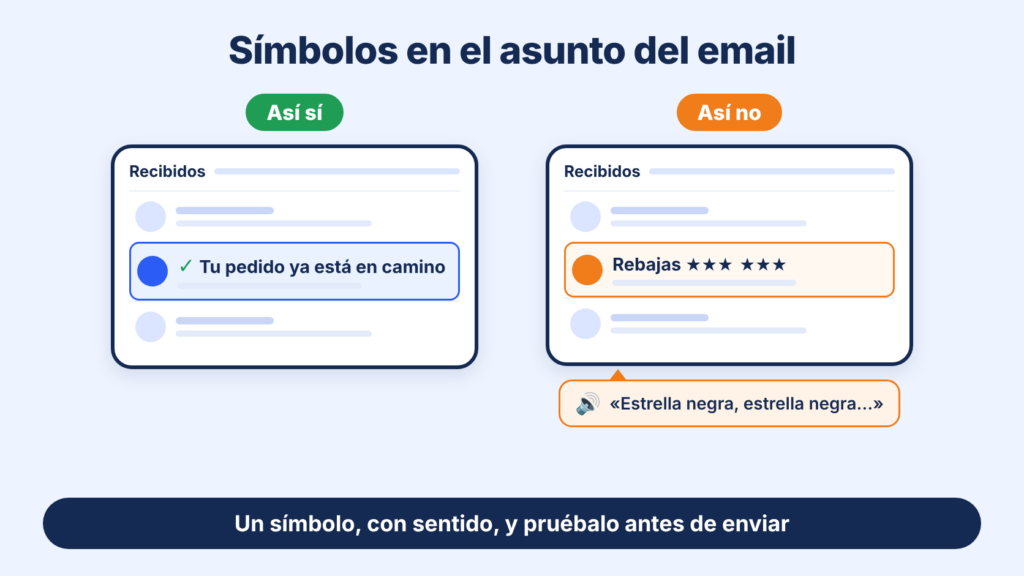
- One, and with a purpose. A ✓ to confirm something or a → to invite people to open works better than a row of stars.
- Don’t let it replace a word. Screen readers read out the character’s name, so “Sale ★★★” may sound like “black star, black star, black star”. Keep this in mind if you care about accessible email.
- Test it first. Send yourself a test and check it on your phone and on your computer. Some older versions of Outlook for desktop may show a square instead of the symbol.
If you can’t decide between a subject line with a symbol and one without, run an A/B test and let your data decide. The post on emojis for email has examples of subject lines.
Fancy letters: do they work in a subject line?
So-called fancy letters, or fancy text, look like a different font, but they’re symbols. Each letter is a different Unicode character, almost always from the mathematical symbols block.
| Style | Example |
|---|---|
| Bold | 𝗢𝗳𝗳𝗲𝗿 |
| Script | 𝓞𝓯𝓯𝓮𝓻 |
| Double-struck | 𝕆𝕗𝕗𝕖𝕣 |
| Circled | Ⓞⓕⓕⓔⓡ |
They look good in an Instagram bio or a username, but in an email subject line they cause problems:
- Screen readers misread them or skip them, so the subject line is no longer accessible.
- They don’t show up when someone searches their inbox for “offer”: to the search, they’re different characters.
- Some email clients display them as squares, and antispam filters may be wary of text that mixes alphabets.
If you want a word to stand out, use a single meaningful symbol or rely on the preheader.
Symbols in an SMS: watch your characters
In an SMS, every symbol counts. The basic SMS alphabet (GSM 7) allows 160 characters per message, but it only includes a few symbols.
The € is included, although it takes up two characters. A ✓, a ★ or a ♥, on the other hand, force the message to be sent in Unicode. And then the limit drops to 70 characters per SMS.
A single symbol can turn one message into two. You’ll find the details in the SMS character limit entry.
Symbols, emojis and kaomojis: what’s the difference?
All three are copied and pasted the same way, but they’re not the same thing:
| Symbol | Emoji | Kaomoji | |
|---|---|---|---|
| What it is | A text character | A color pictogram | A face made with several characters |
| Example | ★ ✓ € | 🙂 ⭐ | (^_^) |
| How it looks | Like the text around it | With each system’s design | Depends on the font |
Some symbols also have an emoji version. The ❤ can show up black or red depending on the app.
If you want to learn more, check the emoji entry. And if you’re curious about the history of two very well-known characters, read the ones on the at sign and the hashtag.
How Mailrelay helps you
In the Mailrelay editor you can paste symbols into the subject line, the preview text (the preheader) and the body of the email.
Before you send, the editor’s Spam report checks the content the way antispam filters would. And with A/B testing you compare two subject lines before sending the winning version.
The free account lets you send up to 80,000 emails a month to 20,000 contacts, with human support on every plan.
Test your subject lines before you send
Create your free Mailrelay account and send up to 80,000 emails a month to 20,000 contacts.