Google Postmaster Tools: what it is, how to set it up and what it tells you about your sends to Gmail
Google's free tool to find out whether your campaigns meet Gmail's requirements
Google Postmaster Tools is a free Google tool that shows how Gmail treats the emails you send from your domain: how many are marked as spam, whether you meet the authentication requirements and which delivery errors occur. It is the most direct way to find out what Gmail thinks of your campaigns.
If part of your list uses @gmail.com addresses, and it almost always does, Postmaster Tools is one of the first things you should set up.
What is Google Postmaster Tools used for?
It helps you spot deliverability problems before they turn into a block. With its dashboards you can find out:
- What percentage of Gmail recipients mark your emails as spam.
- Whether your sends meet Gmail’s sender requirements.
- Whether your emails pass SPF, DKIM and DMARC authentication.
- Which delivery errors Gmail returns and why.
It only measures sends to personal Gmail accounts. It does not include Outlook, Yahoo or Google Workspace accounts.
How to set up Google Postmaster Tools
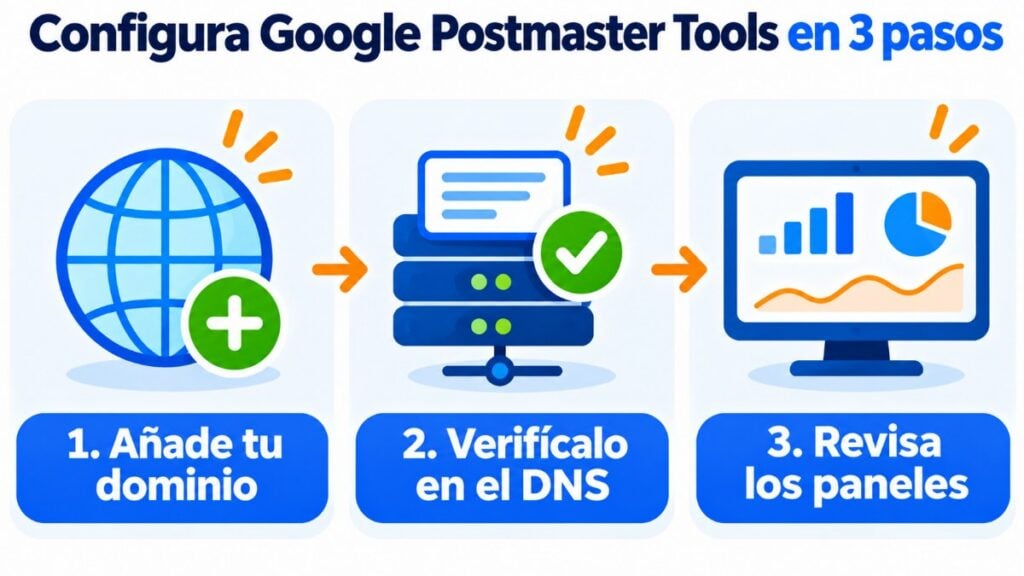
You need a Google account and access to your domain’s DNS. There are three steps:
- Add your domain. Go to postmaster.google.com and click to add a domain. Use the domain you sign your emails with (the DKIM one) or the one in the return address.
- Verify that it is yours. Google will give you a TXT or CNAME record. Add it to your domain’s DNS and click Verify. It is usually confirmed within a few minutes.
- Give your team access if needed, from the domain options.
The data does not show up right away. To protect users’ privacy, Google only displays it when your daily email volume to Gmail is high enough, and it is updated roughly once a day.
What the Postmaster Tools dashboards measure
The current version of Postmaster Tools, which Google launched in 2024, organizes the data into these dashboards:
| Dashboard | What it tells you |
|---|---|
| Compliance status | Whether you meet Gmail’s sender requirements |
| Spam rate | What percentage of users mark your emails as spam |
| Feedback loop | Complaints per campaign, if you use this system |
| Authentication | Emails that pass SPF, DKIM and DMARC |
| Encryption | Emails sent over a secure connection (TLS) |
| Delivery errors | Rejections and temporary blocks, with their reason |
Google has announced that it will retire the old domain and IP reputation dashboards, which measured reputation on a scale from “Bad” to “High”. The focus is now on compliance and the spam rate.
Compliance status marks each requirement as “Compliant” or “Needs work”. For all senders, it checks authentication, DNS, message formatting, encryption and the spam rate. For bulk senders, it also checks DMARC and one-click unsubscribe.
The limits Gmail watches
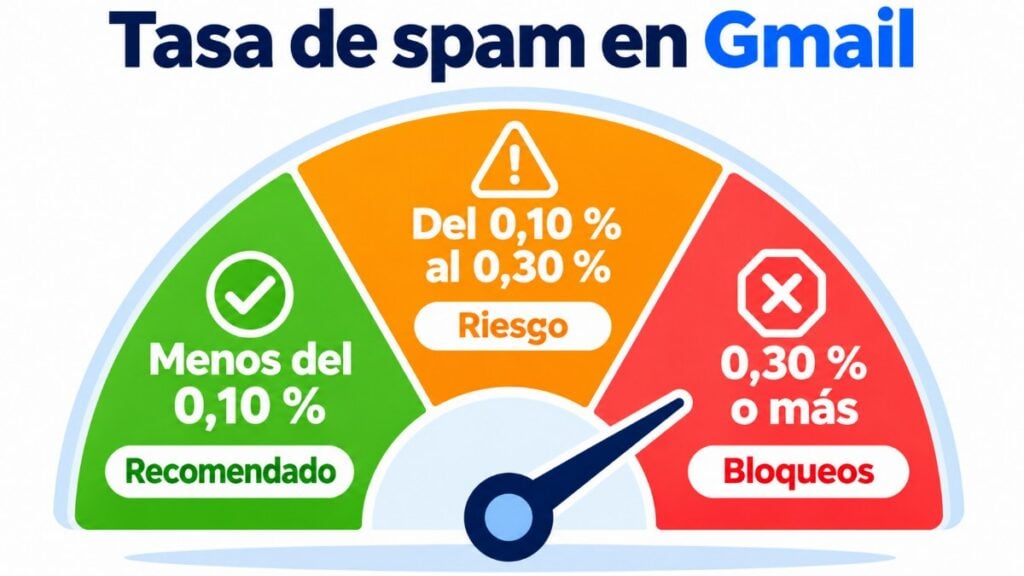
According to Gmail’s sender guidelines, the spam rate shown in Postmaster Tools should stay below 0.10% and never reach 0.30%.
| Spam rate | What it means |
|---|---|
| Below 0.10% | Gmail’s recommendation |
| From 0.10% to 0.30% | Risk zone: more emails in spam |
| 0.30% or more | Risk of rejections and blocks |
If you send around 5,000 or more messages a day to Gmail accounts, you are a bulk sender and must meet the bulk sender requirements: DMARC, domain alignment and one-click unsubscribe.
Reach the Gmail inbox
Send with your authenticated domain and let Mailrelay handle complaints and bounces for you.
What to do if the data gets worse
If the spam rate goes up or requirements show up as “Needs work”, check these in order:
- Authentication. Check that SPF, DKIM and DMARC are set up correctly and aligned with your domain.
- List building. Spam complaints usually come from contacts who don’t remember subscribing. Double opt-in prevents this.
- Unsubscribing. Make it visible and one-click. If unsubscribing is hard, users click “spam” instead.
- The list. Remove bounces and long-term inactive contacts with good list hygiene.
- Frequency and content. Send what you promised when they subscribed, at the frequency you announced.
Similar tools exist for Outlook and Yahoo: Microsoft SNDS and Yahoo Sender Hub.
How to use Postmaster Tools if you send with Mailrelay
Postmaster Tools groups data by domain. To see your Mailrelay sends, your emails must be signed with your own domain. We explain how in this guide to setting up SPF, DKIM, DMARC and a custom domain in Mailrelay.
Mailrelay also processes complaints for you, alerts you if they exceed 0.03% and cleans up bounces automatically. That makes it easier to keep your spam rate well away from Gmail’s limits and protect your sender reputation.
With the free account you can send up to 80,000 emails a month to 20,000 contacts, with human support on every plan.
Keep your spam rate under control
Mailrelay alerts you if complaints exceed 0.03%. Free for up to 80,000 emails a month.
Frequently asked questions about Google Postmaster Tools
These are the most common questions.
Is Google Postmaster Tools free?
Yes. All you need is a Google account and the ability to add a record to your domain’s DNS.
Why is Postmaster Tools not showing any data?
Because the volume of emails you send to Gmail is low, the domain is not verified yet or your emails are not signed with that domain. The data takes about a day to appear.
Does Postmaster Tools work for Outlook or Yahoo?
No. It only measures sends to personal Gmail accounts. For Outlook, use Microsoft SNDS, and for Yahoo, its Sender Hub.
What spam rate is acceptable in Gmail?
Below 0.10%. From 0.30% upwards, Gmail may reject or block your sends.
What happened to domain and IP reputation?
Google has announced that it will retire those dashboards. The current version focuses on compliance status, spam rate, authentication and delivery errors.