How to recover abandoned carts in WooCommerce with Mailrelay: a step-by-step guide
Connect your store with Mailrelay’s free plugin and win back sales with automated emails and SMS

Connect your store with Mailrelay’s free plugin and win back sales with automated emails and SMS
How many people filled up a cart in your store today and left without paying? If you run a WooCommerce store, chances are it’s seven out of ten. According to the Baymard Institute, the average cart abandonment rate is 70.22% (average of 50 studies, updated in September 2025).
The good news is that some of those abandoned carts in WooCommerce can be recovered. All it takes is a timely reminder, sent automatically.
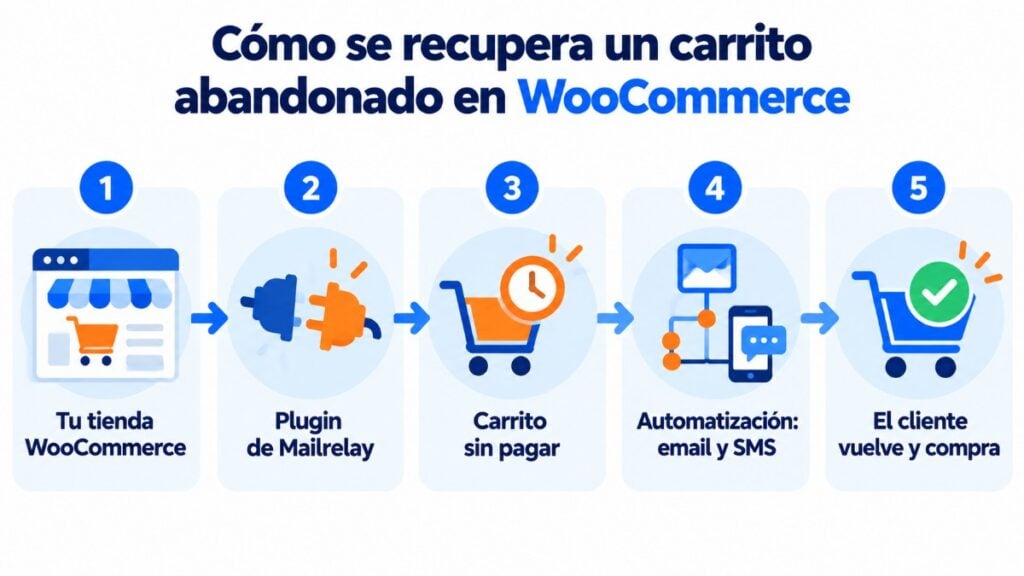
In this guide, we show you how to set it up with Mailrelay, step by step. You’ll see how to connect your store with the free plugin, how to create the WooCommerce abandoned cart automation, and which emails to send. And we’ve included three emails and an SMS for you to copy.
Setting up abandoned cart recovery in WooCommerce with Mailrelay takes less than an hour. Before you start, make sure you have three things.
A WordPress store with WooCommerce active. It’s the only store platform the Mailrelay plugin connects to.
A Mailrelay account. The free account will do: the plugin and automations are included, with up to 80,000 emails a month and 20,000 contacts.
A Mailrelay API key, which connects your store to your account. It takes a minute to create, as you’ll see in step 2.
If you’re going to add an SMS to the sequence, you’ll also need SMS credit. Check Mailrelay’s SMS pricing first to work out the cost per message.
The Mailrelay plugin for WordPress is free and published in the official WordPress repository. It connects your website to your account and, when you use WooCommerce, it does three things:
| What it syncs | What it does for you |
|---|---|
| Customers and users | They’re added as subscribers to the Mailrelay groups you choose, without exporting or importing lists |
| Products | You can insert them into your newsletters with the Product List block, with name, price and a buy button |
| Carts | Mailrelay knows which carts were left unpaid and can trigger an automation |
As you can see, you don’t need Make or any coding. The plugin acts as a bridge between your store and your email marketing account.
It also adds a subscription form block to the WordPress editor. That way, you can capture contacts on your blog or on product pages with the same plugin.
Connect WooCommerce with Mailrelay for free
Install the plugin, sync your customers and create your first automation with the free account.
Here’s the complete process. There are six steps, and you don’t need to touch any code.
In the WordPress dashboard, go to Plugins > Add New and search for “Mailrelay”. Install it and activate it.
If you prefer, you can download it from the WordPress repository and upload the folder to /wp-content/plugins/. The result is the same.
In your Mailrelay account, go to Settings > API keys and create a new key. Copy it: you’ll paste it in the next step.
The key is what lets your store and your account talk to each other. Treat it like a password and don’t share it.
Go back to WordPress and open Settings > Mailrelay. Enter your account name (you’ll find it in Mailrelay’s welcome email) and the API key. Save the changes.
Then turn on WooCommerce sync and choose the Mailrelay group your customers should be added to. Run the first sync to load the contacts you already have.
One thing, though: check consent. You should only send commercial communications to people who have agreed to receive them. If in doubt, go over the requirements for double opt-in.
In Mailrelay, go to Automations > +Add, give it a name (for example, “Store abandoned cart”) and click Create automation.
Click New entry point and, under Block type, choose When a cart is abandoned. You’ll see three settings.
In Store, you choose the store connected through the plugin. In How long until a cart is considered abandoned?, you decide how much time to give the customer before you write to them.
The third one, Skip subscribers who have already been in this automation, stops the same person from getting the sequence every time they leave a cart.
The time can be set in minutes, hours or days. For the first reminder, a short delay usually works better than a long one, for example one hour: the customer still remembers what they were buying.
If you like, tick Filter subscribers that enter this automation to limit it to a group or a segment using Mailrelay’s segmentation. For example, only customers from Spain or only carts from one category.
The WooCommerce abandoned cart is the entry point. Below it, you can add the same actions as in any other mailing automation:
A flow that works for most stores is this: email 1 → wait → email 2 → wait → email 3 or SMS. You’ll find the copy further down.
Before activating it, send yourself a test of each email and check the links, images and mobile version. Then place a test order in your store: add a product to the cart with one of your own email addresses and don’t pay for it.
When everything looks right, change the automation’s status to Active. From then on, every cart that meets the conditions will enter the sequence without you having to do anything.
Keep in mind that the automation doesn’t check whether the customer completes the purchase while receiving the messages. That’s why it’s best to keep the sequence short and include a line in the emails such as “If you’ve already completed your order, please ignore this message.”
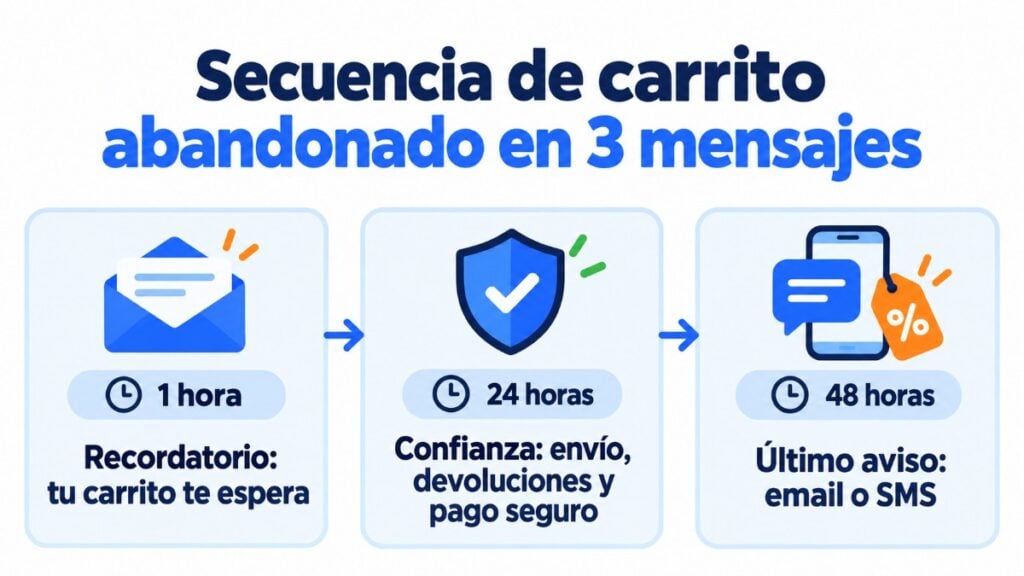
There’s no single sequence for recovering abandoned carts in WooCommerce that works for every store. But most guides agree on three touches, with a tone that builds gradually over a short period, two days at most:
| Message | When | Goal | Channel |
|---|---|---|---|
| Reminder | 1 hour after abandonment | Remind them of the cart and answer questions | |
| Trust | About 24 hours later | Address objections: shipping, returns, secure payment | |
| Final reminder | About 48 hours later | Give a reason to decide: stock, deadline or discount | Email or SMS |
Discounts work best at the end, and not always. If you offer one in the first email, you teach your customers to abandon their cart to get it.
Also pay attention to why people abandon. According to Baymard, 40% of shoppers leave because of extra costs that are too high (shipping, taxes or fees) and 18% because they’re forced to create an account. Those two issues are fixed in the store, not in the email.
Here’s the copy for the sequence. Change what’s in square brackets and adapt the tone to your brand. If you’re looking for more ideas, the glossary has a guide to the abandoned cart email with best practices.
Subject: Forgot something, [name]?
Preheader: Your cart is still saved
Hi [name],
You left some items in your cart at [store]. We’ve saved it for you so you can complete your purchase whenever you like.
[Button: Back to my cart]
If you have any questions about sizing, shipping or payment, reply to this email and we’ll help you.
If you’ve already completed your order, please ignore this message.
Why it works: it’s short, it doesn’t pressure, and it opens a line of contact. Using their name is the simplest form of personalization in email marketing. Pay attention to the email subject line and the preheader: they’re the first things people see in their inbox.
Subject: What you need to know before you buy
Preheader: Shipping, returns and secure payment
Hi [name],
Your cart is still waiting for you. In case it helps you decide:
Free shipping on orders over [amount]. Free returns for [days] days. Secure payment by card, Bizum or PayPal.
[Button: Complete my order]
More than [number] customers have already shopped at [store]. Here’s what one of them says: “[short review]”.
If you’ve already completed your order, please ignore this message.
Why it works: it answers the most common objections before the customer raises them. If you have real reviews, use them here.
Subject: Your cart expires today
Preheader: And here’s a [discount] to complete your purchase
Hi [name],
We’re going to release the items in your cart for other customers. If you’re still interested, now’s the time.
With the code [CODE], you get [discount] until 11:59 p.m. today.
[Button: Use my discount]
If you’ve already completed your order, please ignore this message.
Why it works: it gives a specific reason to decide now. Only use scarcity if it’s true: if stock isn’t running out, don’t say it is.
[Store]: [name], your cart is still saved. Complete your purchase here: [short link]. Unsubscribe: reply STOP
Why it works: SMS messages almost always get read, and they reach people even when the email has gone unopened. Only use it with customers who have given you their mobile number and their consent, and as the last step, never the first. If you’re going to use accented characters or emojis, check first how they affect SMS characters.
Recover your store’s carts
Create the abandoned cart sequence with emails and SMS in the same flow, no coding needed.
Besides the automation, the plugin lets you use your WooCommerce products inside the Mailrelay editor. Drag the Product List block into the email, click Product Source > Add Product and choose the products from your inventory.
Each product appears with its name, its price and a buy button. You can then change colors, sizes and fonts in Product Settings.
For now, the abandoned cart email doesn’t automatically show the products the customer left in their cart. That’s why the copy in this guide links back to the cart with a button. If you like, you can use Product List to add your best-selling products or a selection from the category.
And the block is useful for much more than abandoned carts. For example, for a new arrivals newsletter, a Black Friday selection or cross-selling recommendations after a purchase.
An abandoned cart automation isn’t something you set up and forget. Review its results every few weeks in Mailrelay’s automation reports.
Start with the open rate of each email. If the first one barely gets opened, the problem is the subject line.
Then look at the clicks on the cart button, which show whether the message is convincing. And finally, the recovered orders: compare them with the carts that entered the sequence and you’ll have your conversion rate.
And test changes one at a time. With an A/B test, you can compare two subject lines or two wait times and keep the one that works best.
The Mailrelay plugin is for WordPress and WooCommerce. Shopify doesn’t have a native integration with Mailrelay, so the abandoned cart automation in this guide isn’t available for those stores.
What you can do is sync your Shopify customers with Make, the no-code automation platform that integrates with Mailrelay. With a template, every new Shopify customer is added as a subscriber to your account. If you need something more tailored, you can also use the Mailrelay API.
As for Zapier, Mailrelay doesn’t have an official app: the no-code alternative is Make.
Mailrelay gives you everything you need to recover abandoned carts in WooCommerce. And without paying for extra tools:
If you want to know what Mailrelay is and everything it includes, check out Mailrelay’s features or our guide to email marketing for ecommerce.
And if you want to better understand why carts get abandoned, our blog has an article on how to recover abandoned carts covering the most common causes.
An abandoned cart in WooCommerce isn’t a lost sale. It’s a customer who has already chosen a product and needs a nudge.
Install the plugin, connect your store and create the automation with the three emails in this guide. Measure for a few weeks and adjust the timing and subject lines. Once the sequence is working, add the SMS as the final reminder.
Get started today with the free account
Up to 80,000 emails a month, with the WooCommerce plugin and automations included.
These are the questions we get most often about how to recover abandoned carts in WooCommerce.
No. WooCommerce sends order emails (confirmation, shipping, invoice), which are a type of transactional email. But it doesn’t recover abandoned carts on its own. You need a plugin or an email marketing tool like Mailrelay.
Yes. The plugin is free and works with Mailrelay’s free account, which includes automations. You only pay for SMS if you decide to add them to the sequence.
Three is the norm: a reminder after one hour, a trust email at 24 hours and a final reminder at 48 hours. More messages, or a longer timeframe, can come across as pushy.
Yes. The abandoned cart is the automation’s entry point, and after it you can add any action, including sending an SMS. Only use it with customers who have given their consent.
Not natively. Shopify doesn’t have a direct integration with Mailrelay. You can sync your Shopify customers with Make or the API, but the abandoned cart automation works with WooCommerce.

Jose Argudo
CMO at Mailrelay. Writes about email marketing, copywriting, and conversion for small businesses and entrepreneurs.