AI in email marketing: 10 uses, prompts to copy and the best tools
What AI is really useful for in your campaigns, with ready-to-copy prompts and the mistakes worth avoiding

What AI is really useful for in your campaigns, with ready-to-copy prompts and the mistakes worth avoiding
Can AI write your emails for you?
It can write a good first draft, suggest subject lines, help you segment and explain your campaign results.
What it can’t do is know your customers better than you do or take responsibility for what you send.
That’s why AI in email marketing works best as a fast assistant, not as an autopilot.
In this article you’ll find the 10 uses that save the most time, plus prompts to copy.
You’ll also see which tool suits each case and the limits you shouldn’t cross.
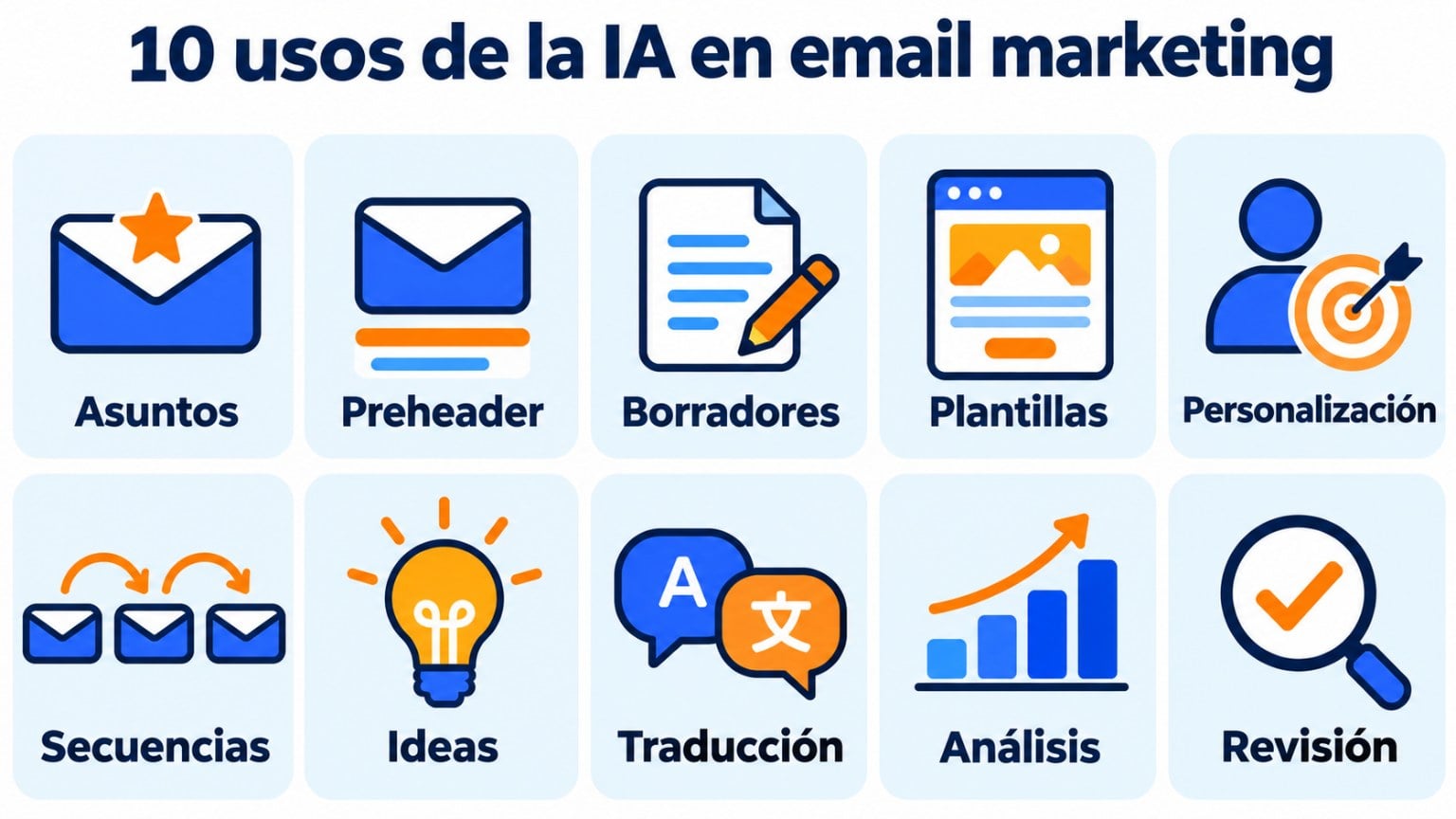
Artificial intelligence helps at almost every stage of a campaign. These are its most practical uses:
| Use | What AI does | Example |
|---|---|---|
| Subject lines | Suggests several versions in different tones | Five subject lines for a sale offer |
| Preheader | Completes the subject line without repeating it | A sentence that adds the offer deadline |
| Email body | Writes a first draft | A newsletter with three updates |
| Templates | Builds the design from your website | A newsletter with your colors and products |
| Personalization | Adapts the copy to each segment | One version for customers and another for new subscribers |
| Sequences | Plans a flow of several emails | A four-step welcome series |
| Content ideas | Suggests topics for your calendar | Twelve newsletter topics for the year |
| Translation | Translates the email into another language | The same campaign in English and Portuguese |
| Analysis | Explains results in plain language | Which campaign performed best and why |
| Proofreading | Fixes typos, tone and clarity | Spots long or confusing sentences |
In every case, the result is a starting point. You decide what gets sent.
Try the AI in Mailrelay’s editor
Write your first subject line and your first draft with AI, on the free account too.
The first benefit is time.
What used to take you an afternoon, like writing ten subject lines or a newsletter draft, now takes a couple of minutes.
The second is personalization. AI helps you write different versions for each segment without multiplying your workload.
The third is results. With more versions to test, it’s easier to find the subject line or message that works best with your list.
And the fourth is getting over the fear of the blank page.
For anyone who doesn’t write for a living, having a draft to start from changes everything.
Not all uses add the same value. These are the ones that pay off most for a small business.
The email subject line decides whether your message gets opened or not. It’s where AI helps the most.
Ask it for five or ten versions with different angles: one with a question, one with a number, one with urgency and one with a more personal touch.
Then pick two and compare them with an A/B test. AI suggests, but it’s your subscribers who decide which one wins.
Give the AI the key details: what you offer, who it’s for, what you want the reader to do and the tone you use.
With that, it gives you back a well-organized draft.
Your job is to add what the AI doesn’t know: a real case, a detail about your business or your own way of saying things.
If your list is split by interests or by buying stage, AI can adapt the same message to each group.
For example, one version that introduces the product to people who don’t know it and another that reminds past buyers of a benefit.
That way you make the most of segmentation without writing every email from scratch.
Taken further, this is hyper-personalization, which uses each contact’s data to tailor the content.
AI is very useful for thinking through multi-email flows: welcome, lead nurturing, abandoned cart or re-engaging inactive subscribers.
Ask it for the full structure, with the goal of each email and the days between them.
Then you build it in your mailing automation tool.
Pasting a results table into an assistant and asking it what happened is a good shortcut to understanding your campaigns.
It can tell you which subject lines get the best open rates, which links get the most clicks or on which day your list responds best.
Remember that open rates have been inflated since Apple Mail started preloading images, so focus mainly on clicks.
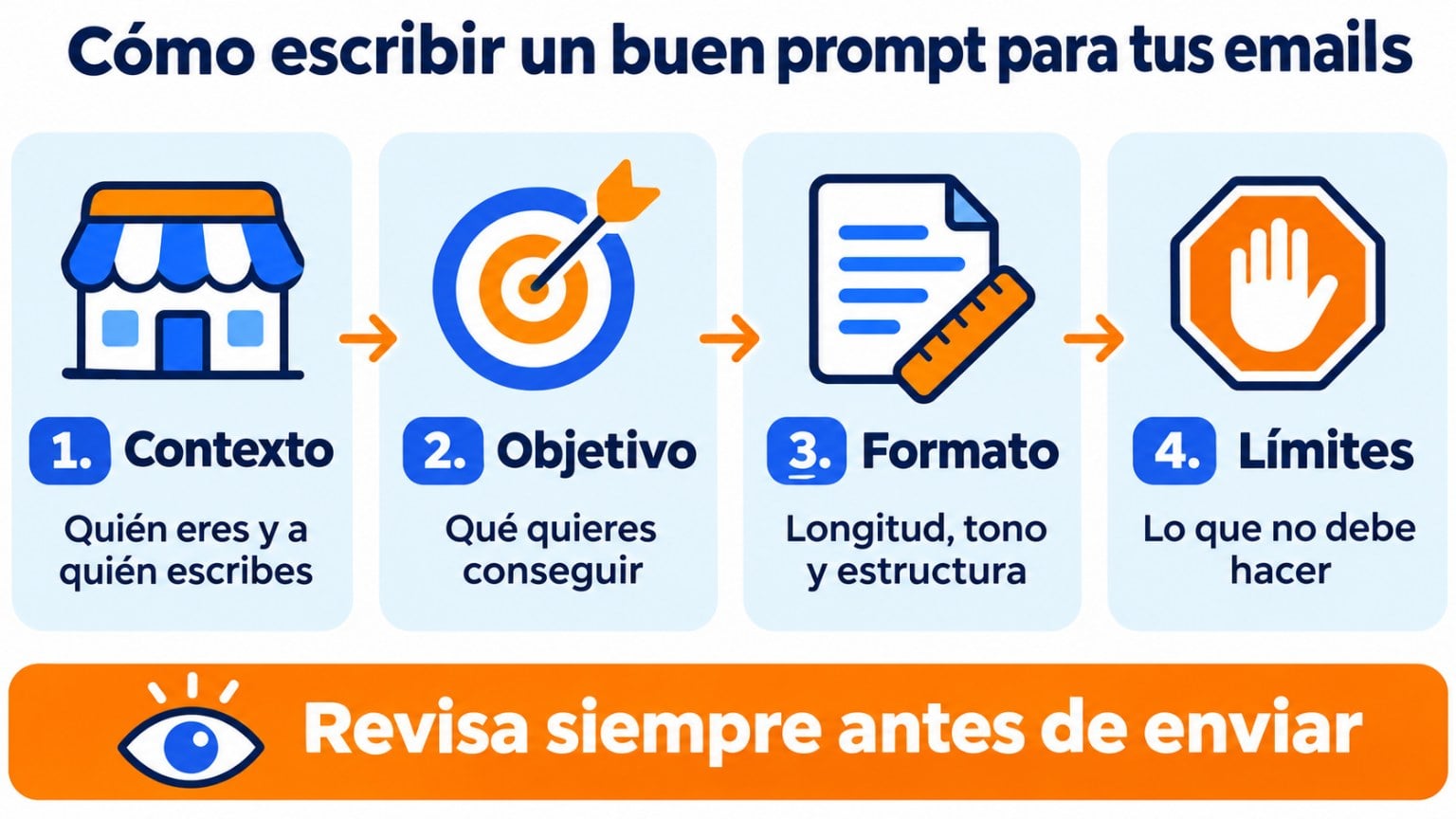
A good prompt gives context, asks for a specific result and sets limits. Replace what’s in square brackets with your own details.
Subject lines: “Write 8 subject lines for a [campaign type] email from [your business], aimed at [audience]. Maximum 50 characters. Mix questions, numbers and benefits. No all-caps text or repeated exclamation marks.”
Preheader: “For the subject line ‘[subject line]’, suggest 5 preheaders under 90 characters that complete the idea without repeating it.”
Newsletter: “Write a newsletter of about 200 words for [audience] about [topic]. Tone: [friendly/formal]. Include a headline, three short paragraphs and a call to action to [goal]. Address the reader informally.”
Welcome sequence: “Design a 4-email welcome sequence for new subscribers of [your business]. For each email, give the send day, the goal, the subject line and a summary of the content.”
Re-engagement: “Write an email for subscribers who haven’t opened anything in 6 months. Ask them if they want to keep receiving emails and offer a clear unsubscribe link.”
Analysis: “Here are the results of my last 5 campaigns. Tell me which one performed best in clicks, what the best subject lines have in common and what you would test in the next one.”
Proofreading: “Review this email. Point out sentences longer than 20 words, words that could trigger spam filters and any facts I should check before sending it.”
Never paste your subscribers’ names, emails or other personal data into an assistant. To analyze results, the figures for each campaign are enough.
Imagine an online coffee shop that wants to announce its January sale to a list of 3,000 subscribers.
| Step | What you ask the AI | What you do |
|---|---|---|
| 1. Idea | Three angles for the campaign | You choose the one that fits your brand |
| 2. Subject lines | Eight subject lines under 50 characters | You pick two for the A/B test |
| 3. Draft | A 150-word email with the discount and the deadline | You add the product photo and the real code |
| 4. Segments | One version for customers and another for people who have never bought | You check that each group gets its own |
| 5. Proofreading | Point out long sentences and possible spam words | You read the whole email on your phone |
| 6. Analysis | Explain the results of the send | You decide what to repeat in the next campaign |
The AI has done the heavy lifting in a few minutes. The important decisions, like the discount, the audience and what gets sent, are still yours.
At Mailrelay, we’ve integrated artificial intelligence directly into the newsletter editor.
Even on the free account, you can use it to generate subject lines and the content of your emails.
Just give it a few basic instructions and you get a draft ready to review, personalize and send.
First, add a newsletter in your newsletters section and give it a rough subject line:
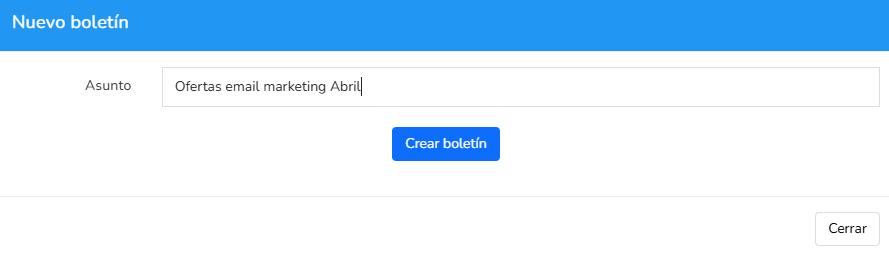
The newsletter will be created and you’ll see the sections you can edit. The first one is the subject line:
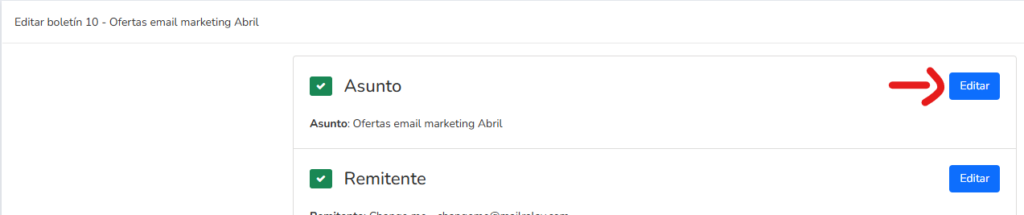
When you open the section, you can change the subject line and write a preview text. The “Suggest” option is the one that opens the AI options:
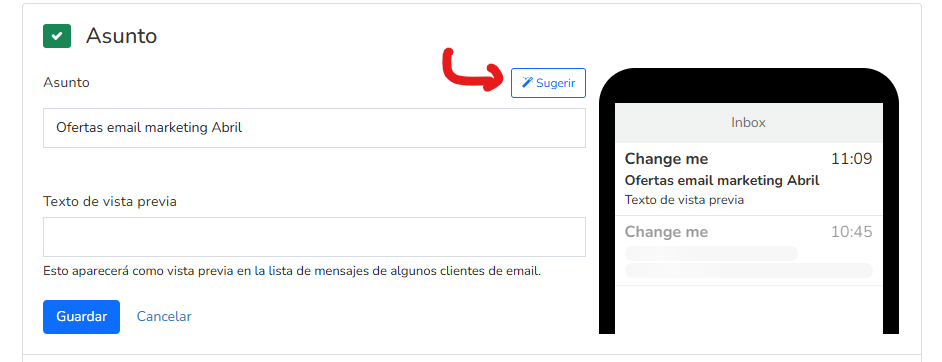
When you click it, you’ll see a screen like this:
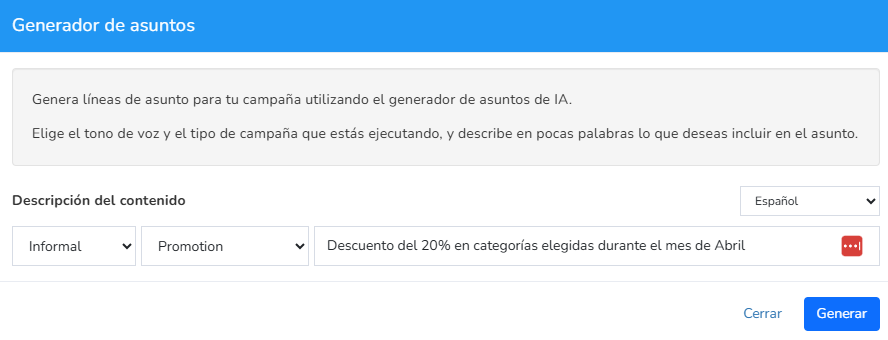
The fields, from left to right, are the tone of voice (natural, formal, informal…) and the campaign type (announcement, promotion, newsletter…).
Next come a short description of the content and the language.
If you work in several markets, you can also use machine translation to adapt your emails to other languages.
Always review the result before sending it.
Once you have everything, click “Generate” and several subject lines will appear for you to choose the one you like best:
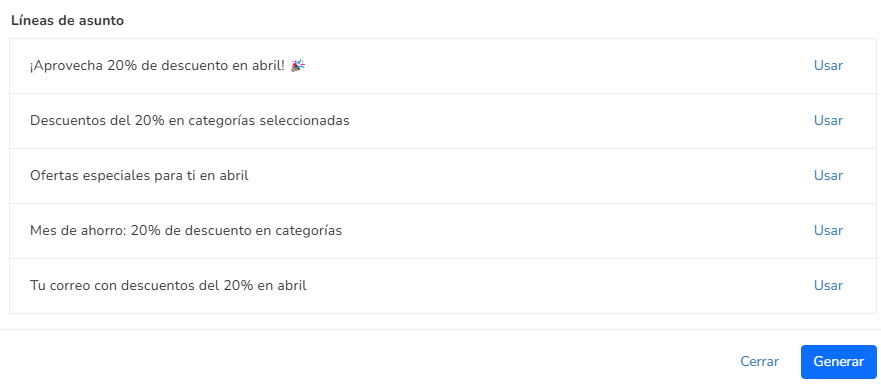
All that’s left is to click “Use” and the chosen subject line will be applied.
The process is similar, but now you go to the content editing section:

And choose the option to generate templates with AI:
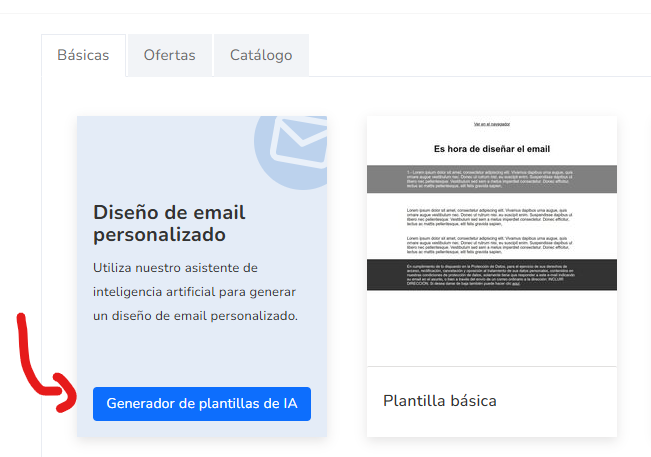
The details you need to fill in are very simple:
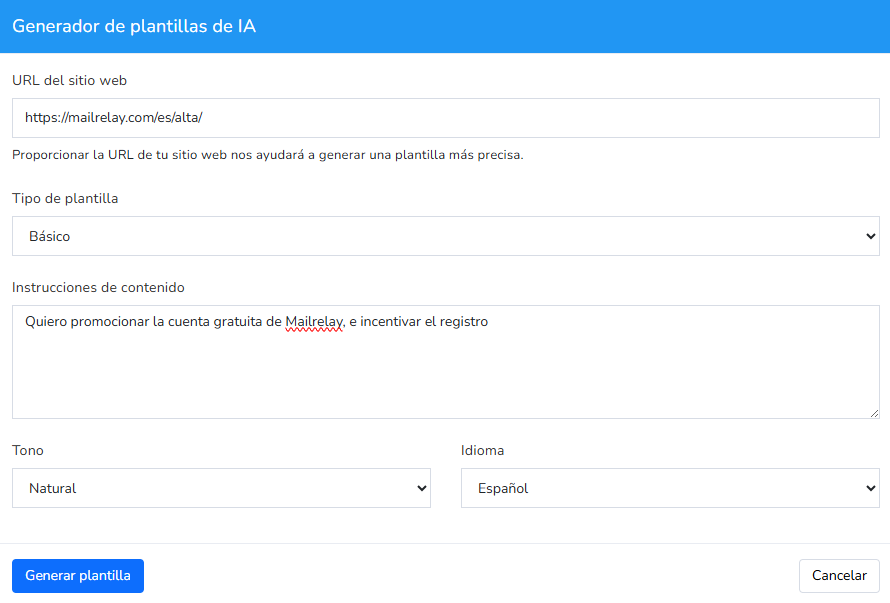
Enter your website URL, the template type (basic, products…), what you want to say, the tone and the language.
The result will look something like this:
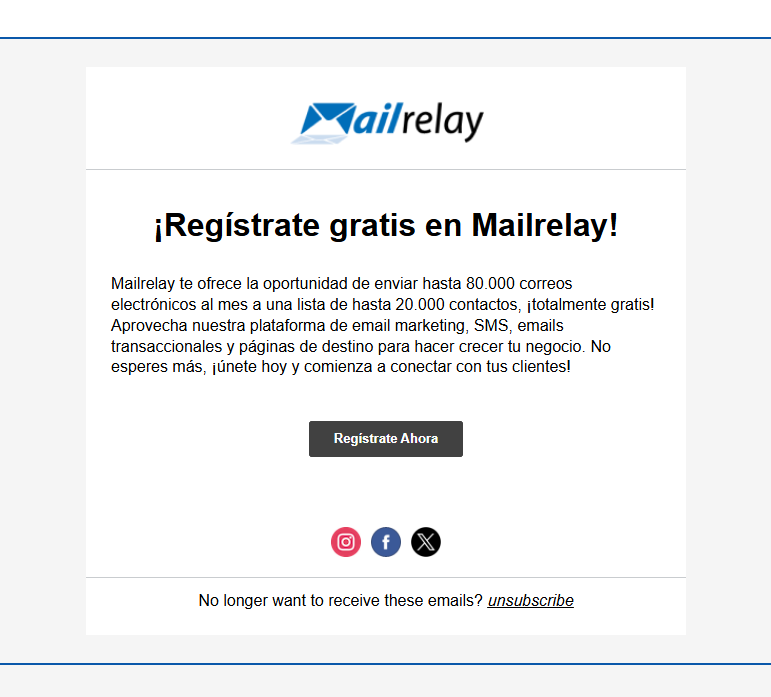
From there you can change the design, add sections, tweak the text or send it as is if you like it.
It’s an option that saves a lot of time, especially if you have to prepare newsletters every week.
Your next newsletter, in minutes
Ask the AI for a draft, adjust it to your brand and send it to your list from the same editor.
Besides Mailrelay’s editor, there are general-purpose assistants that can help you with your campaigns. This table sums up what each one is best for:
| Tool | What it’s best for in email marketing |
|---|---|
| ChatGPT | Ideas, subject lines, drafts and results analysis |
| Claude | Long texts, tone review and data analysis |
| Gemini | If you work with Gmail and Google Workspace |
| Microsoft Copilot | If you work with Outlook and Microsoft 365 |
| Grammarly or LanguageTool | Checking spelling and style before sending |
| Image generators | Original illustrations for your newsletters |
You don’t need to use them all. One assistant to write and another to proofread is more than enough.
If you want to dig deeper into the first one, there’s a guide on how to use ChatGPT in your email marketing strategy.
There’s one more step that many people don’t know about.
With the Mailrelay MCP server, your AI assistant can look up your account and work with your data.
You ask in your own words: compare your latest campaigns, organize contacts or prepare a draft for you to review.
It’s in beta, you enable it with a ticket from the help section and, for now, it’s included in the free account.
You’ll find the steps in the guide to connecting Mailrelay with ChatGPT and Claude and an explanation of the protocol in what an MCP is.
There’s a change that affects everyone who sends newsletters. Email apps already use AI to summarize messages.
On iPhones that support Apple Intelligence, Apple Mail shows an AI-generated summary instead of the preview text.
Gmail also offers Gemini summaries on some accounts, for now mainly in English.
This has three practical consequences:
1. Put the important part in the first lines, as real text and not inside an image.
2. Take care of the sender name and the subject line, as those are what the summary doesn’t change.
3. Write clear sentences. Confusing text produces a confusing summary.
Writing so that AI understands your email and writing so that a person understands it are, in the end, the same thing.
AI makes mistakes, and it makes them with great confidence. These are the most common risks:
| Risk | What to do |
|---|---|
| Made-up facts | Check figures, dates, prices and names before sending |
| Generic copy | Add a real example, a detail about your business or your opinion |
| Same tone as everyone else | Give it examples of your previous emails so it can imitate your style |
| Personal data | Don’t paste your subscribers’ data into external tools |
| Promises you can’t keep | Check deadlines, conditions and discounts one by one |
Data protection doesn’t change because you use AI.
GDPR and email marketing laws apply the same way to an email written by hand as to one drafted with an assistant.
Neither does responsibility. What lands in your subscribers’ inbox carries your name, not the tool’s.
If you’ve never used it, start small.
In the first week, ask it for subject lines for your next newsletter and test two of them with an A/B test.
In the second, let it write the first draft and see how much time you save.
Once you’ve got the hang of it, give it your campaign results and ask what it would improve.
And if you want to go further, connect your account via MCP.
What you shouldn’t do is send anything without reading it.
That minute of review is what separates a useful email from one that hurts your brand.
In Mailrelay, you have AI built into the editor. It generates subject lines in the tone you choose and creates a first newsletter draft from your website.
You can check which version works best with A/B tests and automate welcome, birthday or re-engagement sequences, on the free account too.
With the MCP server, you can also work with your account from ChatGPT or Claude.
The free account lets you send up to 80,000 emails a month to 20,000 contacts. You can see all the plans on the pricing page.
Put AI to work on your campaigns
AI editor, automations and an MCP server for ChatGPT and Claude, starting with the free account.
These are the most common questions about using AI for email marketing tasks.
No. AI is a very useful aid, but it doesn’t replace your judgment. Always check the facts, the tone and the promises before sending.
They’re usually correct and varied, but not all of them work equally well with your list. Run A/B tests to find out which ones get more opens and clicks.
Yes. Today’s tools are simple, and Mailrelay’s editor guides you with just a few fields: tone, campaign type, description and language.
Yes. The rules are the same as for any email: consent, a clear sender and an easy way to unsubscribe.
Avoid pasting your subscribers’ personal data into external tools.
It can help you analyze your results by day and time.
You’ll find more tips in the article on the best time of day to send newsletters.

Jose Argudo
CMO at Mailrelay. Writes about email marketing, copywriting and conversion for SMEs and entrepreneurs.