How to set up SMTP in WordPress so your emails get delivered
Why your WordPress emails aren’t arriving and how to fix it in 15 minutes

Why your WordPress emails aren’t arriving and how to fix it in 15 minutes
Has someone ever filled in the contact form on your website and the notification never arrived? Or has a customer not received the email to reset their password?
The form or the customer is almost never to blame. It’s the way WordPress sends emails.
The solution is to set up SMTP in WordPress. With a plugin and the details of an SMTP server, your website’s emails go out authenticated and reach the inbox.
In this guide you’ll find the step-by-step process, the most popular SMTP plugins for WordPress and the errors you may run into.
WordPress sends all its emails with a function called wp_mail(). According to the official developer documentation, it uses the PHPMailer library and the PHP mail() function of the server where your website is hosted.
The problem is that this way of sending isn’t designed for professional email:
You know the result: emails that land in spam, take hours to arrive or never arrive at all.
And you don’t always notice, because WordPress doesn’t warn you when an email gets lost.
SMTP is the protocol mail servers use to send messages to each other.
Using SMTP in WordPress means your website stops sending on its own. It hands each email to a professional SMTP server, with a username and password.
That server takes care of the rest: it signs the message, sends it from IPs with a good reputation and handles bounces. This is what’s known as mail relay.
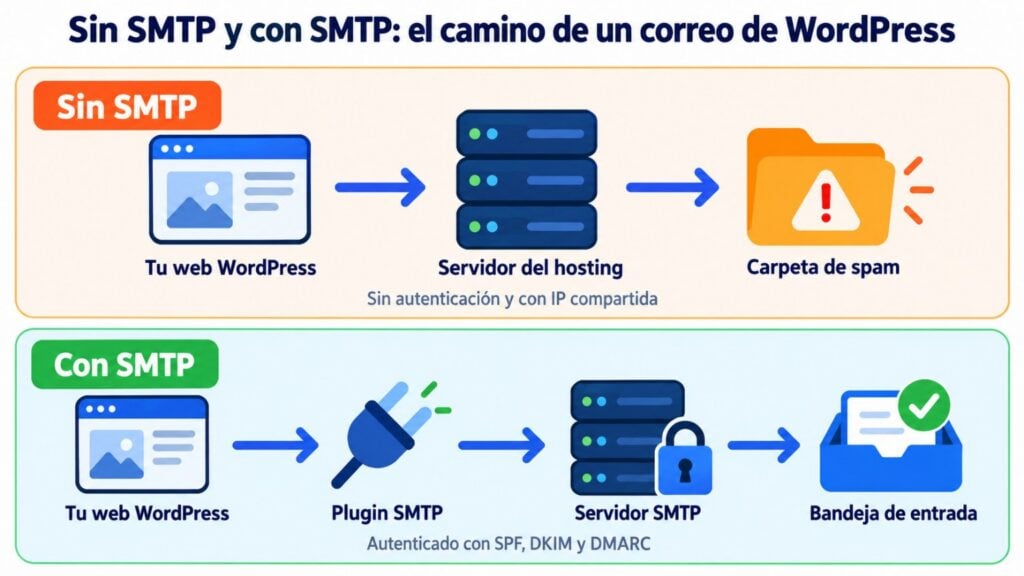
Your website still uses wp_mail(), so you don’t have to touch your forms or WooCommerce. The SMTP plugin for WordPress only changes the route your emails take.
More than you think. All of these are transactional emails: they’re triggered by an action of the user or the website, and the recipient is expecting them.
| Who sends it | What happens if it doesn’t arrive | |
|---|---|---|
| Contact form notification | Contact Form 7, WPForms, Gravity Forms… | You lose a potential customer without realizing it |
| Password reset | WordPress | The user can’t log in to their account |
| New user registration | WordPress or your membership plugin | The sign-up is left unfinished |
| Order confirmation | WooCommerce | The customer isn’t sure whether they’ve bought anything |
| Admin notifications | WordPress and plugins | You don’t find out about errors or updates |
You need three things: an SMTP plugin, the details of an SMTP server and your domain authenticated.
The plugin is the piece that connects WordPress to the server.
The server can be your email provider’s, your hosting provider’s or a specialized SMTP service.
Email authentication (SPF, DKIM and DMARC) proves to Gmail or Outlook that those emails are yours. Without it, not even the best SMTP for WordPress will keep you out of the spam folder.
There are dozens, but these four are the most installed in the official WordPress.org directory. All of them let you connect any SMTP server.
| Plugin | Active installations | Price | Email log | Backup connection | Failure alerts |
|---|---|---|---|---|---|
| WP Mail SMTP | 4+ million | Free and Pro | Pro only | Pro only | Pro only |
| FluentSMTP | 700,000+ | Free | Yes | Yes | Yes (Telegram, Slack, Discord and Pushover) |
| Easy WP SMTP | 500,000+ | Free and Pro | Pro only | Pro only | Pro only |
| Post SMTP | 300,000+ | Free and Pro | Yes | Secondary connection in Pro | Yes (email and Slack) |
WordPress.org data checked in October 2026.
The most popular and the easiest to set up. It has a wizard that guides you step by step.
The free version includes the “Other SMTP” option to use any server, and the Gmail connection via OAuth. The email log, alerts and backup connection are paid features.
Free and open source, with no paid version. It includes an email log, resending of failed messages, multiple connections and a backup one.
It’s a good option if you want advanced features without paying for a license.
A simple alternative for small websites. The free version connects to any SMTP server and to several providers. As with WP Mail SMTP, the log and alerts are paid features.
Designed for troubleshooting. It keeps a log of sent and failed emails, checks your DNS records and alerts you by email or Slack when something goes wrong.
All four handle the basics equally well. If you’re not sure, start with WP Mail SMTP or FluentSMTP: they’re the ones you’ll see in most WordPress SMTP tutorials.
We’re going to use WP Mail SMTP and the Mailrelay SMTP server.
With another plugin or another provider, the steps are almost the same. Only the field names and connection details change.
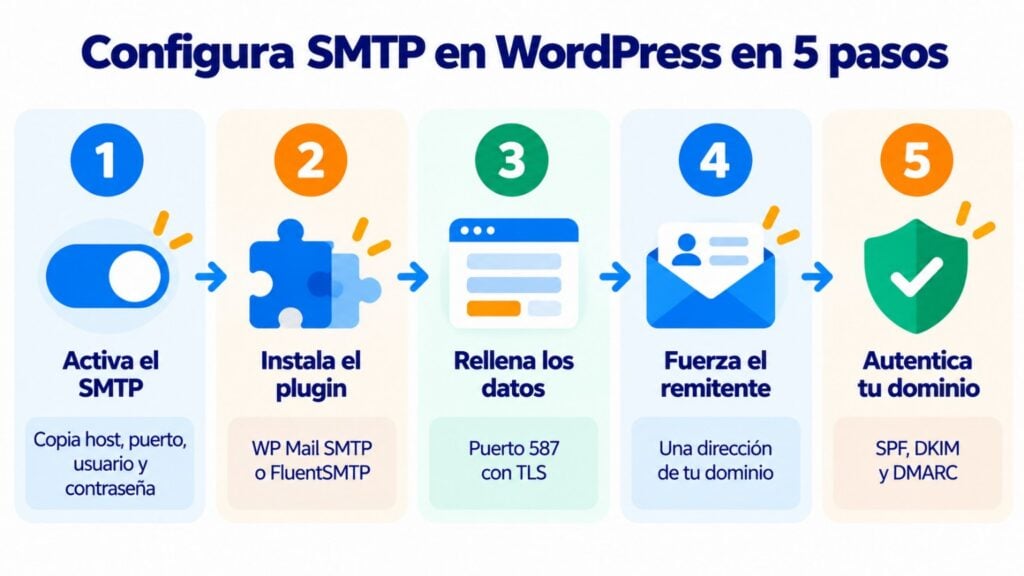
In Mailrelay, go to Settings → SMTP settings.
If you have the free account, click Start free trial to activate a 30-day trial. It’s already included in the Standard and Enterprise plans. Accept the terms and click Enable SMTP.
Copy the details you’ll need for SMTP in WordPress:
| Field | Value in Mailrelay |
|---|---|
| SMTP host | smtp1.s.ipzmarketing.com |
| Port | 587 with STARTTLS (recommended) or 465 with SSL/TLS |
| Username | The one Mailrelay generates for your account |
| Password | The one Mailrelay generates (shown only once) |
Save the password before leaving the page. If you lose it, you can generate a new one with Change password.
The change takes up to 5 minutes to become active.
In the WordPress dashboard, go to Plugins → Add New. Search for “WP Mail SMTP”, install it and activate it. The setup wizard will open.
In the list of providers, choose Other SMTP. It’s the option for connecting any server with its details.
Enter the host, port 587 and TLS encryption. Turn on authentication and paste the username and password from step 1.
If your plugin allows it, store the password in the wp-config.php file instead of the database. It’s more secure.
Enter an address on your own domain, such as “[email protected]”, and a name your contacts will recognize.
Check the force sender option so that every plugin sends from that address. Avoid noreply addresses if you expect replies.
Add the records your provider gives you to your domain’s DNS. In Mailrelay, the SPF includes include:spf.ipzmarketing.com.
The DKIM signature and DMARC are set up in Settings → Email authentication. You’ll find the details in our SPF, DKIM and custom domain tutorial.
Are your website’s emails not arriving?
Connect WordPress to Mailrelay’s SMTP and try it free for 30 days with your free account.
Don’t consider the job done until you’ve tested it. In WP Mail SMTP you’ll find the tool under WP Mail SMTP → Tools → Email Test.
Send a test to a Gmail account and to an Outlook one. If it reaches the inbox, open the message and look at the original (“Show original” in Gmail).
It should say that SPF, DKIM and DMARC are PASS.
Then run a real test: fill in your own contact form and request a password reset. That way you check that plugins that send on their own also use WordPress SMTP.
If the test fails, the plugin usually shows the server’s error. These are the most frequent:
| Symptom | Likely cause | What to do |
|---|---|---|
| Authentication error | Username or password copied incorrectly | Copy them again without spaces or generate a new password |
| Connection timed out | Your hosting provider blocks the port | Try 465 with SSL or ask your hosting provider to open 587 |
| It worked and has stopped working | Password changed or SMTP disabled | Check your provider’s SMTP panel |
| Just set up and not sending | The change isn’t active yet | Wait about 5 minutes and run the test again |
| It arrives, but in spam | Domain without SPF, DKIM or DMARC | Add the records and check the original again |
| The form still isn’t arriving | The form uses another sender or its own sending | Force the sender in the SMTP plugin and check the form’s settings |
| Sender rejected | The address isn’t on an authorized domain | Use an address on your authenticated domain |
If none of this works, contact your SMTP provider’s support with the exact error message. With that information they’ll solve it much sooner.
With WooCommerce, SMTP in WordPress goes from recommended to essential.
Every order generates several emails: confirmation, invoice, shipping, new account. If one doesn’t arrive, the customer contacts support or, worse, never buys again.
WooCommerce uses wp_mail(), so the SMTP plugin for WordPress also covers its emails with no extra setup.
Keep volume in mind. If your store sends hundreds of orders a day, check your provider’s sending limits.
In Mailrelay, each different recipient counts toward your plan’s contact limit, just like with newsletters. And messages larger than 100 KB use more than one credit.
Yes. Gmail can act as SMTP in WordPress for a small website with few forms. But it has limits.
A personal Gmail account allows about 500 recipients a day. Google Workspace goes up to 2,000 messages.
In addition, Google removed access for “less secure apps” between September 2024 and May 2025. Today you need to connect via OAuth (WP Mail SMTP allows this in its free version) or create an app password, which requires 2-Step Verification.
And there’s another detail: if you send from a Gmail address, your emails don’t go out with your domain. For a store or a website with frequent form submissions, an SMTP service is more reliable.
| Option | Good for | Limits |
|---|---|---|
| Hosting’s mail() function | Nobody, if you can avoid it | No authentication, shared IP |
| Gmail or Google Workspace | Small websites with few notifications | 500 a day (Gmail) or 2,000 (Workspace) |
| SMTP service | Frequent forms, stores and websites with users | Those of the plan you choose |
With Mailrelay you can send your website’s emails via SMTP or API from the same account you use to send your newsletters.
| What you need | How Mailrelay solves it |
|---|---|
| An SMTP server for WordPress | Included in the Standard and Enterprise plans. On the free account, a 30-day trial and then €14.95 a month (see pricing) |
| Knowing what happens to each email | Deliveries, bounces, opens and clicks in real time |
| Authenticating your domain | SPF, DKIM and DMARC from Settings → Email authentication |
| Data in Europe | Servers in the European Union |
| Help if something goes wrong | Human support on every plan |
| Connecting your website to your lists | Official WordPress plugin that syncs WooCommerce users and customers with your groups |
A note to avoid any confusion: the official Mailrelay plugin syncs contacts and forms. It doesn’t change how WordPress sends. For SMTP you need one of the plugins in this guide.
And one important condition. WordPress emails are transactional: they don’t go to a double opt-in list, but they do go to people who have given you permission through their own action.
Someone who requests a password reset, fills in your form or buys in your store is expecting that email. What you can’t do is use SMTP to send promotions to people who haven’t asked for them.
You’ll find all the details of the service on our transactional emails page and in the post on professional SMTP and API with statistics.
Setting up SMTP in WordPress takes about 15 minutes and saves you months of lost emails.
Enable SMTP with your provider, install WP Mail SMTP or FluentSMTP and fill in the details. Then force a sender on your domain and authenticate the domain with SPF, DKIM and DMARC.
Finally, test it with your own form. If that notification reaches the inbox, your customers’ emails will too.
Your website’s emails and your newsletters, in the same account
With statistics for every send and human support on every plan.
These are the most common questions when setting up email sending in WordPress.
In practice, yes. WordPress has no SMTP setting in its dashboard.
You can code it with the phpmailer_init filter, but a plugin like WP Mail SMTP or FluentSMTP does the same without touching code. And it adds testing tools.
Port 587 with STARTTLS is the most recommended and the one Mailrelay uses by default. If your hosting provider blocks it, try 465 with SSL/TLS.
Avoid port 25: many hosting providers close it and the connection isn’t encrypted. We explain it in detail in SMTP port.
No. The official plugin syncs your users and your WooCommerce customers, products and carts with your Mailrelay groups, and includes subscription forms.
To send your website’s emails you need an SMTP plugin for WordPress with your account details.
The plugins have a free version, and FluentSMTP is completely free. The server depends on the provider.
Gmail allows about 500 recipients a day. With Mailrelay you can try SMTP free for 30 days with the free account.
Usually because the domain isn’t authenticated or because the sender isn’t on your domain.
Check SPF, DKIM and DMARC, force an address on your domain as the sender and check the message’s original. If everything is PASS, review the content with our guide to antispam filters.