Bold, italics and strikethrough in WhatsApp: the 8 text formats and how to use them in your business
The symbols you need to type, the phone and desktop shortcuts, and five business messages ready to copy

The symbols you need to type, the phone and desktop shortcuts, and five business messages ready to copy
Have you ever sent a message with the date, the time and the link, and still had someone reply asking what time it was?
Nearly always, the important detail was there, just lost in a block of text.
That’s exactly what WhatsApp text formatting is for. With a couple of symbols you can put the time of an appointment in bold or strike through an old price. You can also turn five instructions into a list that can be read at a glance.
You don’t need to install anything or use fancy-font apps.
In this guide you’ll find the 8 WhatsApp text formats and how to apply them on your phone and on your computer. You’ll also see what happens with underlining, plus five business messages ready to copy.
If you use WhatsApp for your business, at the end you’ll see how to make the most of formatting in your campaigns.
For years WhatsApp had four formats: bold, italics, strikethrough and monospace. In February 2024 the app added four more: bulleted lists, numbered lists, quotes and inline code.
They all work the same in the WhatsApp app on your phone, in WhatsApp Web and in WhatsApp Business.
Here’s the full cheat sheet:
| Format | How to type it | Where the symbol goes | What to use it for in a business message |
|---|---|---|---|
| Bold | *text* | On both sides | Dates, times, prices and the action you’re asking for |
| Italics | _text_ | On both sides | Nuances, product names, a softer tone |
| Strikethrough | ~text~ | On both sides | Old price versus new price, sold-out spots |
| Monospace | “`text“` | Three backticks on each side | Discount codes, order numbers |
| Bulleted list | * text or – text | At the start of the line, followed by a space | Requirements, steps in no particular order, what an offer includes |
| Numbered list | 1. text | At the start of the line, followed by a space | Step-by-step instructions |
| Quote | > text | At the start of the line, followed by a space | Highlighting a sentence or a condition |
| Inline code | `text` | One backtick on each side | A technical detail within a sentence |
The rule that prevents the most mistakes: the symbol goes right up against the first and last letter, with no spaces in between. “*Tomorrow*” shows up in bold; “* Tomorrow *” stays as it is.
Send WhatsApp campaigns from the same dashboard as your email
Templates with images and buttons, statistics for every send and your customers’ replies, in Mailrelay.
Let’s look at each WhatsApp text format with an example you can copy and an idea of when to use it. You type the symbols with the regular keyboard on your phone or computer.
To make text bold in WhatsApp, type an asterisk before and after it: *Your appointment is on Tuesday at 10:00*. When you send it, the app removes the asterisks and shows the sentence in bold.
It’s the most useful format for a business, because it draws the eye to the detail that mustn’t be missed. Use it for one or two things per message: if everything is bold, nothing stands out.
Example to copy: “Hi Marta. Just a reminder of your appointment: *Tuesday 17th, at 10:00*.”
For italics in WhatsApp you use the underscore: _text_. It’s useful for a nuance, a product name or a clarification you don’t want competing with the bold.
Example to copy: “The new _Autumn at Home_ collection is now in store.”
That said, on a phone screen, italics in WhatsApp are harder to read in long sentences. Save them for two or three words, as you would when choosing the typography of an email.
To strike through text in WhatsApp, put a tilde (~) on each side: ~€49~. On a phone keyboard it’s usually on the second page of symbols.
Its star use in marketing is the discounted price: the old one struck through and the new one in bold. It also works for showing that something has sold out without deleting the information.
Example to copy: “Today only: ~€49~ *€35*.”
Monospace changes the font to a fixed-width one, like a typewriter’s. You type it with three backticks on each side: “`WELCOME10“`.
It’s the only font change WhatsApp allows without external apps. It works well for discount codes and order numbers, because they stand out from the rest of the text and can be copied without errors.
Example to copy: “Your discount code is “`WELCOME10“`.”
Start the line with an asterisk or a hyphen, followed by a space. Each item goes on its own line.
Use it when the order doesn’t matter: what an offer includes, what the customer should bring to an appointment or which documents you need.
Example to copy:
“For your appointment, please bring:
– Your ID
– Your health insurance card
– Your latest test results”
Type the number, a period and a space at the start of each line: “1. Go to the website”. WhatsApp aligns the numbers and the list looks clean, something you used to have to fudge with emojis.
It’s the ideal format for instructions: how to redeem a coupon, how to get to your store or how to confirm a booking.
Example to copy:
“To redeem your coupon:
1. Go to the online store
2. Add the products to your cart
3. Enter the code at checkout”
A “greater than” symbol and a space at the start of the line turn the text into a quote, with a vertical bar on the left: “> Offer valid until Sunday”.
It’s useful for highlighting a condition, repeating what the customer asked before you answer, or showing another buyer’s opinion.
Don’t confuse it with the “reply” feature for a specific message, which is something else.
One backtick on each side of the text: `text`. The result looks like monospace, but it’s highlighted within the sentence.
You’ll rarely use it in a business. It fits if you provide technical support and need to give the exact name of a setting or a file.
No. WhatsApp has no underline format, neither with symbols nor from the menu. It’s one of the most searched questions, so it’s best to say it clearly.
What you’ll find online are font generators that replace each character with a Unicode symbol with a line underneath. They look underlined, but they have drawbacks.
Some phones show them as squares, screen readers don’t read them properly and chat search can’t find them. That’s why we don’t recommend underlining in WhatsApp with these tricks.
For a business message, the alternative is simple. If you want to highlight something, use bold; if you want to set it apart from the rest, use a quote or a list.
If you don’t want to remember the symbols, WhatsApp also lets you apply formatting from a menu. The result is the same: behind the scenes, the app adds the symbols for you.
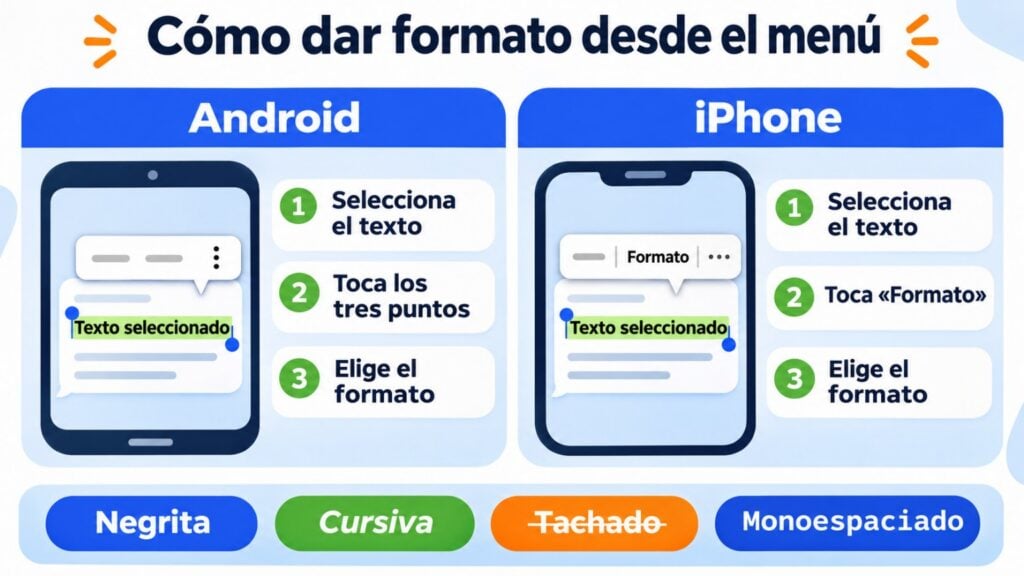
Type the message, press and hold a word and drag the handles to select the text. Tap the three dots in the menu that appears and choose bold, italics, strikethrough or monospace.
The exact options may vary depending on your version of the app and your phone.
Select the text and, in the pop-up menu, tap the arrow until you see “Format”. There you’ll find bold, italics, strikethrough and monospace.
On a computer, the quickest and most reliable way to format text in WhatsApp is to type the symbols directly: your computer keyboard has them all at hand, including the backtick.
A handy trick for lists and long messages: in WhatsApp Web you can start a new line without sending the message by pressing Shift + Enter.
If you type the symbols and the WhatsApp formatting doesn’t show up, it’s almost always for one of these reasons:
1. There’s a space between the symbol and the text. *hello* works; * hello* doesn’t.
2. The symbol is stuck to another letter or number on the outside. Leave a space or a punctuation mark before the first symbol and after the last one.
3. You’re using a different accent mark. Monospace and code need the backtick (`), not the apostrophe or the acute accent (´). On a phone keyboard it usually appears when you press and hold the apostrophe key.
4. The app isn’t up to date. Lists, quotes and inline code arrived in 2024. With an old version, the recipient will see the symbols.
5. You’re mixing formats in the wrong order. You can combine them, but each pair of symbols has to open and close in order: *_text_* shows up in bold and italics at the same time.
Here are five common small-business messages, with WhatsApp text formatting already applied. Copy them, change the details and stick to the rule of one or two bold items per message.
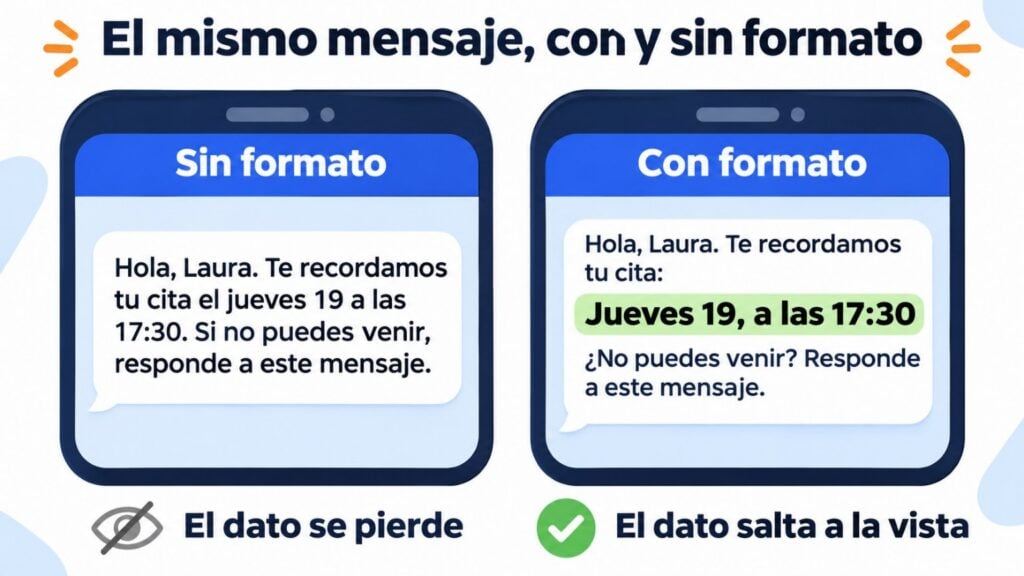
Hi Laura. Just a reminder of your appointment at Smile Dental Clinic:
*Thursday 19th, at 17:30*
Can’t make it? Reply to this message and we’ll find you another slot.
Why it works: the detail the customer needs jumps out, and the alternative action is replying, with no phone calls. You’ll find more ideas for this kind of notice in our payment reminder examples.
*This weekend only*: the Express coffee maker drops from ~€129~ to *€99*.
Use the code “`COFFEE10“` and shipping is on us.
Why it works: the strikethrough shows the discount without explaining it, and the monospace prevents errors when copying the code. In a campaign, add an image and a buy button.
Your order “`#48213“` is on its way.
It will arrive on *Friday 20th*.
> If you’re not home, the courier will call you before trying again.
Why it works: the order number stands out from the rest, and the quote makes it clear what happens if nobody’s home.
To activate your gift card:
1. Log in to your account on the website
2. Go to *My cards*
3. Enter the code on the back
Any questions? Reply to this message.
Why it works: the numbered list replaces a paragraph nobody would read in full.
_Notice for our customers_
This week our opening hours are changing:
– Monday to Friday: *9:00 to 14:00*
– Saturday: ~open~ *closed*
Thank you for your patience.
Why it works: the strikethrough shows the change with a single word, and the list organizes the days.
What works in a chat with a customer also works in a campaign, with a few differences. WhatsApp campaigns for businesses are sent with templates that Meta reviews and approves before they can be used.
The body of those templates supports bold, italics, strikethrough and monospace in WhatsApp, with the same symbols as a chat.
These guidelines help formatting add to your message rather than take away from it:
Highlight just one detail per message. The offer date, the price or the action. Leave the rest in plain text, as you would with an email subject line.
Let the button do the work. You can add buttons to a template, so there’s no need to put the link in bold in WhatsApp or repeat “click here”. The call to action goes on the button.
Measure it the same way as email. If you’re torn between two versions, test one with formatting and one without, just as you would run an A/B test on a subject line.
Combine formatting and emojis in moderation. One emoji at the start and bold on the key detail are enough. Any more than that is tiring and starts to look like spam.
Only message people who have given you permission. Even the best WhatsApp text formatting won’t save a message the customer wasn’t expecting.
Just like with email, ask for consent (with double opt-in, for example) and comply with the GDPR.
If you want to go beyond formatting, our guide on how to sell on WhatsApp has message ideas and tips on organizing your conversations. That’s also where conversational marketing comes in.
Not sure which channel to use for each notice? Our comparison email, SMS or WhatsApp? will help.
With Mailrelay you can send WhatsApp campaigns from the same dashboard you use for your newsletters. And your SMS campaigns too:
Your WhatsApp Business app keeps working on your phone, so you can keep handling your day-to-day chats as usual.
Need to automate notifications from your online store? With the Mailrelay API you can also send transactional messages via WhatsApp. If you’re new to this option, start with what the WhatsApp Business API is.
WhatsApp campaigns are included in the Standard and Enterprise plans. On the free account you can try them for 10 days and then add them as an add-on.
Meta’s per-message fees are paid separately. You’ll find the details of each plan on the pricing page.
Try WhatsApp campaigns free for 10 days
Create your free account and combine email, SMS and WhatsApp in a single tool.
WhatsApp text formatting helps the customer find what matters in two seconds. With bold, strikethrough and lists, you’ve got almost every business message covered.
If you had to keep just three ideas:
And when you move from one-to-one chats to sending to your list, apply the same principles as in your email copywriting: short sentences, a single action and a tone that sounds like you.
Before your first send, segment your list. A clear message sent to someone who isn’t interested is still one message too many.
For notices to a few contacts, a broadcast list may be enough; for campaigns to your whole database, a dedicated tool is a better choice.
These are the questions that come up most often when someone starts formatting their messages.
Only to monospace, with three backticks on each side of the text. It’s the only alternative font WhatsApp includes.
The “fancy fonts” from external apps are Unicode symbols and may show up as squares on some phones.
It’s almost always because there’s a space between the asterisk and the word, or because the asterisk is stuck to another letter on the outside.
For bold in WhatsApp, type *text* with no spaces inside and with a space before and after.
Yes. The WhatsApp Business app uses the same symbols and menus as the regular one. In campaign templates, the body supports bold, italics, strikethrough and monospace.
Yes, as long as each pair of symbols opens and closes in order.
For example, *_offer_* shows up in bold and italics, and ~*text*~ in bold strikethrough. Two formats at once is plenty: any more and it’s hard to read.

Jose Argudo
CMO at Mailrelay. Writes about email marketing, copywriting and conversion for small businesses and entrepreneurs.